How to Write Better Emails Faster: A Simple Guide with Examples


Writing emails can feel surprisingly stressful, especially when they’re important. You need to sound clear, get the tone right, use the right format, avoid mistakes in names or subject lines, and still make the message feel natural.
When we were building Letterly, we wanted to make this easier. Not just by helping you write better emails, but by removing most of the “email writing” from your daily routine. Now I can simply say what I want to communicate, and Letterly turns it into a clear email for me.
In this guide, I’ll show you how to use Letterly to write better emails faster, with less typing, less overthinking, and only 4 simple steps.
Keep reading to the end, because I’ll also share two extra tips that can make email writing even faster. 🤫
Step-by-step: write an email with Letterly

Step 1. Open Letterly and say what you want to write
Start by opening Letterly and speaking your email out loud.
You don’t need to sound polished. You don’t need to speak in perfect sentences. You can pause, correct yourself, repeat things, or say the idea in a messy way. Letterly will take your spoken draft and help turn it into a clean written email.
Step 2. Tap Rewrite
Once you finish recording, tap the large Rewrite button in the center of the bottom bar.
This is where Letterly turns your rough spoken text into a better version. It can clean up the structure, fix awkward phrasing, remove unnecessary words, and make the email easier to read.
Step 3. Choose the Emails category
In Rewrite, open the Emails category. You’ll see two options: Casual Email and Formal Email. Compare both versions and choose the one that fits your situation best.
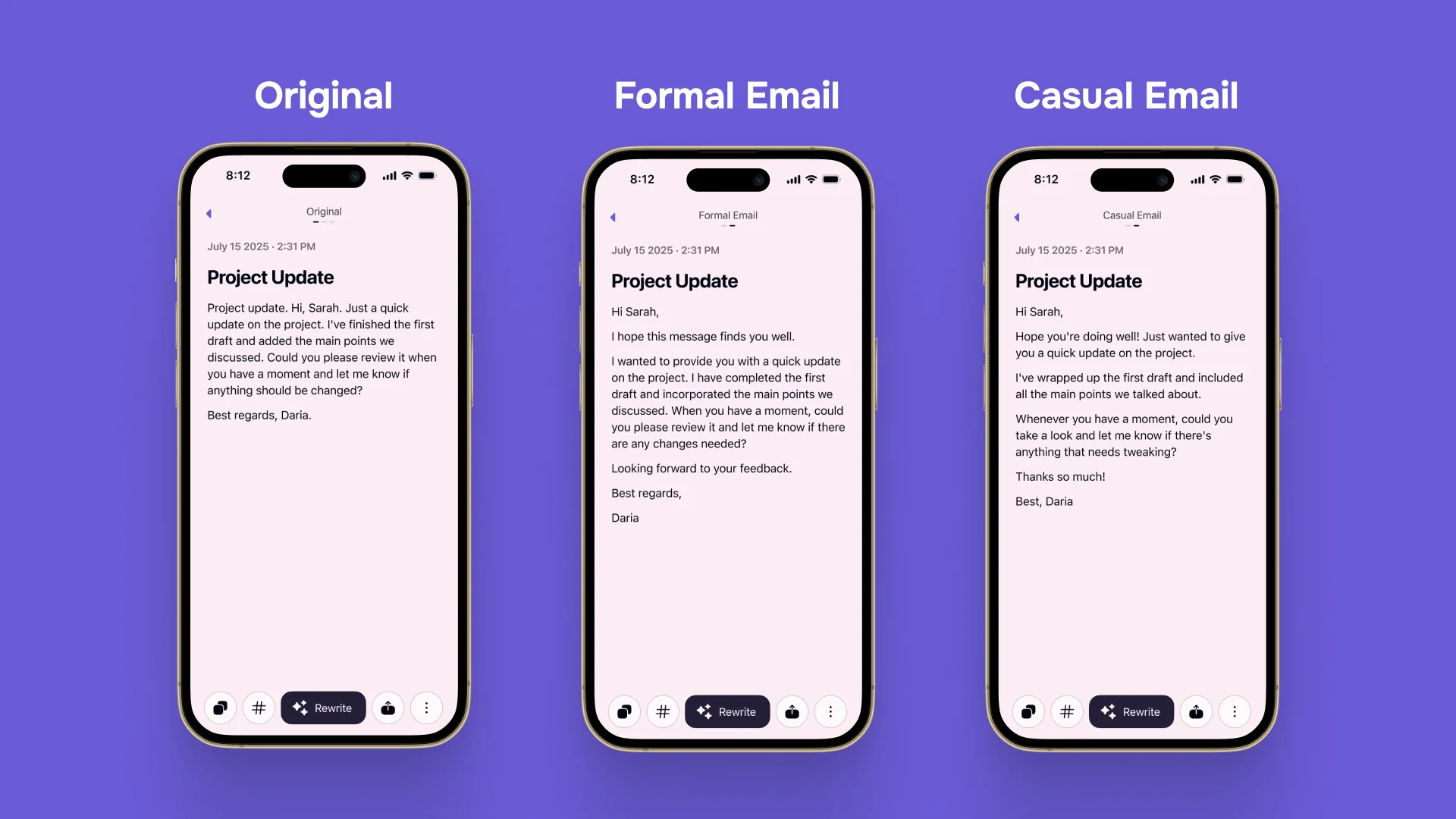
The Casual Email version keeps the message friendly and natural. It adds a subject line, breaks the text into clear paragraphs, and makes the wording feel more relaxed.
The Formal Email version makes the same message more professional. It uses a clearer business tone, a more polished subject line, and slightly more formal phrases.
Choose the option that fits your situation, and Letterly will rewrite your spoken draft into a ready-to-send email.
Step 4. Copy and send your email
After Letterly creates your email, quickly check the important details: the name, subject line, dates, links, and anything specific to the situation.
Then you can copy the final version using the button on the far left of the bottom bar and paste it into Gmail, Outlook, LinkedIn, your support tool, or any other app.
P.S. Extra ways to make email writing even faster 🤫
Use Letterly Dictation on Mac
If you use Letterly on Mac, you can dictate directly inside the app where you’re writing.
For example, you can open Gmail, Outlook, Slack, Notion, or another tool, start Letterly dictation, and speak your message there. Letterly will turn your voice into clean text without making you switch between apps.
Use Text Replacements for repeated email parts
Text Replacements are useful for anything you type again and again, such as usual email intros, signatures, and scheduling links.
For example, if you often use the same email signature or start emails in the same way, you can save that text once and reuse it whenever you need.
I hope this guide makes email writing feel a little easier, faster, and less draining.
Got questions? Email us at hi@letterly.app – we’re happy to help.