Text Replacements in Letterly: Save Time While Dictating

Letterly is a voice-to-text app that turns your spoken thoughts into clear, usable text for notes, reminders, messages, ideas, journal entries, and more.
But some text is not worth repeating every time: your email intro, business hours, signature, phone number, or the same scheduling link you send every day.
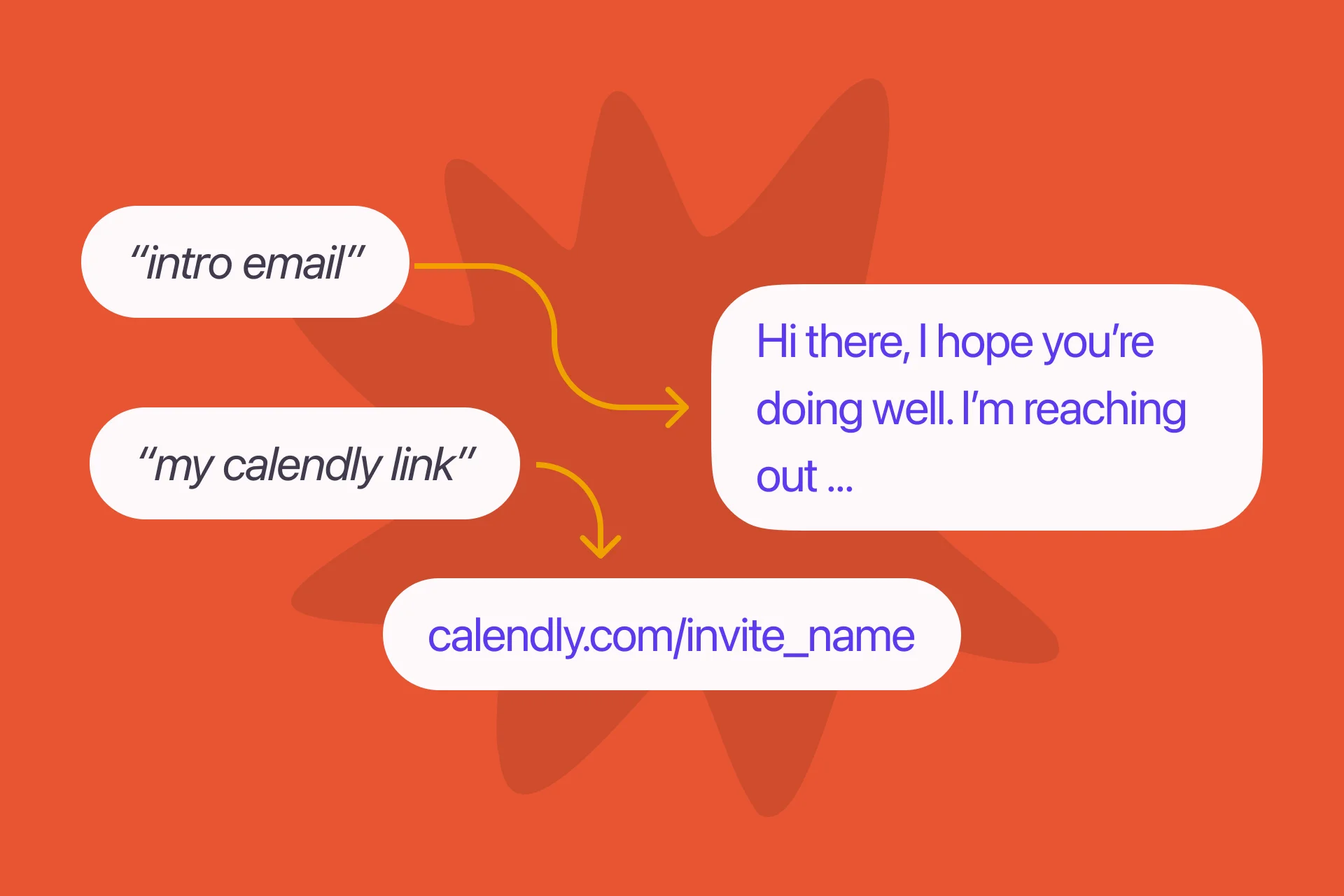
That’s why we created Text Replacements to make your life easier. Save the phrases you use often, give each one a simple shortcut, and say that shortcut while dictating. Letterly will instantly expand it into the full text.
How to create and use Text Replacements in Letterly
1. Use ready-made text replacements
Letterly already includes a few prepared text replacements: email address, signature, and Calendly link.
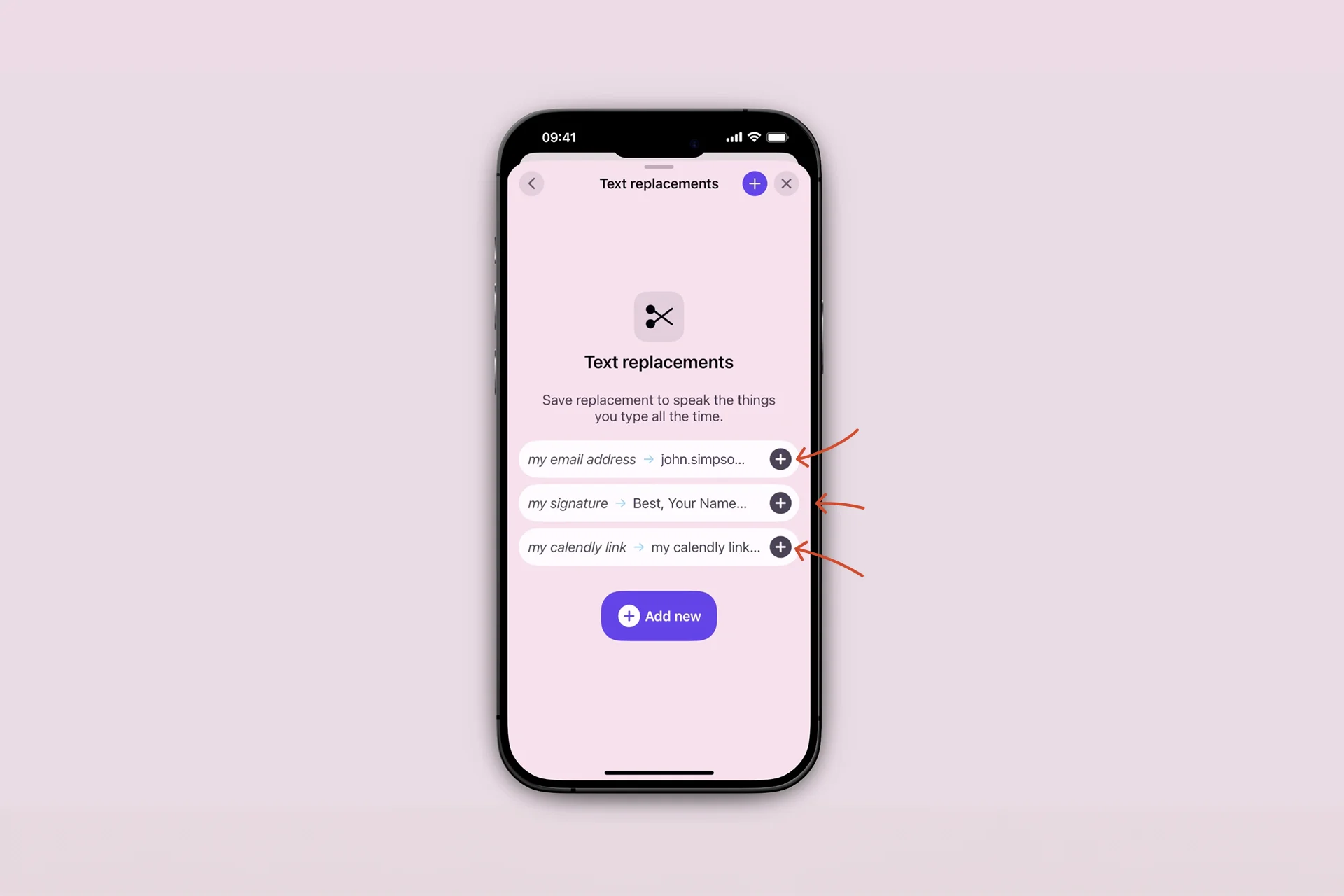
To use one of them, tap + next to the replacement you want to add.
Then change any details you need. For example, in the signature template, replace “Your Name” with your real name, like “John”.
Create your own text replacement
You can also create any other text replacement you need. Watch the short video below or read the instruction:
- Open Text Replacements.
- Tap Add new.
- Enter the shortcut you want to say out loud.
- Add the full text Letterly should insert.
- Save the text replacement.
For example, you can create replacements for:
- “my phone number” → your full phone number
- “my address” → your home or office address
- “meeting link” → your Zoom, Google Meet, or Calendly link
- “quick reply” → a message you often send
Once saved, just say the shortcut while dictating, and Letterly will insert the full text for you.
Snippets are useful when you repeat the same text often and want to add it faster without typing it manually.
Got questions? Email us at hi@letterly.app.