How to Use Dictionary in Letterly

Letterly turns your spoken thoughts into clear, usable text for notes, reminders, messages, ideas, journal entries, and more.
But some words are harder to recognize than others: names, brands, technical terms, abbreviations, and words with unusual spellings. You may find yourself correcting the same word again and again.
That’s why we created Dictionary. Add a word once, and Letterly will know how you want it spelled in future notes.
1. Add words to your Dictionary
- Open Settings.
- Select Dictionary.
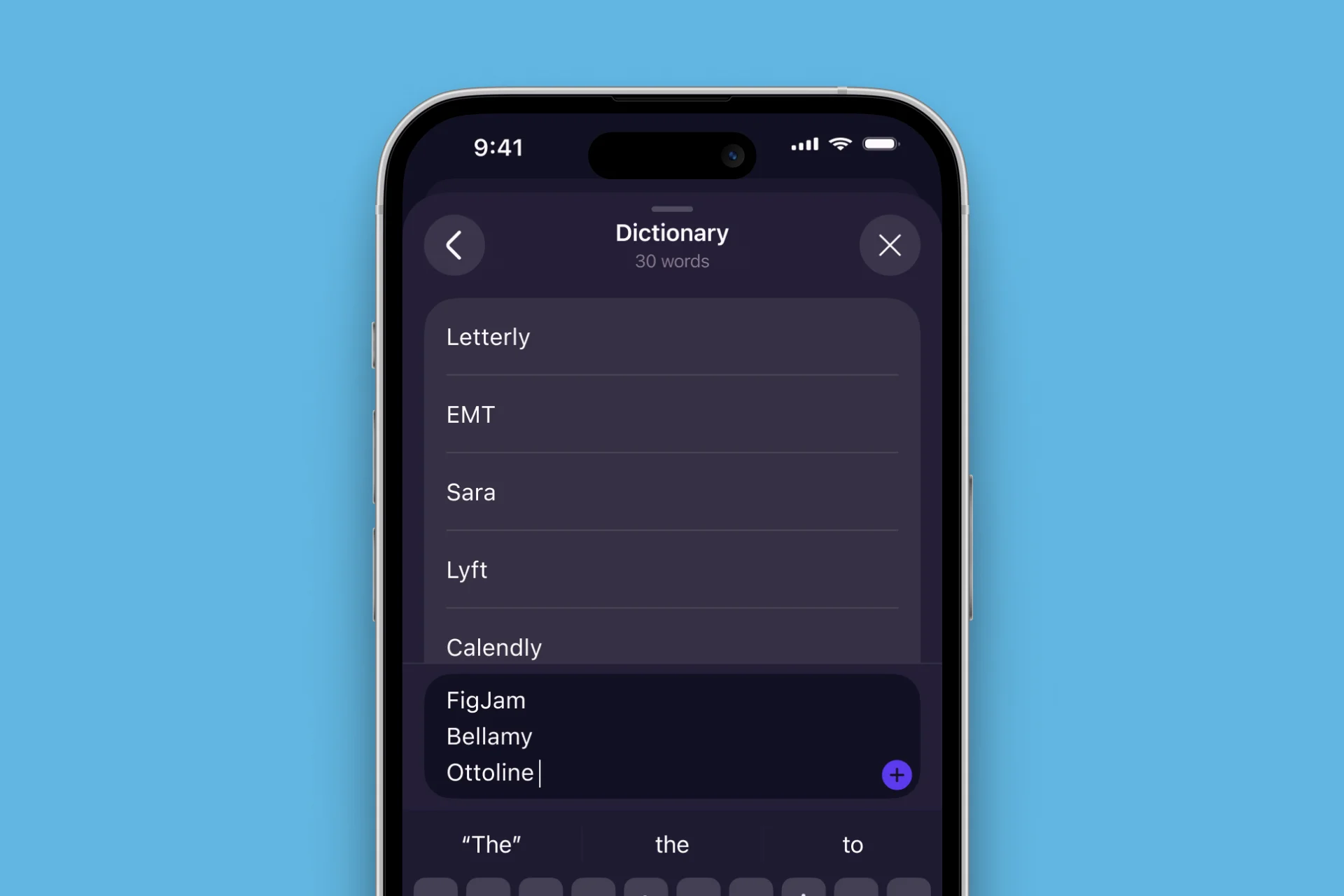
- Enter a word in the Add a word field.
- Tap + to add it.
The word will immediately appear in your Dictionary.
Letterly will add each line as a separate entry. Words that are already in your Dictionary will not be duplicated.
For example, you could add:
- a person’s name, such as Andranik
- a brand, such as Quickfile
- a product name, such as Letterly
- a technical term or abbreviation you use often
You can add words written in different languages and alphabets. Each word can contain up to 60 characters.
2. Add a word from a note
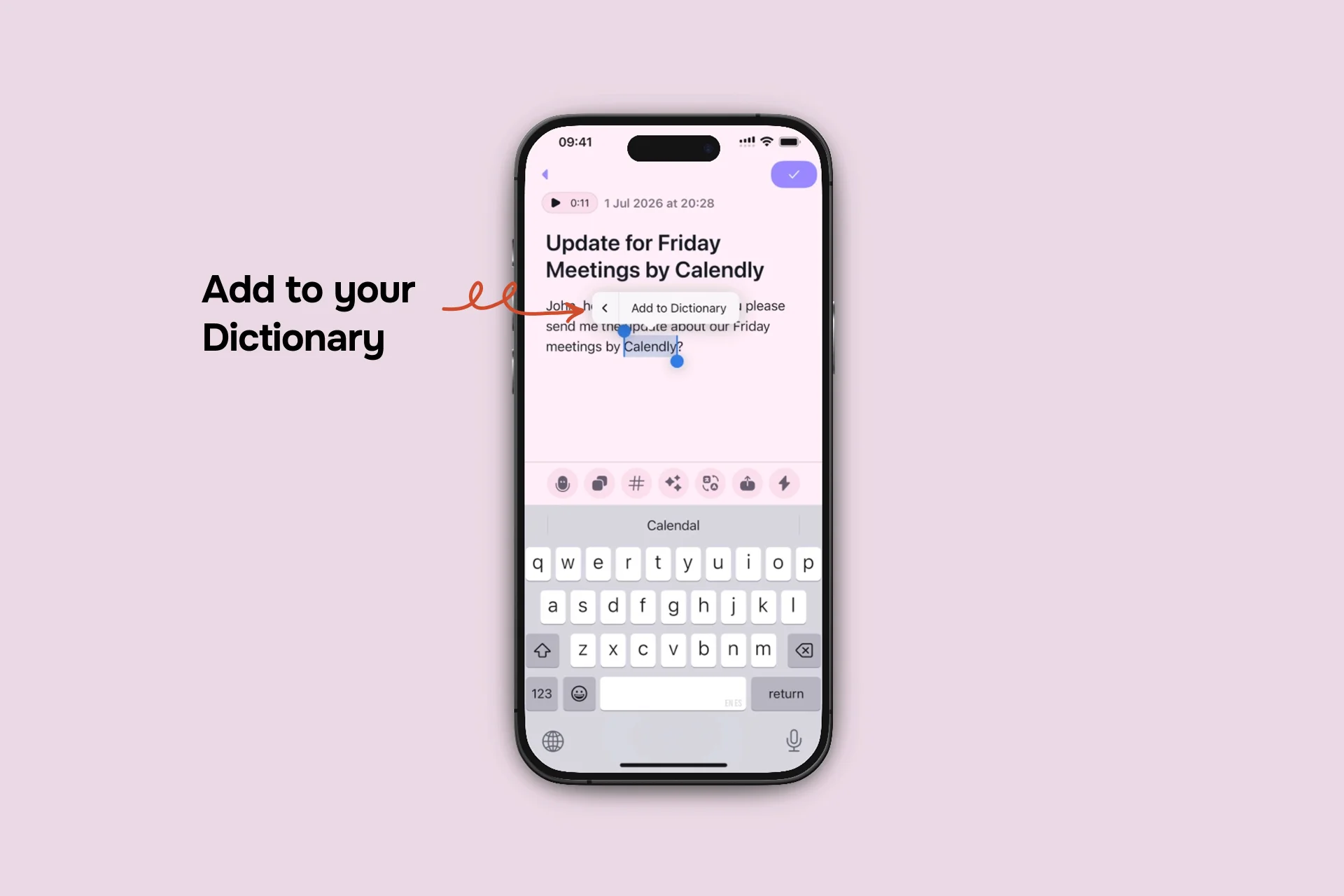
You can also add a word while reviewing a note:
- Select the word.
- Choose Add to Dictionary.
The word will be saved immediately, so Letterly can spell it correctly in future notes.
3. Find, edit, or delete words
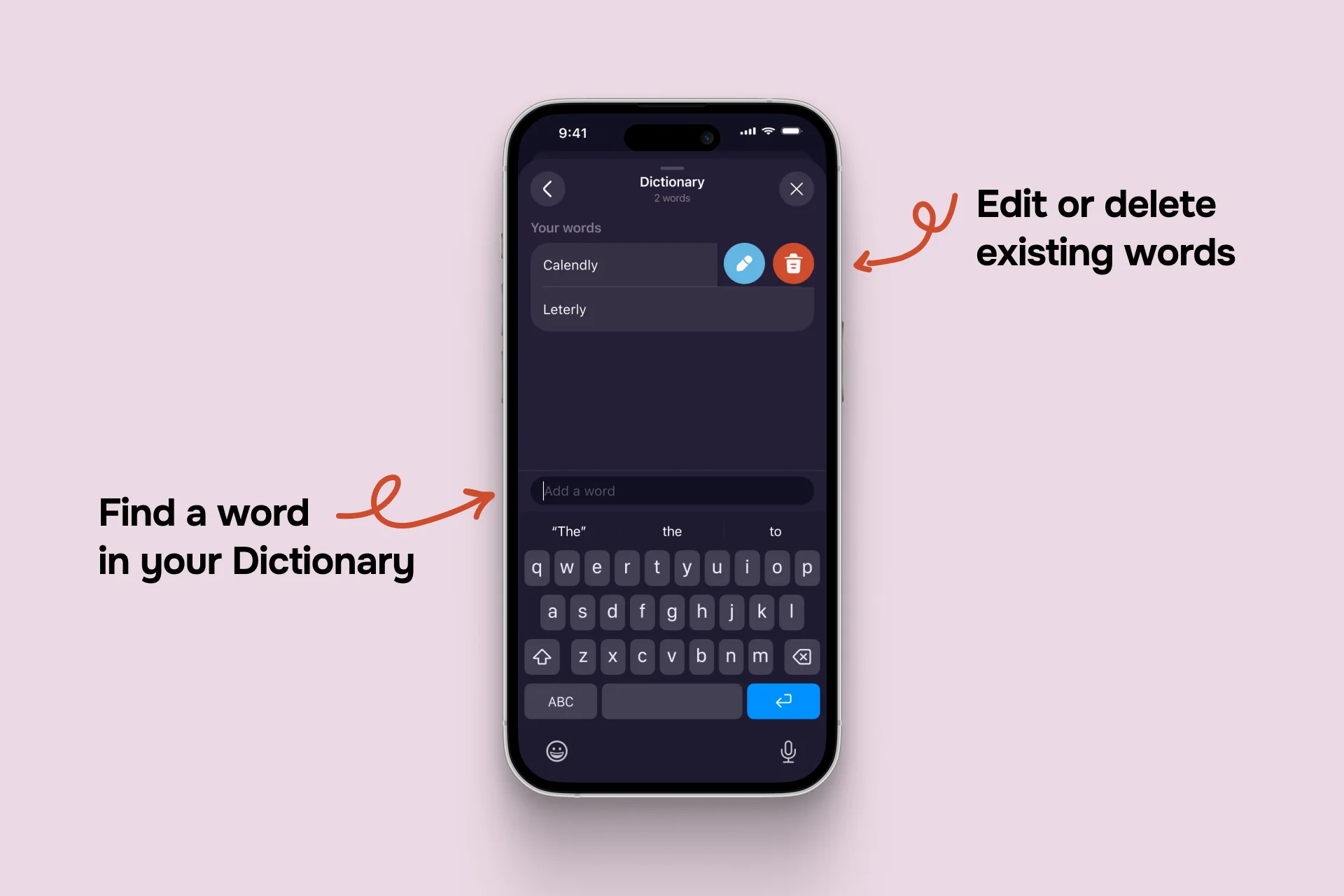
To find a word, start typing in the field at the bottom of the Dictionary screen. Letterly will filter the list and show entries containing the text you entered.
Clear the field to return to the full list. If there are no matching entries, you can add the typed word directly.
To edit or delete a word, swipe left on it and select Edit or Delete. You can also tap a word to open and edit it.
Dictionary is useful when you want Letterly to spell names, brands, technical terms, and other unusual words correctly every time.
Got questions? Email us at hi@letterly.app – we’re happy to help.