


How to Edit a Voice Memo on iPhone: Trim, Remove Parts, and Replace Sections
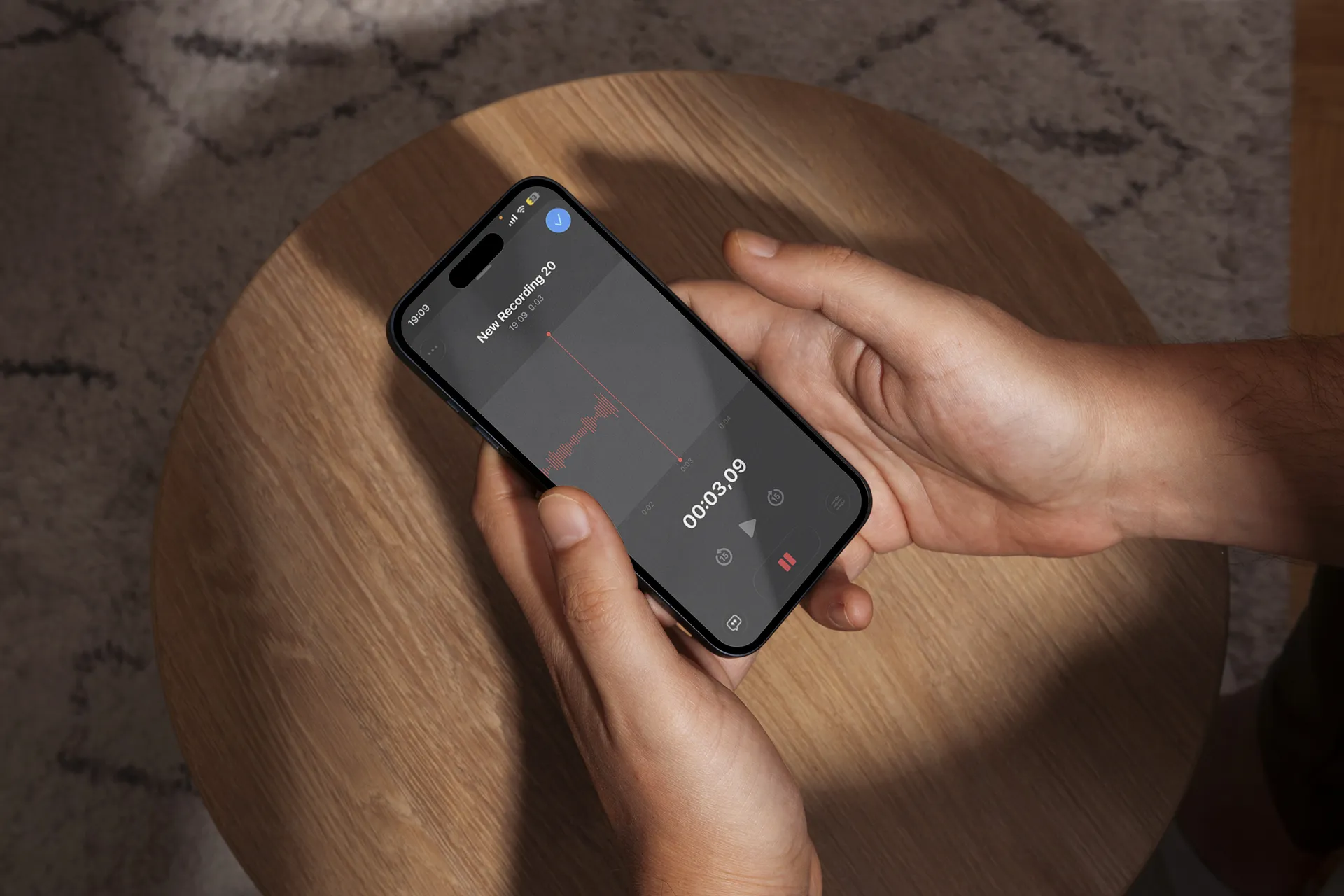
Can’t stand listening back to a voice memo full of long pauses, mistakes, or background noise, even though the recording itself is important? No worries – this quick guide will help you clean it up. Let’s explore together how to edit a voice memo on your iPhone: trim the start and end, delete unwanted sections, and enhance the audio for clearer playback.
How to trim a voice memo on iPhone
Trim lets you select part of the recording and keep only that part.
- Open Voice Memos and tap your recording.
- Tap three dots, then tap Trim.
- Drag the yellow trim handles to select the part you want to keep.
- Tap Play to preview.
- Tap Apply, then Done.
- Choose Save Recording (overwrite) or Save as New Recording (keep original).
If you are unsure, choose Save as New Recording.
How to delete a section in the middle of a voice memo
This is the most common “real editing” task: remove one messy part without touching the rest.
- Open the memo.
- Tap three dots, then Trim.
- Move the yellow handles to highlight the part you want to remove.
- Tap Delete (this deletes the highlighted section).
- Tap Apply, then Done.
- Choose Save as New Recording if you want a backup.
How to replace part of a voice memo
If you said one sentence wrong, replacing can be faster than cutting.
- In Voice Memos, tap the recording.
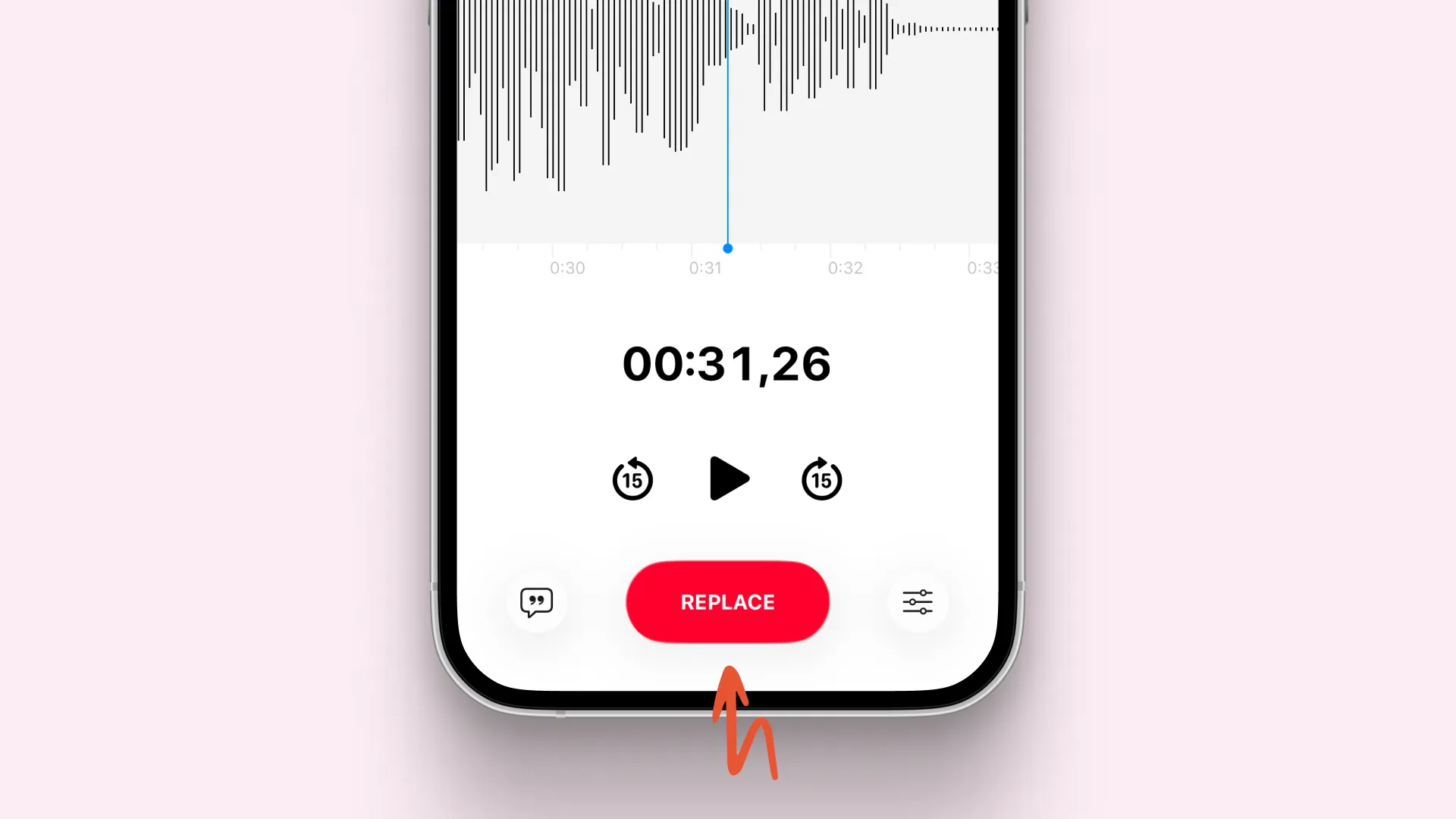
- Tap three dots, then tap Edit Recording.
- Drag the waveform to place the playhead where you want to start.
- Tap Replace and record new audio from that point.
- Tap Done, then choose Save Recording or Save as New Recording.
If it’s a critical recording, use Save as New Recording so you do not lose the original take.
💡 Tips to edit voice memos faster on iPhone
- Duplicate before you edit. This keeps the original safe in case you want to undo big changes later.
- Zoom in before you cut. Pinch the waveform to place the trim handles more precisely.
- Use playback tools for clarity. Turn on Enhance Recording and Skip Silence when you want cleaner playback without extra editing.
- Save the final version to Files. It’s an easy way to back up your edited memo and share it from anywhere.
- If you need the content, edit the text instead of the audio. With Letterly, you can turn a voice memo into clean text and quickly rewrite it into a note, summary, or message.
I hope this quick guide helps you clean up your voice memo fast, so it’s clear, polished, and ready to share. 😊
Got questions? Email us at hi@letterly.app – we’re happy to help.