


Your Guide to the Letterly Mobile App

Hey! We designed Letterly to be intuitive, so you probably don’t need a guide. But if you like to explore and don’t want to miss anything, here’s a quick tour of the core features. 😊
We’ve split this guide into two parts
Let’s go! 👇
4 steps to your first note
Step 1. Download Letterly
To get started with Letterly, choose the platform you prefer:
- iOS → Download from the App Store
- Android → Download from Google Play
- Mac → Download from the Mac App Store
- Web → Open in your browser
Step 2. Log in with your preferred method
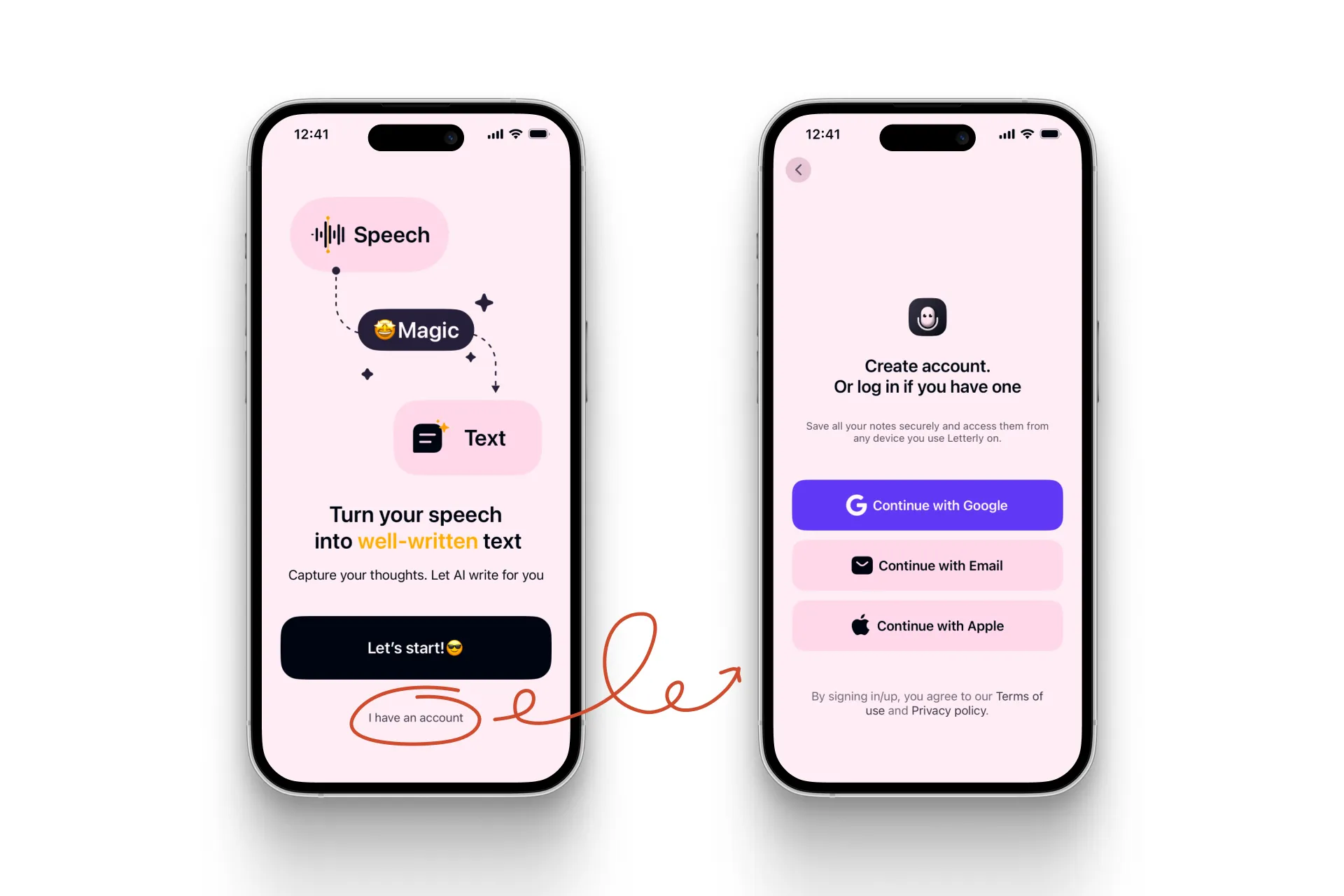
This part’s easy: once you open the app, tap I have an account and choose your preferred login method.
Just keep one important rule in mind:
There are three ways to log in:
- Google – just tap Continue a couple of times and you’re in.
- Apple – when you see the option to Share or Hide your email, select Share.
- Email – Tap Send link, then tap Sign in to Letterly in the email we’ll send to your inbox.
Step 3. Record your first note
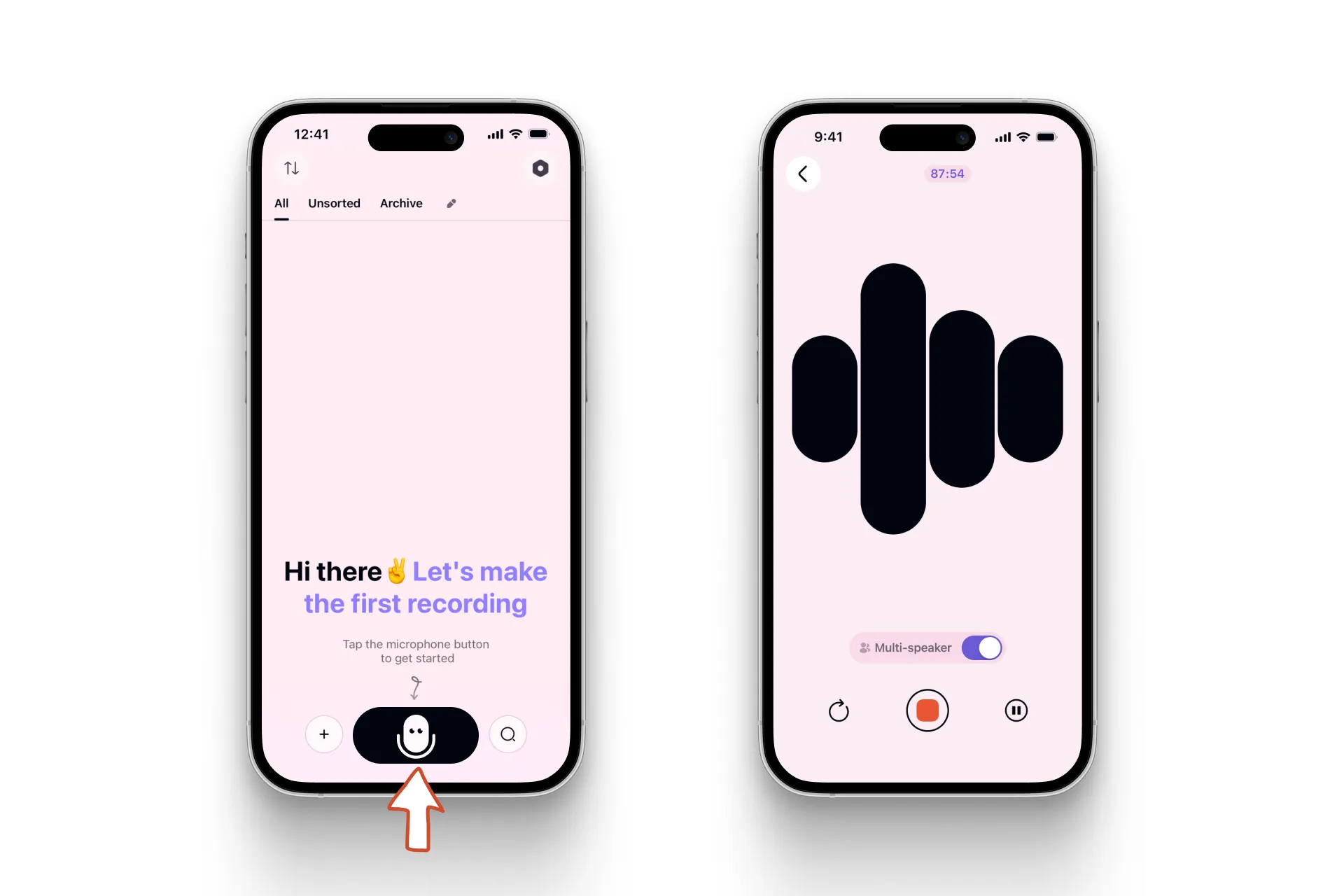
Now you’re ready to start. To begin recording, just tap the microphone button in the middle of the screen and start talking.
Let your thoughts flow – say whatever’s on your mind. Don’t worry about pauses or “ums”. The app will handle it all.
When you’re done, tap Stop.
Step 4. Improve your text
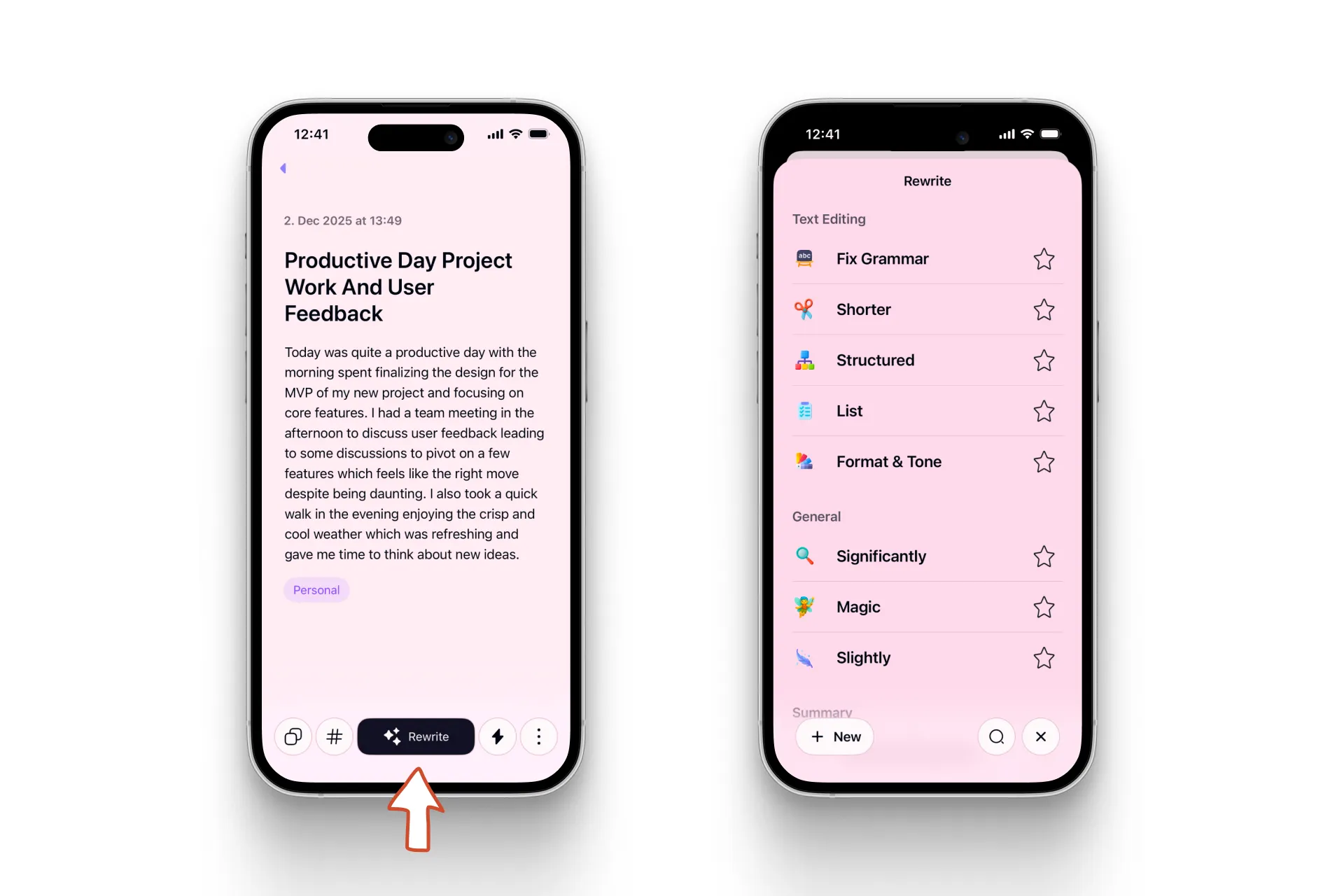
Once you tap Stop, Letterly will transcribe your voice and take you to the note screen, where you can review, edit, and rewrite your note.
Tap the big Rewrite button. You’ll see a list of rewrite options – for example, Significantly will completely rewrite your note, while Facebook Post will turn it into a perfect social media post.
After you choose a rewrite option, wait a few seconds and you’ll see your words transformed into a polished new version.
We already offer plenty of rewrite options, but if you ever feel they’re not enough, you can discover Advanced features.
On the left, tap the + New button. You’ll see two choices:
Create from scratch
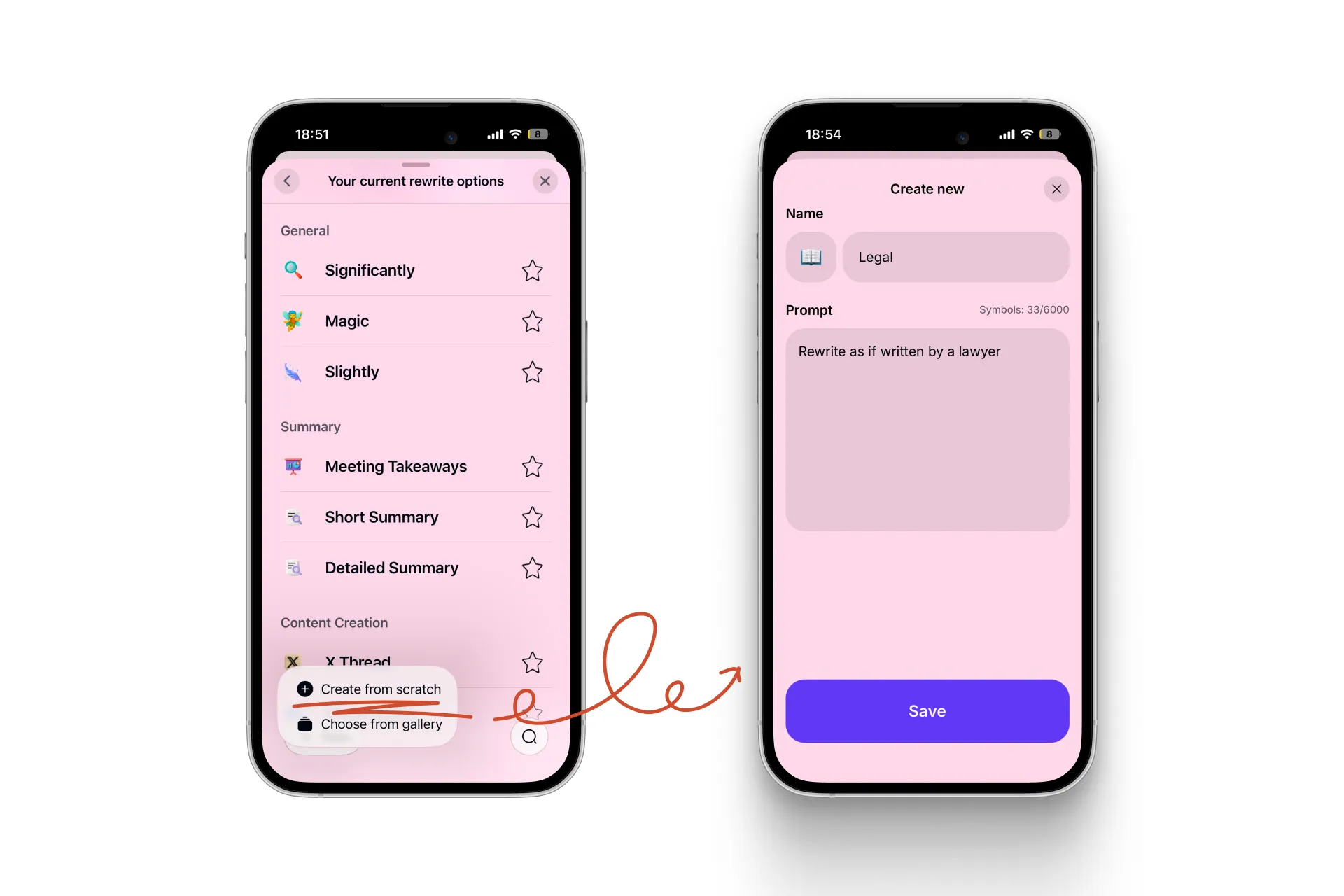
Here you can create a completely custom rewrite option tailored to your needs. For example, you can type: “Rewrite as if written by a lawyer” and name this option Legal. Your custom option will be saved and available for future use.
Choose from gallery
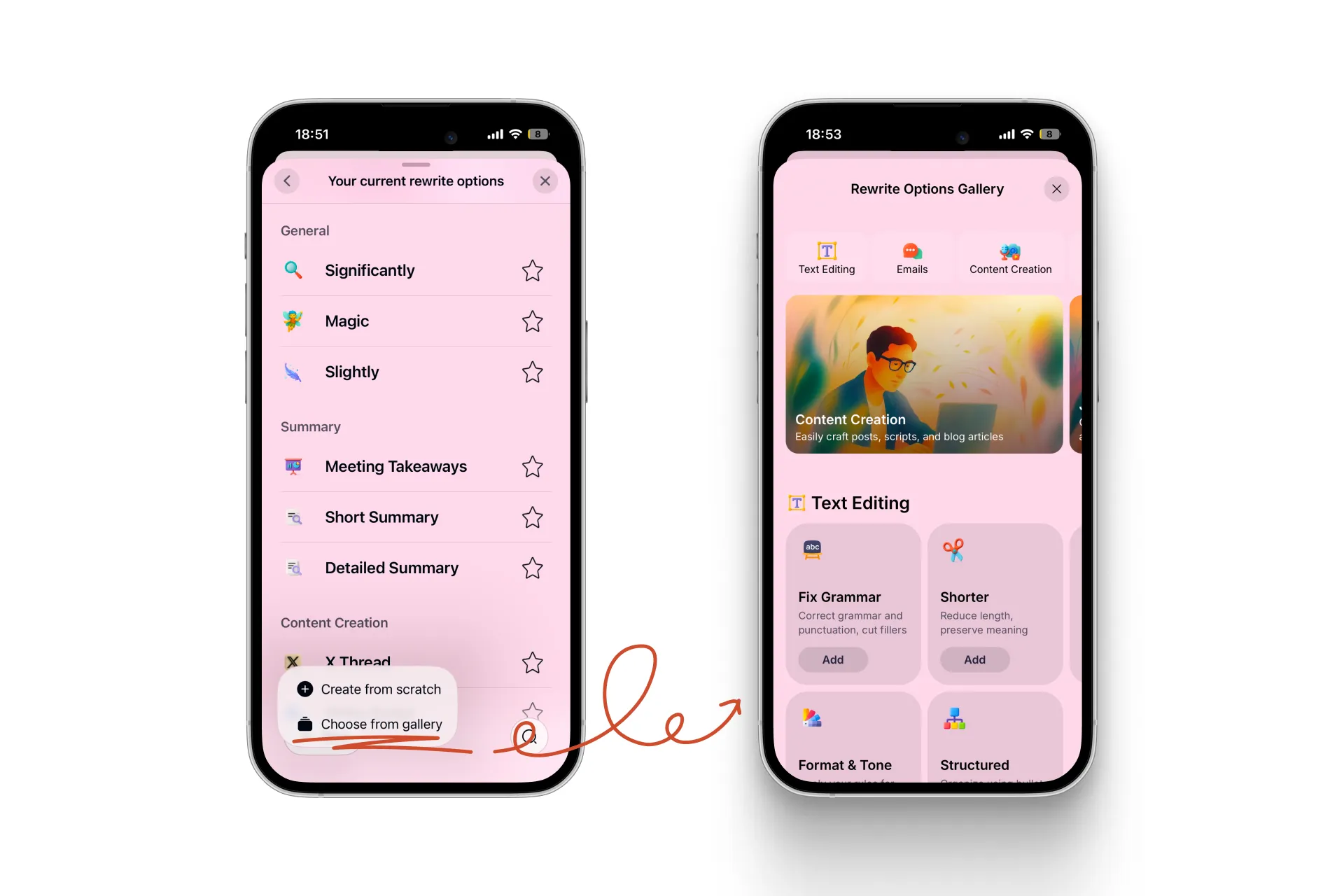
This opens the Rewrite Options Gallery, where you’ll find many additional rewrite options. Just tap Add on any rewrite option that looks useful, and it will be added to your list.
That’s it! 🎉
Now you know the essentials: how to record your thoughts and turn them into the exact text you need.
4 screens you need to know
Let’s go through a few screens, so you can see how the app works and what each part of the interface does.
Screen 1. Before recording
Once you’re signed in, you’ll land on the main screen with your notes.
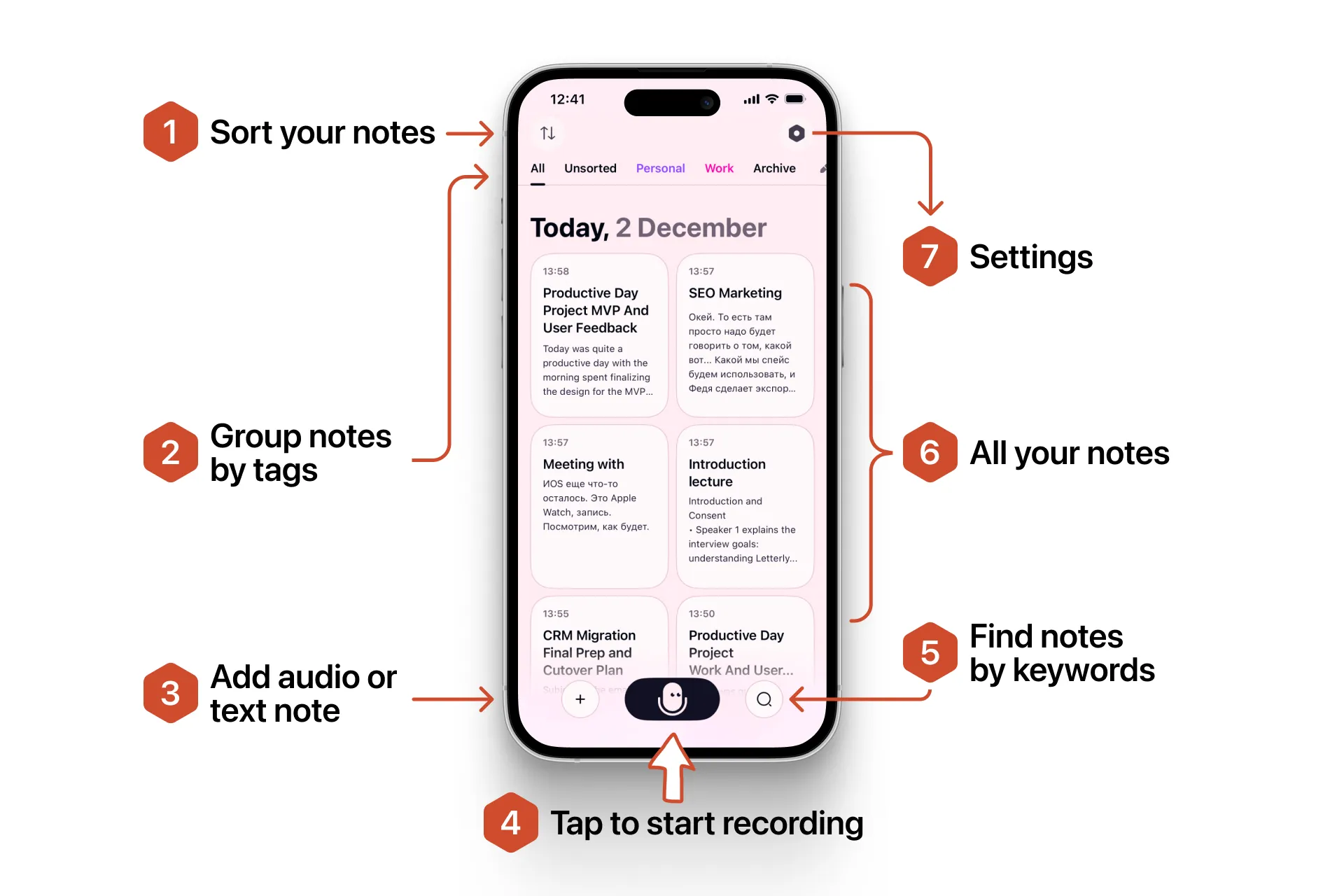
- Sort your notes: by last update or creation date.
- Group notes by tags: you can group notes by topic (e.g., Content, Clients, Personal).
- All your notes live here.
- Add audio or text note: write a text note without voice input, or upload an audio file for transcription.
- Settings: manage your account and preferences. More details below.
- Tap to start recording: tap the button to begin a new note.
- Find notes by keywords: just type a keyword to find the note you need.
Screen 2. While recording
On this screen, bars move as you speak, and the top timer shows how much time you have left (each recording is limited to 90 minutes).
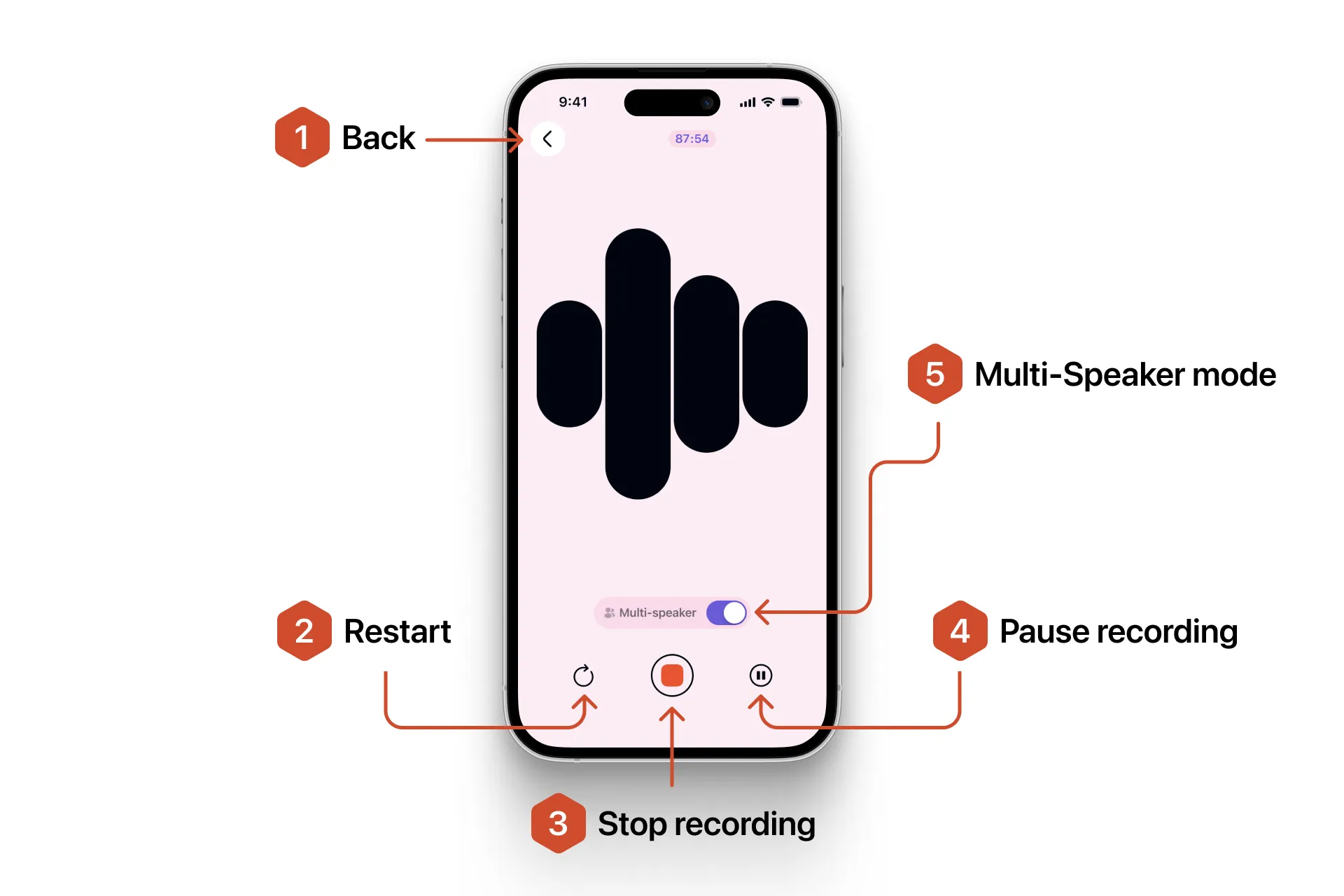
A few buttons you need to know:
-
Back: you’ll return to the previous screen.
-
Stop recording: end the recording.
-
Restart: start the recording over.
-
Pause recording: pause recording so you can think. Tap again to resume.
-
Multi-speaker mode: this is a really cool feature in Letterly that allows you to separate voices by speaker during interviews and meetings.
Screen 3. After recording
Once you tap Stop, Letterly will transcribe your voice and take you to the note screen, where you can review, edit, and rewrite your note.
Here’s what you’ll see:
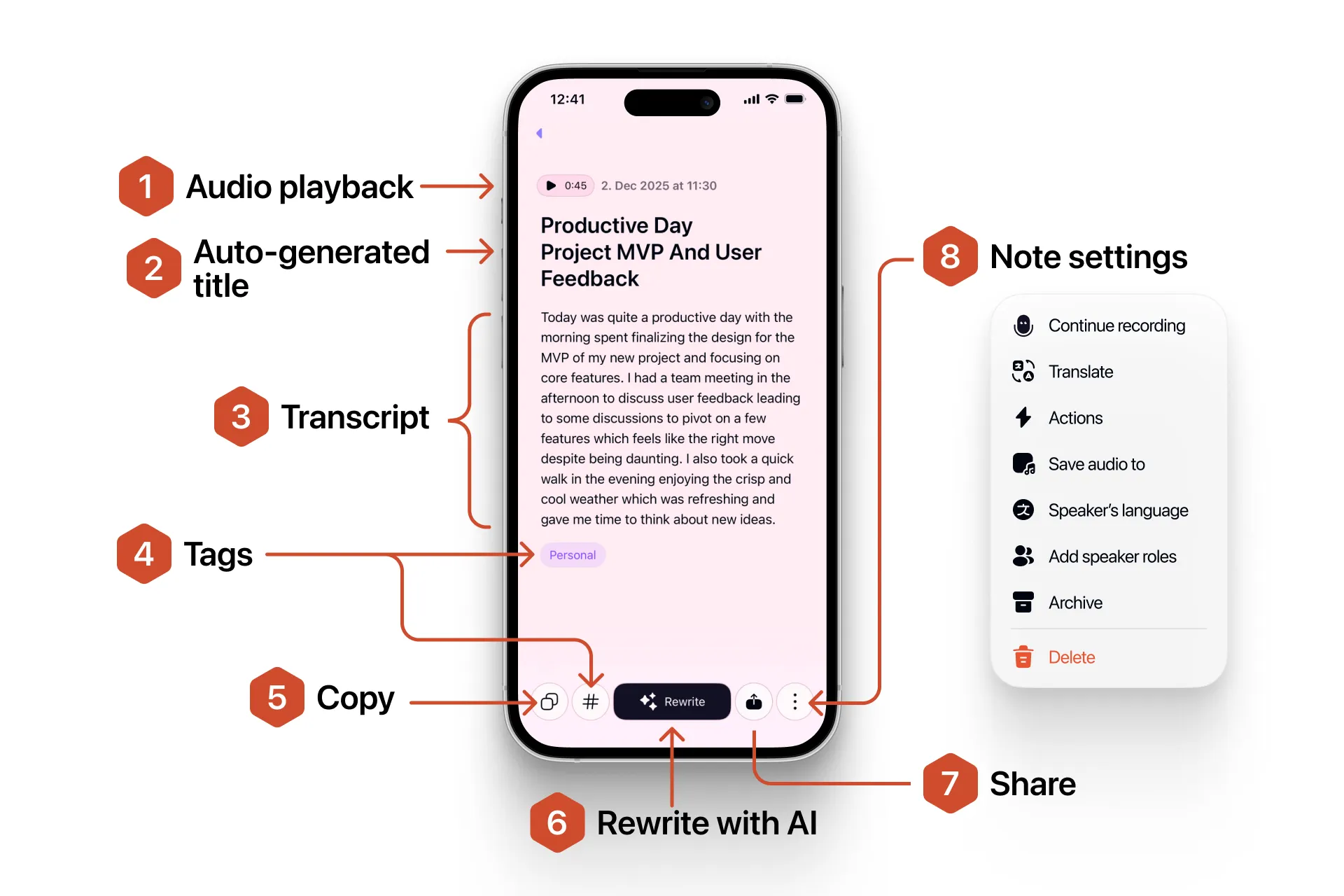
This screen is important – let’s make sure you don’t miss any key features.
-
Audio playback: you can listen to your original recording.
-
Auto-generated title: created from the content of your note.
-
Tags: you can keep a note untagged, add one tag, or add multiple. Create new tags or use existing ones.
-
Transcript: the full text from your recording.
-
Copy: use your note wherever you like – whether it’s a message, a social post, or a report.
-
Rewrite with AI: pick from many built-in rewrite options or create a custom one, then apply it.
-
Share: share your note wherever you need.
-
Note settings: if you tap the three horizontal dots, you’ll see the following:
- Record more: continue recording in this note.
- Translate: choose a language to translate your note inside the app.
- Actions: connect Letterly to apps like Google Docs and Notion (via Zapier/webhooks) so your notes appear there automatically.
- Save audio to: download your original voice recording to store it outside the app.
- Speaker’s language: if Letterly incorrectly detects the language, you can manually set the correct one.
- Add speaker roles: enable speaker identification (e.g., Speaker 1, Speaker 2) for multi-speaker audio.
- Archive: moves the note to the Archive folder.
- Delete this rewrite: permanently removes that specific rewritten version.
- Delete this note: permanently removes the note from your workspace.
Screen 4: Account Settings
If you tap the cogwheel icon in the upper right corner, you’ll see the following screen:
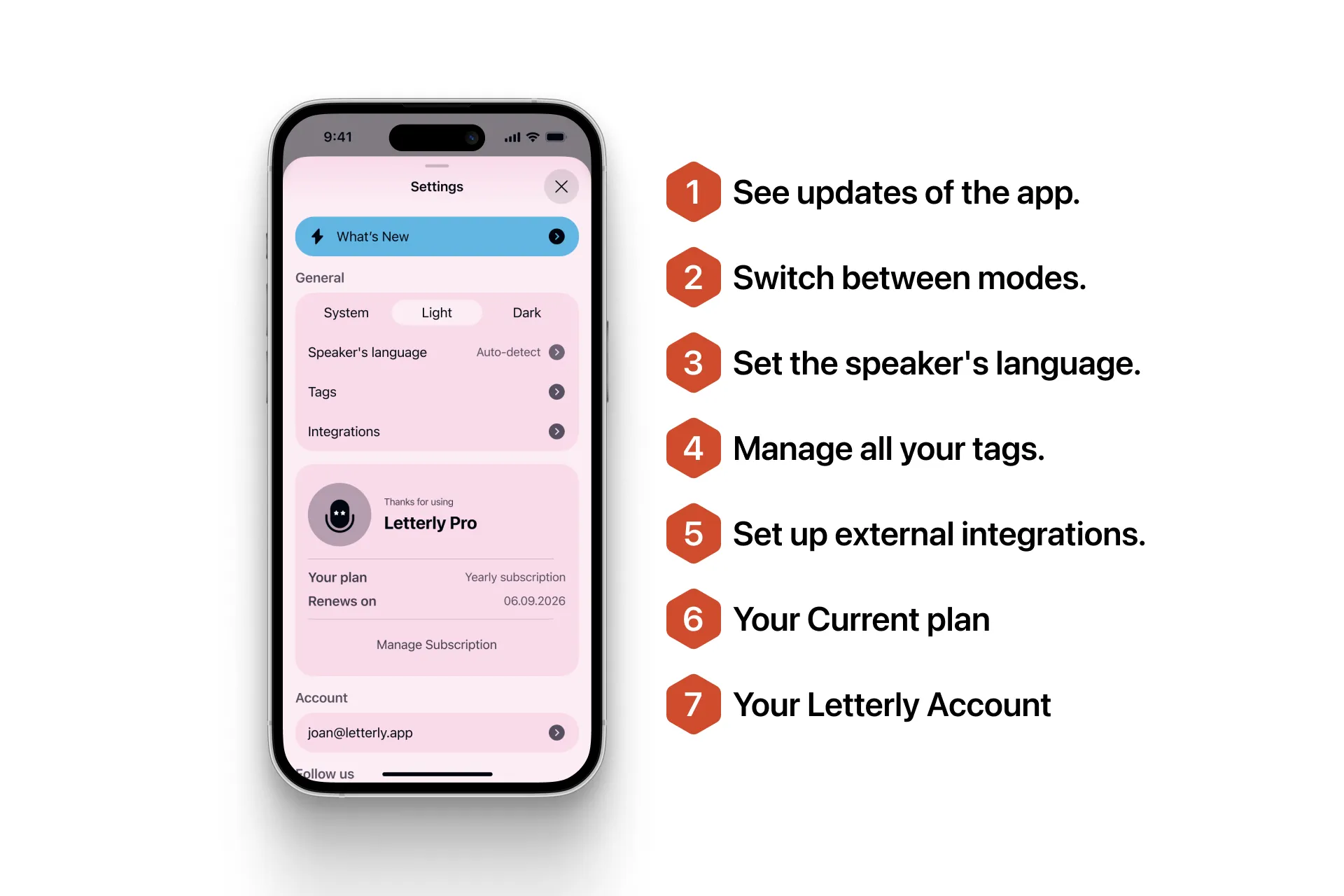
- See updates to the app: we’re working hard to bring you helpful new features.
- Switch between modes: choose Light, Dark, or System mode (matches your phone’s display settings).
- Set the speaker’s language: you can set the speaker’s language to improve transcription accuracy.
- Manage all your tags: rename, delete, or organize tags as you need.
- Set up external integrations: connect Zapier or webhooks.
- Your Current plan: see your plan, renewal date, and where your subscription is managed.
- Your Letterly Account: shows the email you’re currently logged in with.
You did it! 🎉
I hope Letterly makes your day-to-day routine a little easier and more inspiring!
❓FAQ
1. Login step
Where can I see which account I’m logged in with?
I’m trying to log in but didn’t receive the magic link. What should I do?
How can I change my account email and move my notes to a new one?
How do I log out? I don’t see a logout button – only “Delete Account”.
2. Note recording step
I started recording but the dots aren’t moving. What should I do?
My recording disappeared and I see a “server error” message. What should I do?
My note is frozen / stuck. What should I do?
The transcription is completely off – it’s not what I said!
I recorded in one language, but it recognized a different one.
I see “Thank you for watching!” in my note, what is this? I didn’t say this.
3. Note rewriting step
I don’t like how it spelled some names or terms. How can I change it?
Got more questions? Email us at hi@letterly.app – we’re happy to help.