


Ilfat
on
December 17, 2025
How to Write a Text Note in Letterly
6 min to read
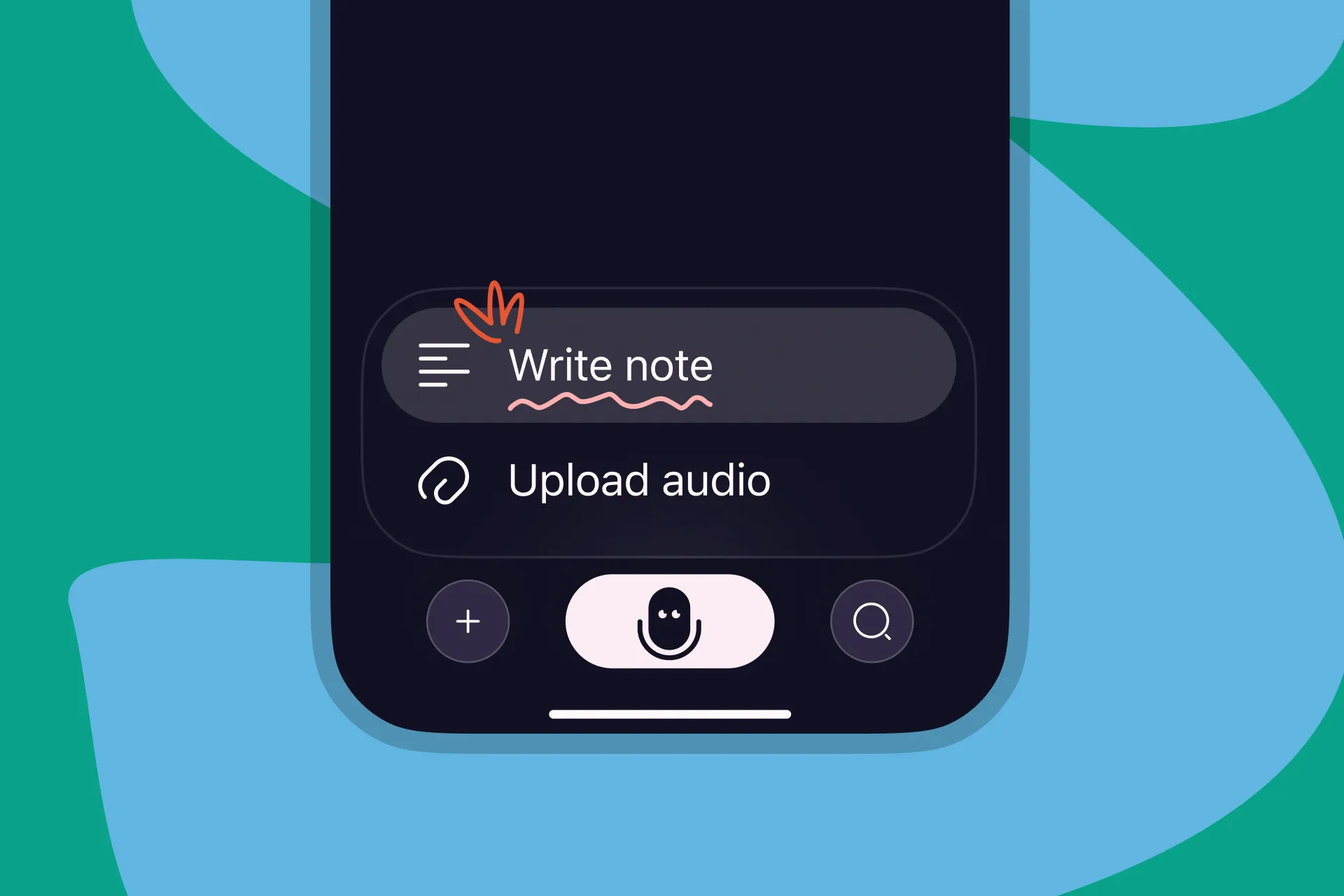
Upload any text to Letterly
Letterly is best known for easy voice recording, but it’s not just for voice input. You can also paste or type text into Letterly and rewrite it the same way, whenever recording isn’t an option.
How to write a text note in Letterly
The flow is simple:
- Open Letterly on your phone or desktop.
- Tap + on the left of the main screen and choose “Upload text”.
- Paste the text (or select a text file, if supported on your device).
- Letterly will save it as a note, ready to work with.
- Choose any rewrite option, like summary, email, post, study notes, and more.
What you can do with uploaded text
Uploaded text works like any other Letterly note:
- Turn messy notes into a clean summary
- Rewrite a rough draft into a polished email
- Convert bullet points into a structured document
- Turn a transcript into an article draft
- Transform scattered ideas into a plan or to-do list
- Convert long text into study notes, highlights, or a cheat sheet
All your usual rewrite options still work.
Why this matters
- You’re not limited to voice recordings
- You can bring old drafts, notes, and transcripts into one place
- You can use Letterly as a hub for turning raw text into finished writing, no matter where it came from
If you already have lots of text sitting in different apps, you can finally put it to work: upload it to Letterly, then rewrite it into something useful like a summary, a draft, a post, or a plan.
Got questions? Email us at hi@letterly.app.