


Wispr Flow Review: Features, Pricing, Privacy Concerns, and Alternatives

Typing is slow. Dictation is fast. The problem is that most dictation tools give you raw speech: filler words, weird punctuation, and a pile of cleanup.
Wispr Flow’s pitch is simple: talk naturally, and get text that already looks like you typed it carefully.
What is Wispr Flow?
Wispr Flow is an AI voice dictation tool (often described as an “AI voice keyboard”) that works inside your apps, not in a separate editor: you speak naturally and it inserts clean, polished text directly into email, chat, docs, and more, with context-aware formatting and voice commands for editing. It’s currently available on Mac and Windows, plus an iPhone app on iOS.
How Wispr Flow works (quick overview)
The basic workflow looks like this:
- Open any app where you can type.
- Trigger Flow (hotkey on desktop, keyboard on iPhone).
- Speak naturally.
- Flow inserts text and edits it as you speak.
The big difference vs standard voice typing is the live cleanup: removing filler words, formatting lists, and handling “actually, change that” style corrections.
Key features of Wispr Flow
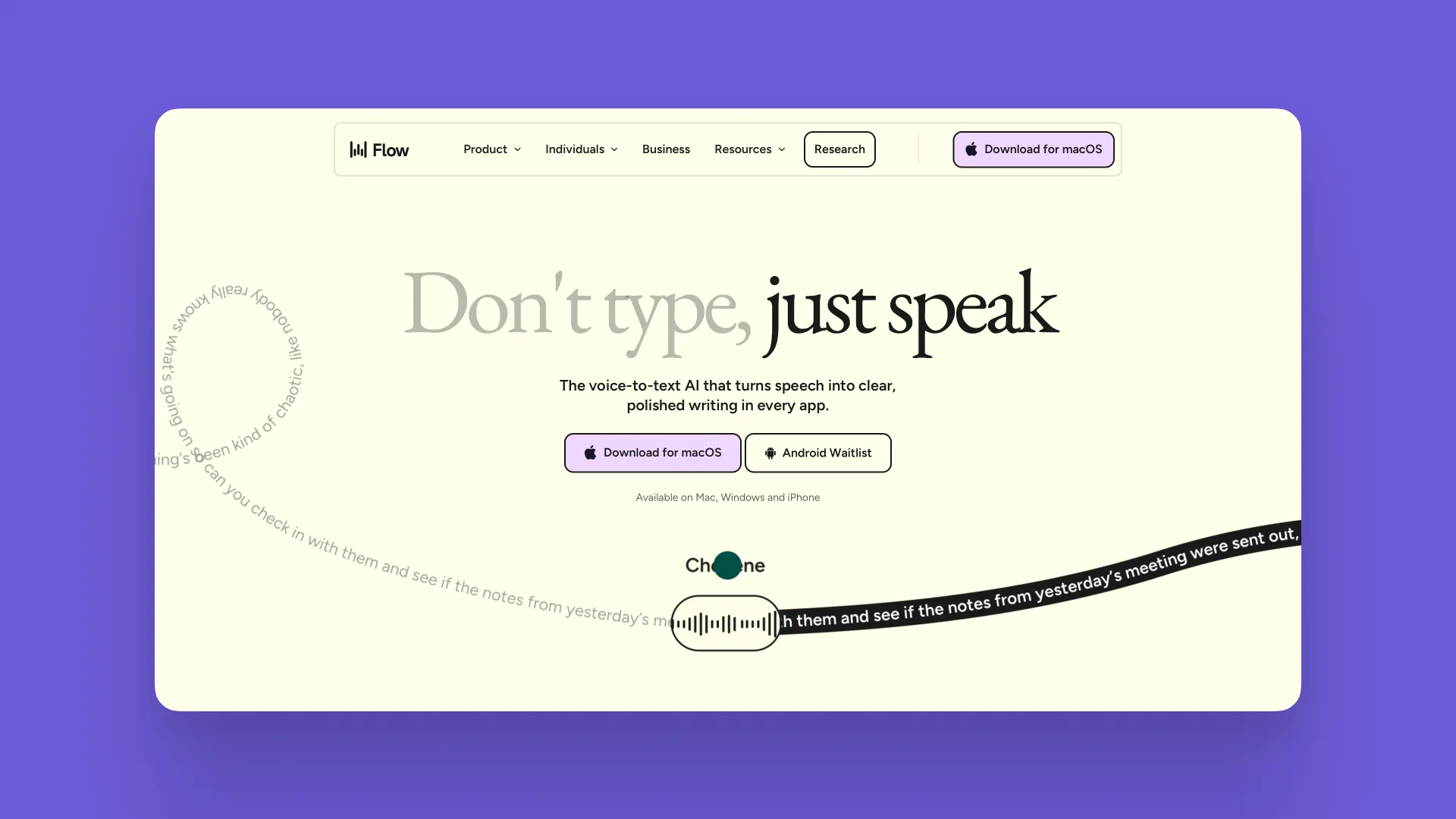
1) AI auto-edits while you speak
Flow positions itself as more than transcription. It edits in real time: it can remove filler words (“um”, “uh”), detect punctuation from pauses, format numbered lists, and understand backtracking corrections (like “2… actually 3”).
If you’ve tried built-in dictation and felt like you spend half the time fixing the output, this is the feature that tries to eliminate that step.
2) Personal dictionary (names and jargon stop breaking)
Flow’s dictionary learns from your corrections and can also be manually extended. The goal is consistency across devices and apps, especially for uncommon names, acronyms, and industry terms.
3) Snippets (voice shortcuts for reusable blocks)
Snippets are saved text blocks you can insert by speaking a trigger phrase. Think “my email signature”, “meeting link”, “standard disclaimer”, or “support reply template”.
This is especially useful if you repeat the same structures all day (support, sales, recruiting, scheduling, operations).
4) Styles (tone changes by context)
Flow also advertises “Styles” that adapt tone depending on where you’re writing (formal in docs, casual in messages, enthusiastic in email). The feature is English-only and desktop-only.
5) Whisper mode
If you avoid dictation because speaking out loud feels awkward, Flow explicitly mentions support for whispering.
6) Command Mode (voice editing, not just dictation)
Command Mode is Flow’s “edit with your voice” layer. You highlight text, then speak a command to rewrite or transform it. Wispr’s changelog describes how to activate it (hotkeys) and how it applies changes to selected text.
Zapier also describes Command Mode as voice-based editing (with the note that it can feel a bit glitchy at times).
Privacy and security issues
Alright, here’s where things get messy. Alongside all the impressive features, any honest Wispr Flow review has to mention the backlash it faced, especially in its early releases. A lot of users were alarmed by behavior that felt overly invasive, paired with unclear communication from the team.

A major frustration was how Flow appeared to embed itself into the system without clear consent.
- It kept re-adding itself on startup. Users reported that the app would repeatedly place itself into Login Items, so it launched automatically whether they wanted it or not. The team later described it as a bug, but for many it came across as quietly pushy.
- It consumed noticeable CPU and memory even when idle. People saw it taking a steady share of system resources (often 8%+ CPU), which felt excessive for something meant to run in the background.
- It was always sending network traffic. Monitoring tools showed frequent outbound connections even while the app wasn’t actively being used. Wispr later explained it was for performance analytics, but the lack of upfront disclosure triggered distrust.
Unclear privacy messaging and data handling
When a tool can access your voice and what you type, users expect explicit, detailed explanations. Wispr Flow’s early privacy policy left too much open to interpretation.
- “Context collection” was poorly defined. The app relies on accessibility permissions to understand where you’re typing, but users didn’t have strong visibility into exactly what was being captured and for what purpose.
- Training on user content was originally allowed. Early policy language suggested customer data could be used to improve models. That’s now opt-in and off by default, but the initial wording raised serious concerns.
- Voice processing happens in the cloud. Audio is processed on external servers (including providers like OpenAI and Meta). Even with retention limits, the fact that sensitive voice input leaves the device is a dealbreaker for some workflows.
How Wispr responded, and where things stand now
After a Reddit thread went viral and drew attention to these issues, Wispr’s CTO publicly addressed the situation. He acknowledged the problems, apologized for how the team handled the criticism (including banning the user who first flagged it), and committed to improving transparency.
Since then, Wispr has updated both settings and policy language to give users clearer controls and explanations. Some recent comments suggest the privacy experience is significantly better now. Still, the earlier controversy left many users cautious, and it’s a reminder: if an AI tool needs deep system access, trust has to be earned with clear, proactive transparency.
Quick overview of Wispr Flow
No time to read the full article? Here’s the quick overview.
| Platforms | Mac, Windows, iPhone. Android waitlist. |
|---|---|
| Pricing | Free: 2,000 words/week (Mac/Windows), 1,000 words/week (iPhone). Pro: $12/user/month (annual) or $15/month. |
| Core workflow | Dictates inside any app. Works like a voice keyboard. |
| Dictation quality | Mixed. Some say accuracy dropped. More corrections needed. |
| Trust | Backlash showed trust matters. Transparency is critical. |
Alternatives: when Letterly may be a better fit
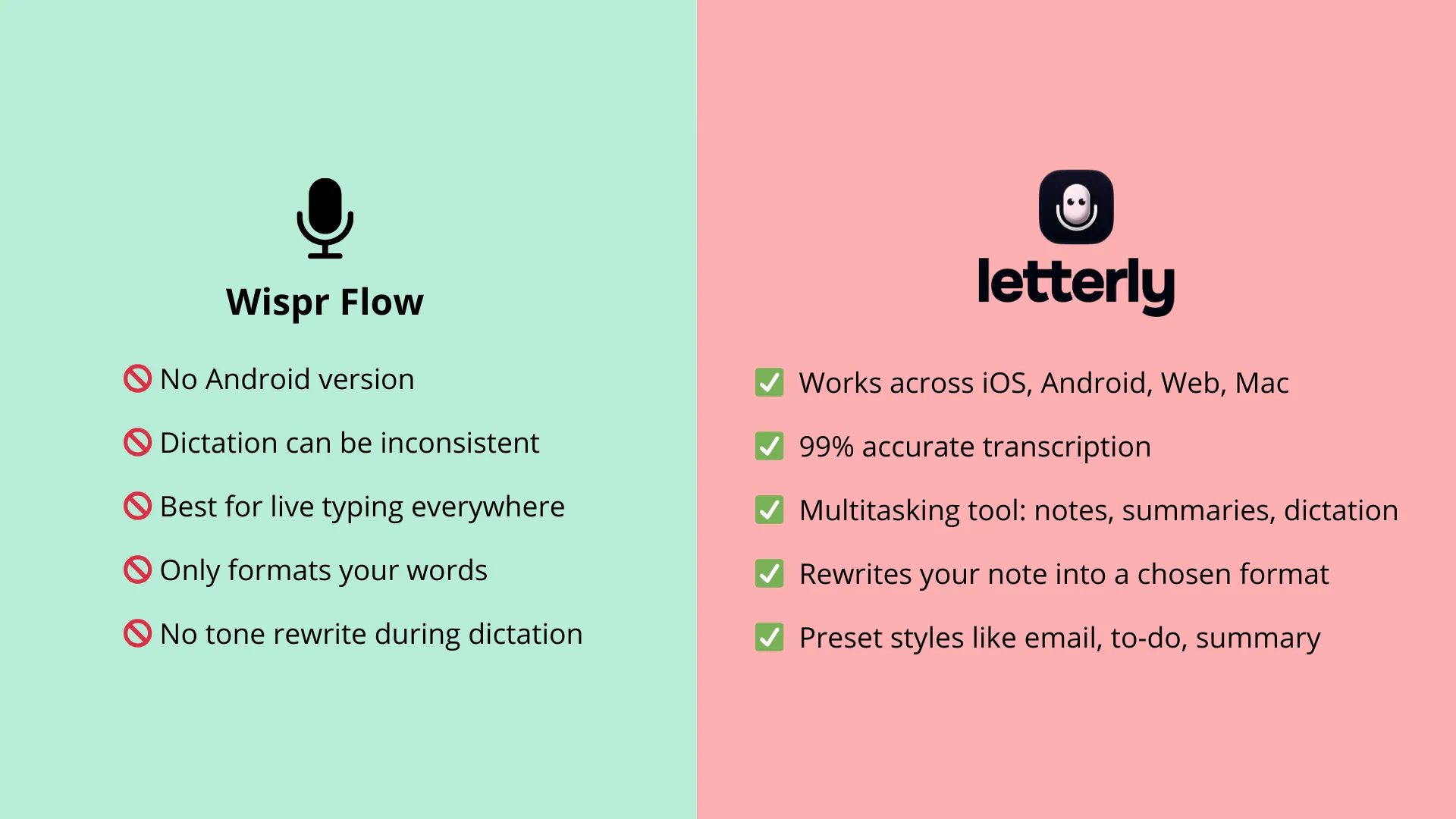
Wispr Flow is built around “voice keyboard everywhere” with polishing as you speak. Letterly is often a better match if your workflow is: capture voice, then turn it into a structured output (meeting notes, journal entries, messages, drafts) using specific rewrite formats and reusable templates.
If you want:
- structured notes and summaries from recordings
- multiple rewrite options depending on the situation, which you can choose yourself
- a note-first experience (not only typing fields)
…then it’s worth trying Letterly alongside Wispr Flow and seeing which workflow clicks faster.
If you’re looking for the best Wispr Flow alternative because you need more than voice typing, Letterly is the stronger choice: it’s designed for turning recordings into clean notes, summaries, and drafts.
Got questions? Email us at hi@letterly.app – we’re happy to help.