


Otter App Review: Features, Pros, Cons, and a Simpler Alternative

Otter AI has earned a strong reputation. For many professionals, students, coaches, and freelancers, that sounds incredibly useful. Instead of typing notes while trying to listen, you can let an app capture the conversation for you.
But once people start using transcription tools, they often discover something interesting. The technology works well, but the workflow can sometimes feel heavier than expected.
This review takes a clear look at the Otter app, what it does well, where it feels a bit awkward in real-life use, and when a simpler approach might make more sense.
What Is the Otter App?
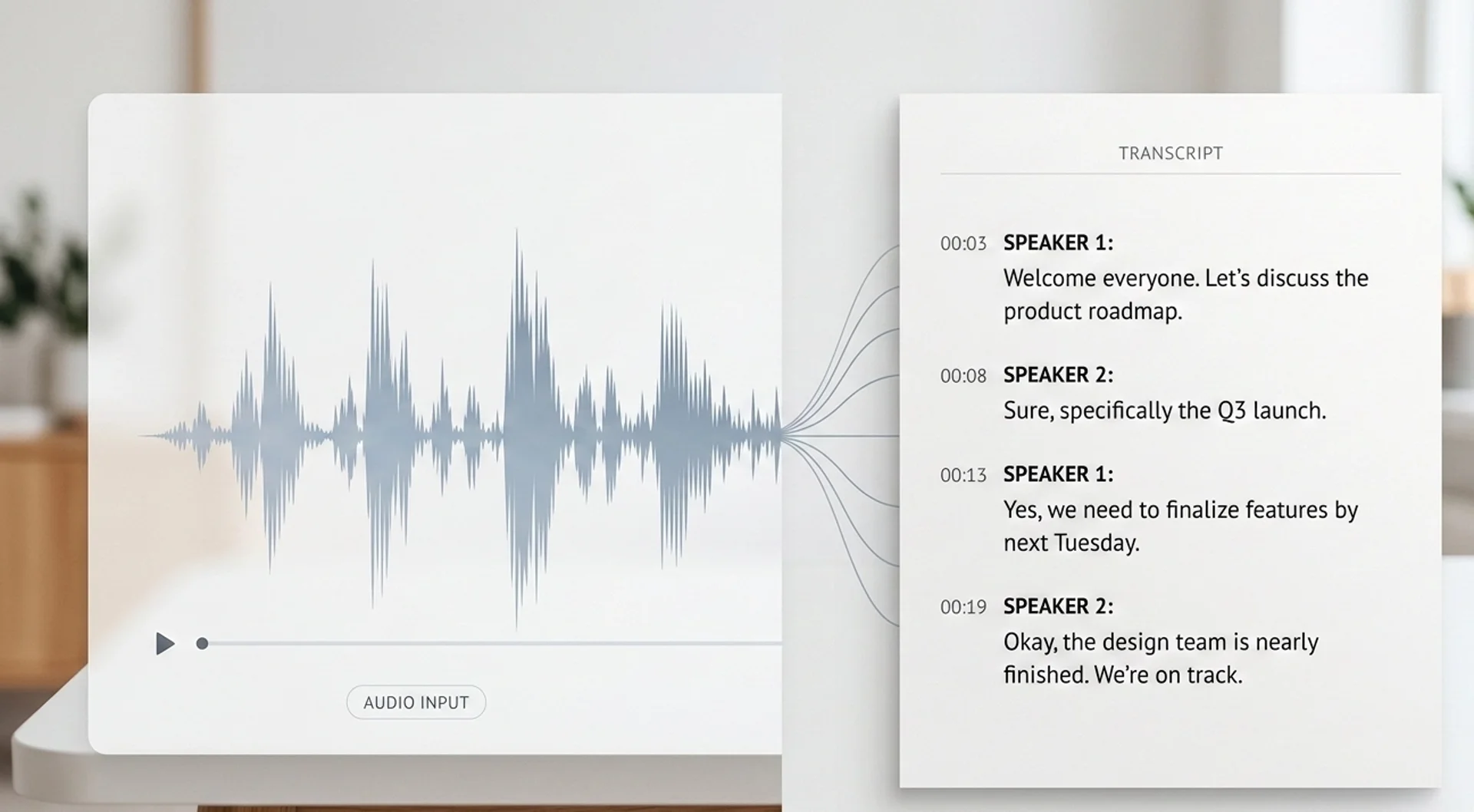
Otter is a meeting transcription and note-taking tool. Its main job is to record conversations and convert them into searchable text transcripts.
The app is widely used for:
- work meetings
- interviews
- lectures and classes
- podcasts
- brainstorming sessions
- collaborative notes
Otter works across mobile and desktop devices and integrates with platforms like Zoom or Google Meet. In many cases, it records meetings by joining them with a meeting bot that captures the audio.
After the meeting ends, Otter produces a transcript that users can review, edit, highlight, and share.
Otter’s main features
To understand whether Otter is a good fit, it helps to know what the app focuses on.
Automatic meeting transcription
Otter’s core feature is real-time transcription. When a meeting starts, the app records the audio and converts it into text as the conversation happens.
Afterward, the transcript remains searchable, which makes it easier to find key moments later.
Meeting bots for virtual calls
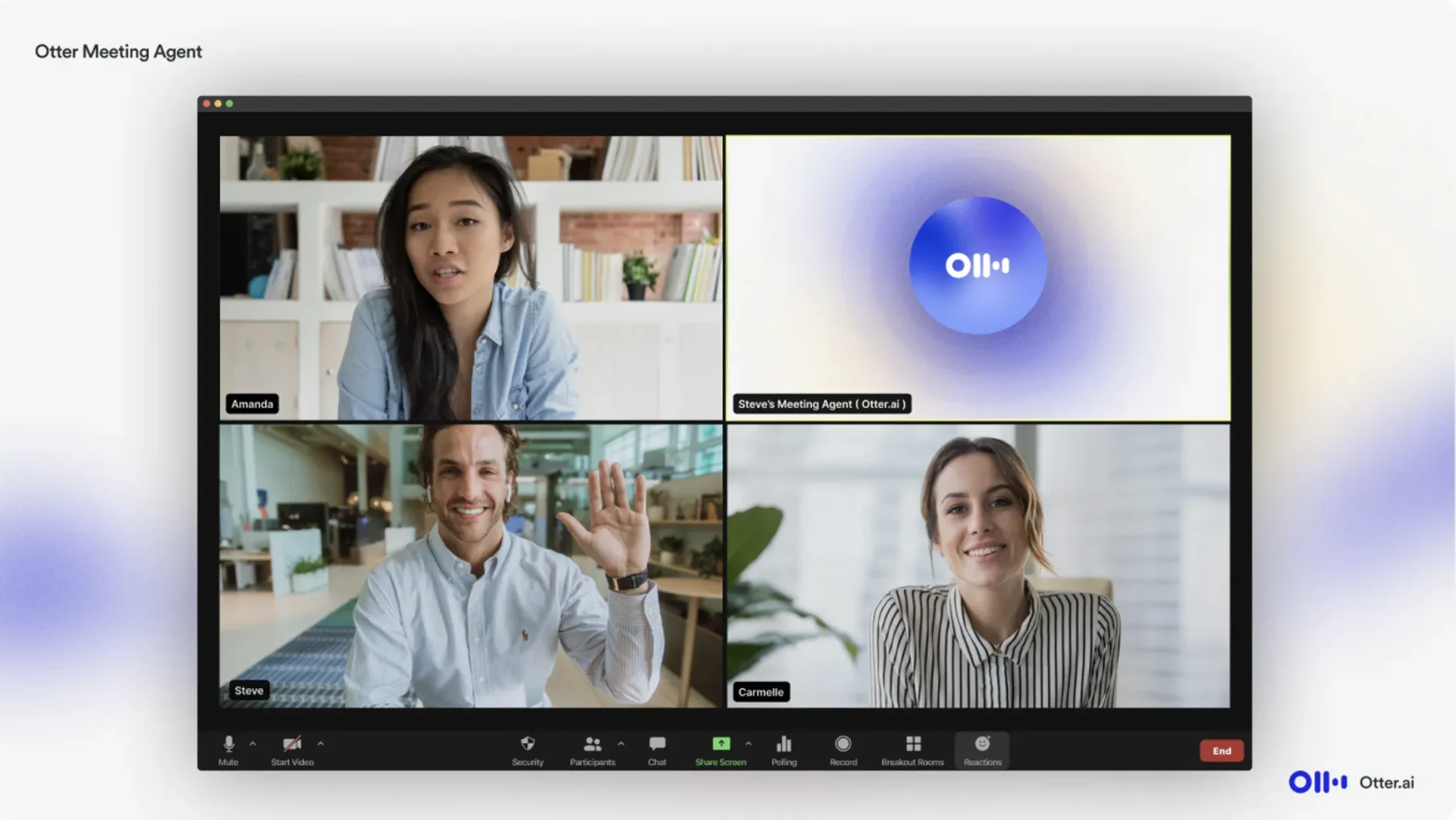
One of Otter’s well-known features is its meeting assistant bot. When you connect Otter with Zoom or Google Meet, the bot can automatically join the meeting and record it.
You’ll often see something like:
“Otter Assistant joined the meeting.”
This is how Otter captures the conversation without you needing to manually record your screen.
Speaker identification
Otter attempts to recognize different speakers in a conversation and label them in the transcript. This can help organize meeting notes when multiple people are talking.
Searchable notes and highlights
Once a transcript is created, you can:
- highlight important sections
- add comments
- search for keywords
- export notes
For teams that want a record of discussions, this can be quite useful.
Pros of the Otter App
Otter has become popular for a reason. It does several things very well.

1. Accurate transcription
For clear audio, Otter’s transcription is generally reliable. It performs especially well in structured meetings where speakers take turns.
For journalists, researchers, or students who work with recordings often, this alone can save a lot of time.
2. Useful for remote meetings
If your workday happens mostly in Zoom or Google Meet, Otter fits neatly into that environment.
Instead of writing notes while people talk, you can simply review the transcript later.
3. Searchable conversations
One underrated feature is the ability to search through past conversations.
If someone mentioned “budget planning” two weeks ago, you can quickly find the exact moment in the transcript.
4. Collaboration features
Otter also works well for teams that want to share meeting records. Multiple people can access transcripts and review them together.
For structured organizations, this can be a helpful archive of discussions.
Where Otter can feel awkward

While Otter is powerful, some users notice that the experience isn’t always as simple as they expected.
This mostly shows up in how meetings are actually captured.
The meeting bot experience
For online meetings, Otter usually records conversations by sending a bot into the meeting.
Technically this works well. But socially, it can feel slightly strange.
Suddenly your call includes a participant named something like:
Otter Assistant
For some teams this is perfectly normal. For others it raises questions like:
- Who invited the bot?
- Is it recording everything?
- Why is there a robot in our meeting?
It’s not a dealbreaker, but it adds a small layer of friction.
Sometimes you don’t want to invite a robot to your meeting. Sometimes you just want to press record and get on with your life.
Setup can take a moment
If you’re trying to record a meeting quickly, the process may involve:
- connecting calendars
- managing integrations
- checking bot permissions
- confirming the assistant joined the meeting
For power users, this may be fine.
For everyone else, it can occasionally feel like assembling flat-pack furniture just to save a voice note.
Less natural for in-person meetings
Otter works best when meetings happen online.
If you’re sitting at a table with colleagues, you’ll usually need to manually start recording or handle the setup through the app.
It works, but it doesn’t always feel effortless.
A simpler way to record meetings
This is where some users start looking for alternatives.
Not because Otter is bad, but because they want something that feels more direct.
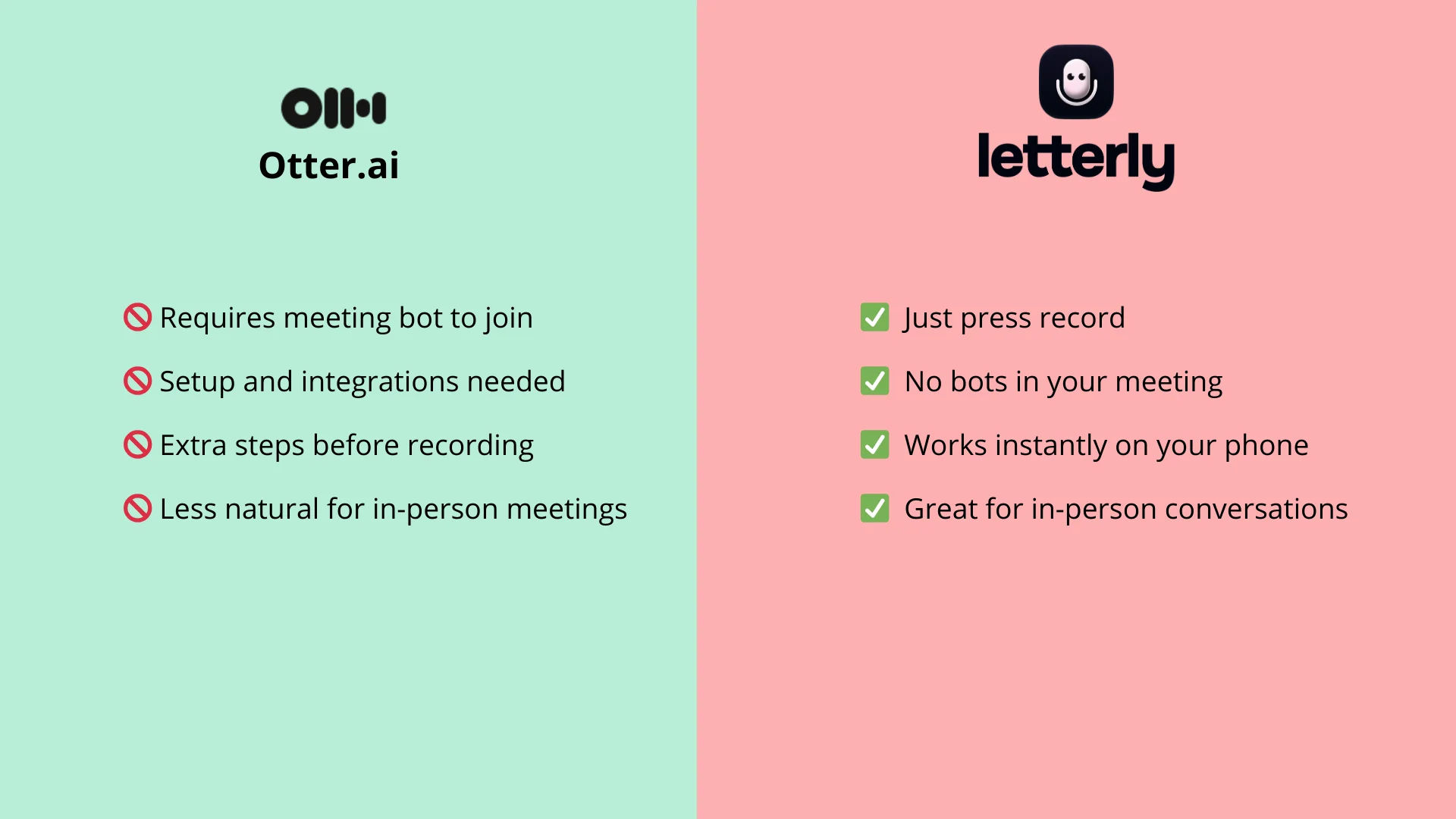
Instead of:
- inviting bots
- managing integrations
- preparing meeting setups
they want a workflow that looks more like this:
- Put your phone on the table
- Press record
- Talk
That’s the idea behind Letterly.
With Letterly, the focus is much simpler. You open the app, tap record, and place your phone nearby. The meeting is captured without needing assistants, integrations, or extra setup.
It’s closer to using a voice recorder, but with the benefit of AI-powered transcription and rewriting afterward.
For many people, this feels more natural, especially during in-person conversations.
Both approaches solve the same problem, but they feel different in practice.
Otter’s approach
- integrates deeply with meeting platforms
- uses bots to capture calls
- focuses on collaborative meeting notes
A simpler approach
- start recording instantly
- capture meetings in the room
- avoid setup and extra steps
Neither is universally better.
It depends on whether you prefer automation and integrations, or simplicity and speed.
Who Might Prefer Letterly Instead
Some users simply want a more straightforward experience.
Letterly tends to appeal to people who:
- record in-person conversations
- want one-tap recording
- prefer simple tools without setup
- don’t want bots joining meetings
- capture ideas, interviews, or coaching sessions
In other words, people who want something that works immediately without figuring things out.
With Letterly, you can open the app, press record, place your phone nearby, and let the conversation flow. Afterward, the recording can be turned into clear text you can review or reuse.
Got more questions? Email us at hi@letterly.app – we’re happy to help.