


Ilfat
on
January 29, 2026
Organize Your Rewrite Options Panel
4 min to read
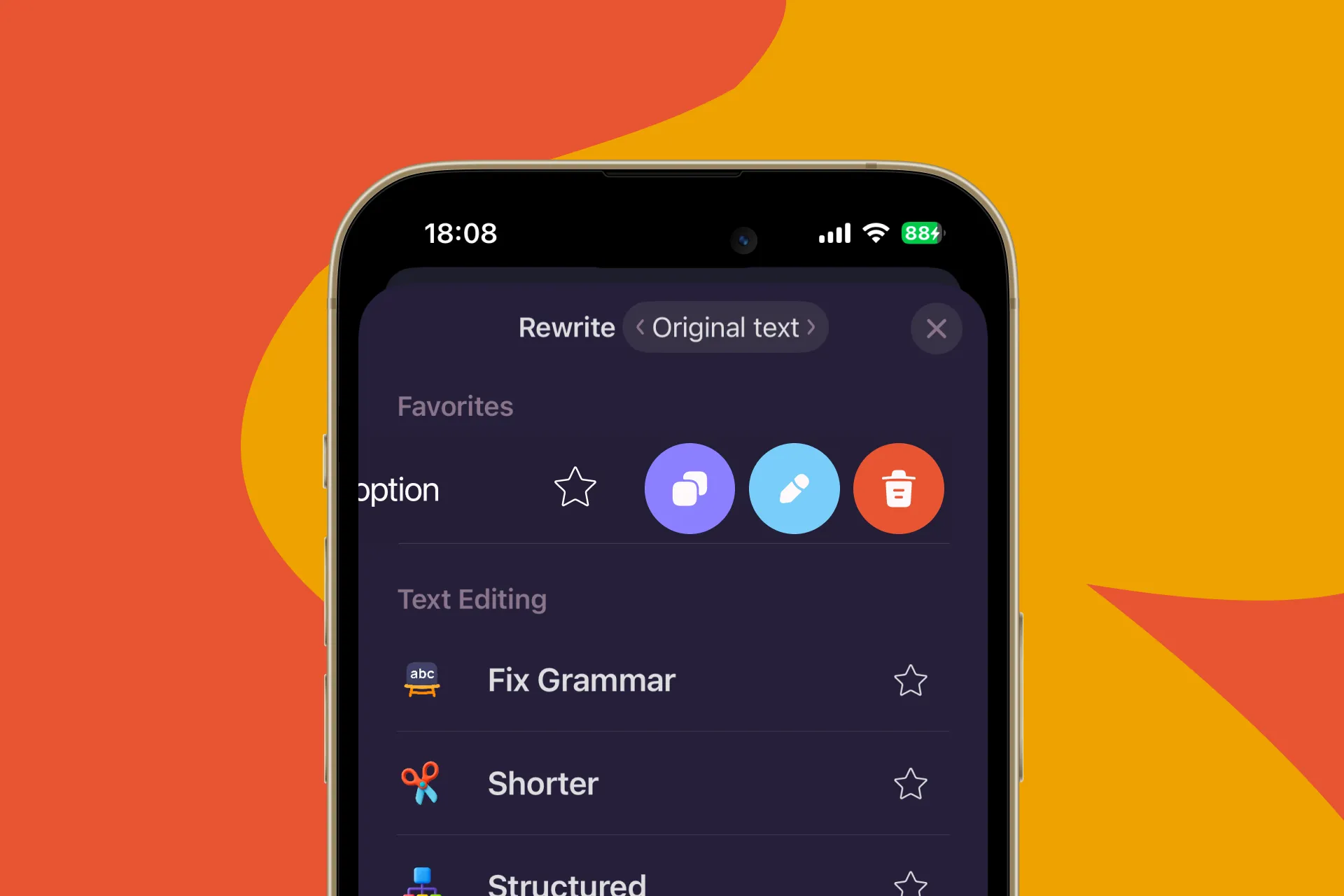
Where to find the Rewrite options panel
You can open the Rewrite options panel in two ways:
- From Settings: Go to Settings by tapping the cogwheel icon on the top right → General → Rewrite options.
- From a note: Open any note and tap Rewrite.
What the Rewrite options panel is
The Rewrite options panel lets you manage your rewrite options so you only see what you actually use. You can remove options you don’t need, and you can also copy and customize existing options.
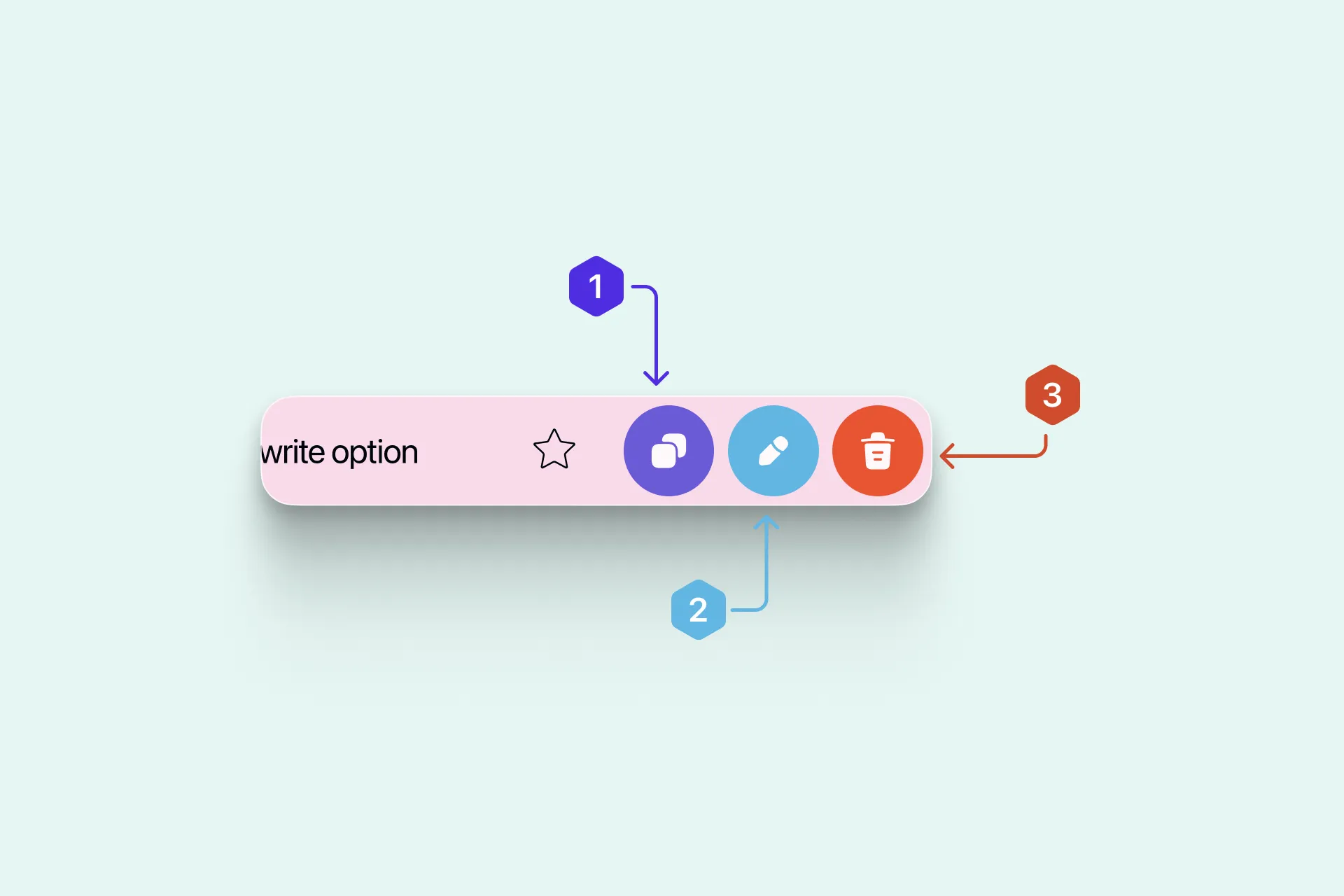
- Copy — Duplicate an existing option to create a new version with your own tweaks, while keeping the original.
- Edit — Update an existing option by adjusting the Quick settings, or tap Advanced settings to add your own instructions in the Prompt field.
- Delete — Letterly comes with a set of commonly used options by default, but you can tailor the panel to your workflow by deleting options you don’t use and keeping your favorites (including your custom options).
Got questions? Email us at hi@letterly.app.