


Mac Dictation Guide: Voice Type in Any App and Get Polished Text
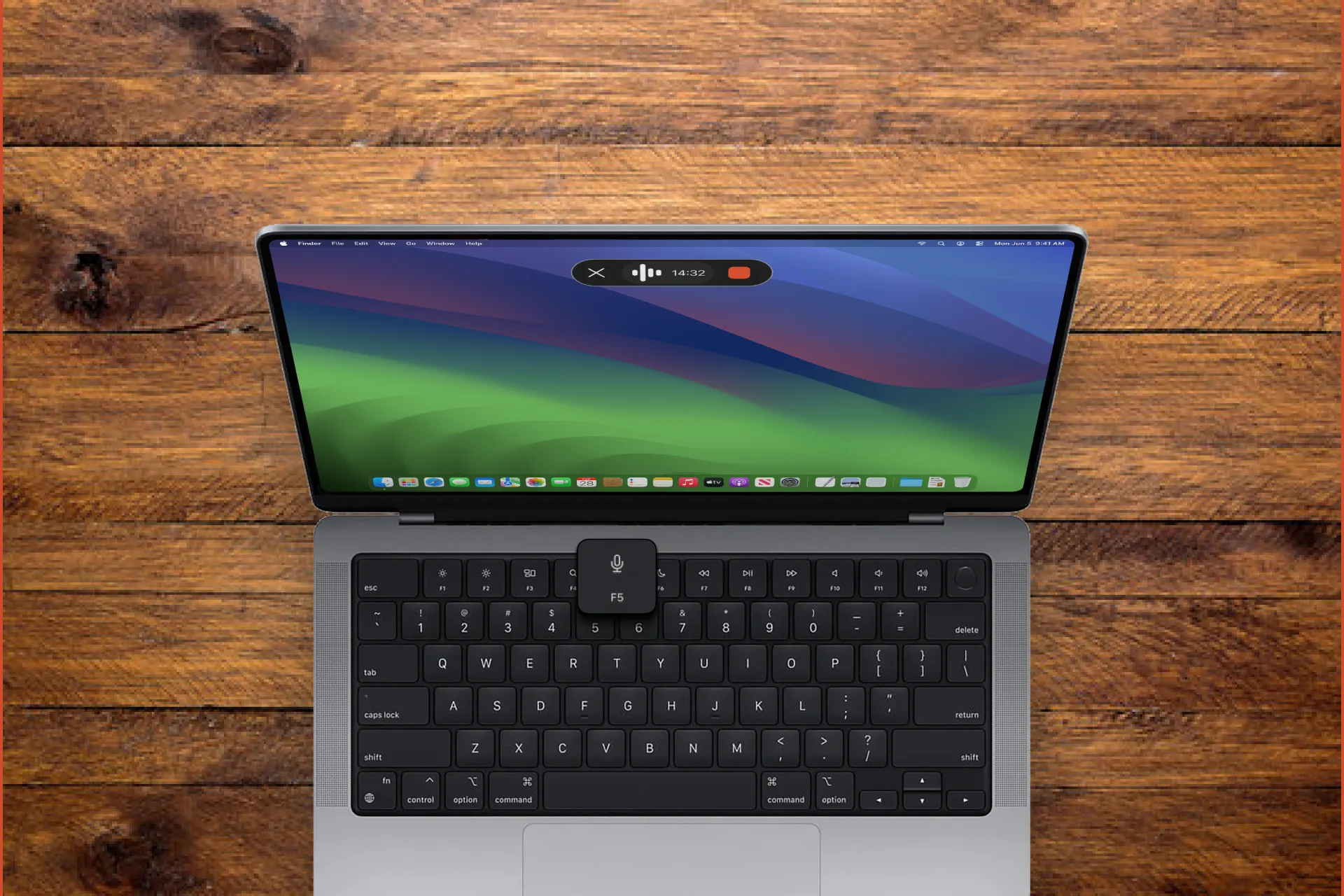
Typing is slow. Especially when you are trying to send a quick email, capture a meeting recap, or write a note while an idea is fresh.
MacOS has the built-in dictation, so you can talk instead of type. But the result often looks like a rough transcript. You still need to fix punctuation, clean up wording, and format the text for the place you are pasting it. Let’s discover how to avoid it. 😉
What “dictation on Mac” means
Dictation is voice typing. You place your cursor in a text field, start Dictation, and speak. Your Mac converts speech to text in real time.
Typical use cases:
- Emails and replies
- Meeting notes and action items
- Messages in Slack, WhatsApp, iMessage
- Documents and outlines
- Forms, tickets, CRM notes
Built-in macOS Dictation
Turn Dictation on
In macOS, Dictation is available from Keyboard settings. Apple’s guide shows the exact path and where to configure the Dictation shortcut.
Start Dictation
To dictate text:
- Put the cursor where you want the text.
- Start Dictation using the Microphone key (if your keyboard has it), your Dictation keyboard shortcut, or the menu option in the app (Edit > Start Dictation).
Use dictation commands (punctuation, new line, new paragraph)
While dictating, you can speak commands for punctuation and formatting, like “new line” and “new paragraph”. Apple maintains a full list of supported commands.
The problem with raw dictation output
Built-in Dictation is great for getting words onto the screen fast.
But in real workflows, raw dictation often means:
- Run on sentences
- Uneven punctuation
- No structure (everything becomes one block)
- The wrong tone for emails
- Extra time rewriting after you speak
So the fastest part (talking) is followed by the slow part (editing).
Step-by-step: enable and use Letterly Dictation on Mac
Letterly now includes a Dictation feature on Mac. It lets you dictate in any app on Mac and automatically cleans up the text when you stop speaking.
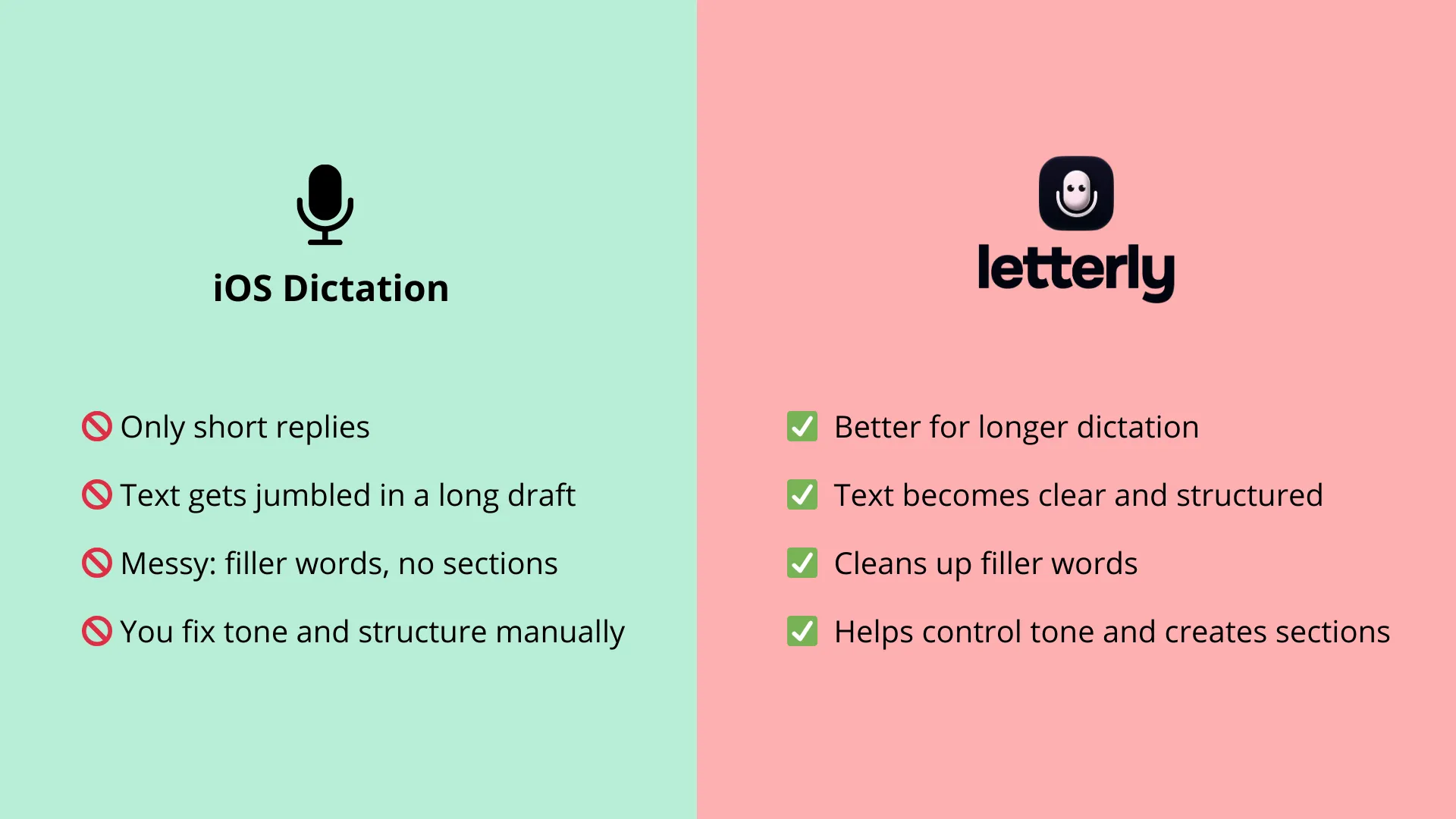
Letterly Dictation is built for the moments when Apple’s built-in dictation starts to fall apart: longer drafts, messy thoughts, and “I’ll fix it later” wording. Instead of dumping raw text into a field, Letterly helps you get something you can actually use right away: clearer sentences, fewer filler words, and a structure that matches what you’re writing (notes, meeting takeaways, an email, etc.).
1) Install and open Letterly
- Download Letterly from the Mac App Store
- Open the app and sign in
2) Allow the required permissions
When you start Dictation for the first time, macOS will ask for permissions. Approve them so Letterly can both hear you and insert text into other apps.
- Microphone: click Allow
- If macOS asks for extra access to type into other apps (often Accessibility or Input Monitoring):
- Open System Settings → Privacy & Security
- Enable access for Letterly in the requested section
- Quit and reopen Letterly if macOS asks you to
3) Pick how your text should look
Every time you finish dictating, Letterly applies your main Rewrite option.
If you want a different output, set a different main option, for example:
- Meeting Takeaways (structured recap with clear takeaways)
- Email format (clean, polite email style)
- Any other rewrite option you often use in Letterly
If you use the same formats often, you can pin your favourite Rewrite options. Then they are always right there when you finish dictating.
- Pin your favorite rewrite options so they’re always one click away
5) Start dictation in any app
- Click into the text field where you want the words to appear (Mail, Notion, Google Docs, Slack, a browser, etc.)
- Open Letterly Dictation (from the app or menu bar, depending on your setup)
- Press Start (or the dictation button), then begin speaking
Now your workflow becomes: speak, stop, choose a needed rewrite option to get the output you can really use.
If you’re looking for the best dictation app for Mac for everyday writing, try Letterly Dictation for emails, notes, and meeting recaps. 😊
Got questions? Email us at hi@letterly.app – we’re happy to help.