


Useful iPhone Shortcuts You Can Create Right Now
You’ve probably noticed this icon on your Home Screen before and ignored it. Most people do. But that little app can save you a surprising amount of time. Let’s explore a few useful shortcuts you can create right now.
1. Create an interval alarm
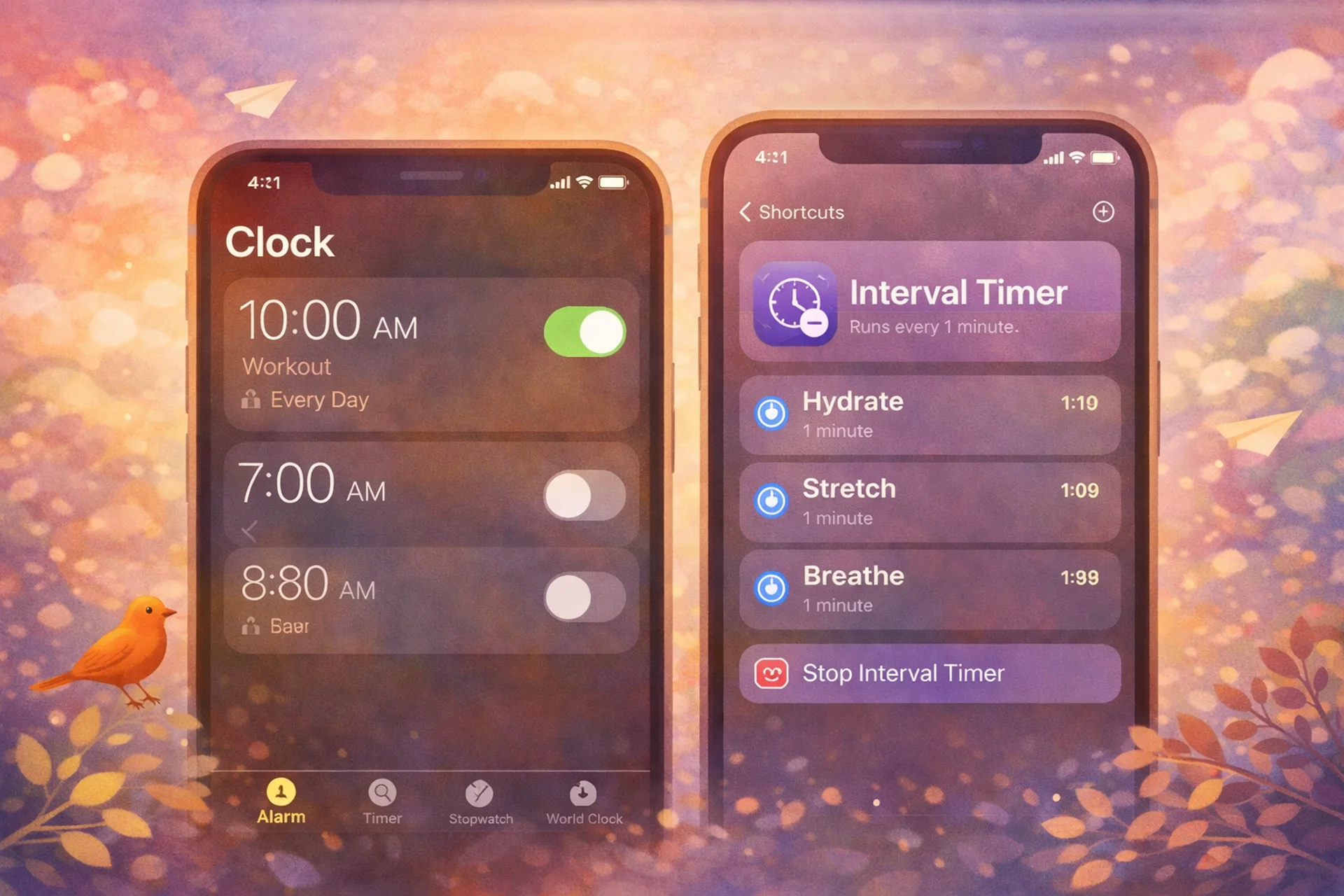
We all love sleep, but sometimes one alarm is just not enough. If you’ve ever turned off your alarm and fallen right back asleep while your meeting starts or your flight gets closer, this shortcut is for you.
An Interval Alarm shortcut creates multiple alarms for you automatically, spaced 5 minutes apart. Instead of setting them one by one the night before, you just pick the time for the first alarm and choose how many you want. That’s it. I’ll be honest: I usually set 5 to 7.
For example, if you choose 7:00 AM and 4 alarms, the shortcut will create alarms for 7:00, 7:05, 7:10, and 7:15.
2. Put notifications on screen in a way that works for you
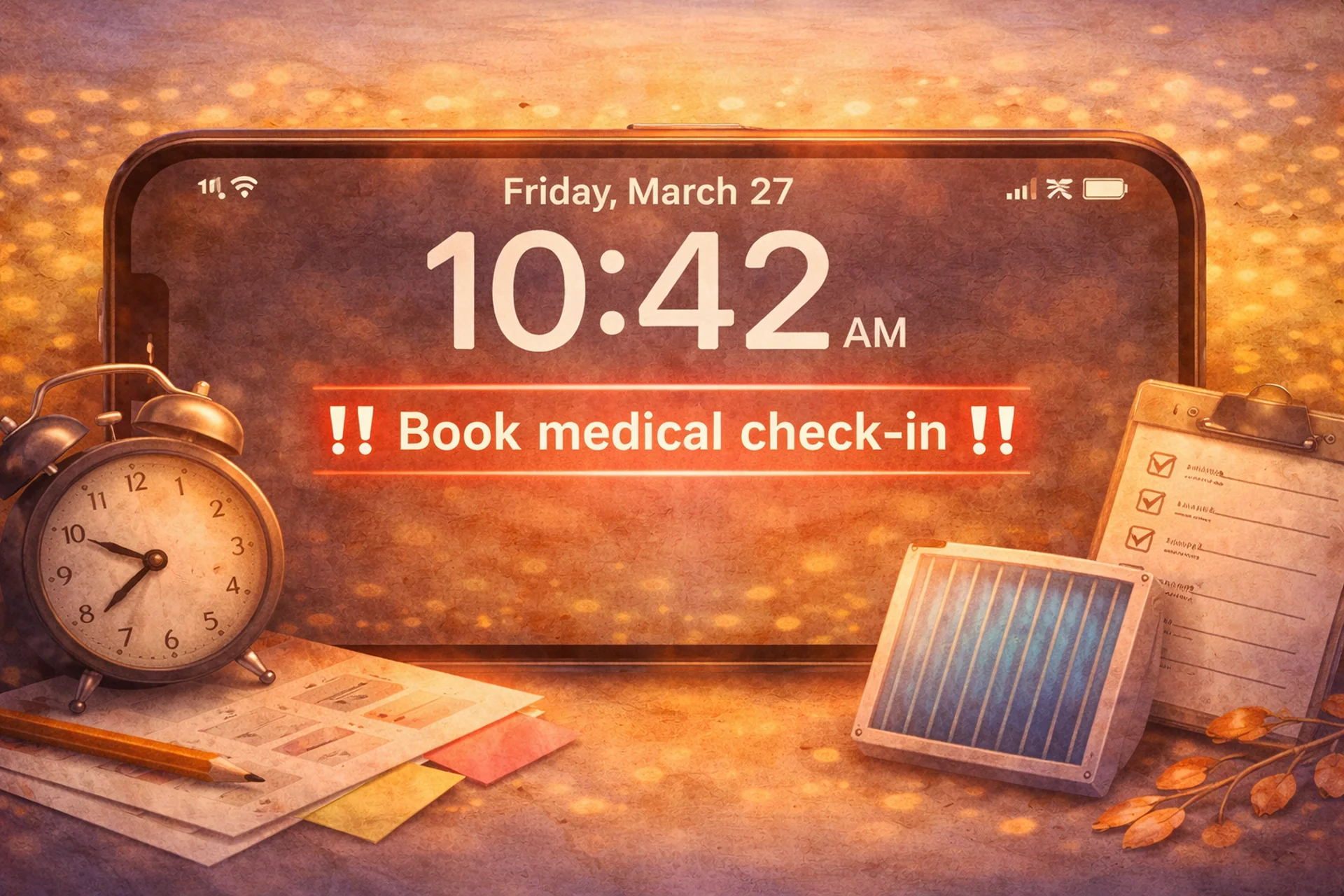
Recurring tasks are easy to forget: booking a monthly medical check-in, replacing an air filter, renewing something on time. Even if they’re in your calendar, they can still get lost in the noise of everyday life. This shortcut puts the reminder right on your screen, so every time you pick up your phone, it’s there in front of you and much harder to ignore.
Follow the steps below to build it yourself. It takes about 2 minutes.
Before you begin, prepare the wallpaper you want to use for the reminder. For example, you can create a simple reminder image in the Notes app and save it to Photos.
3. Copy text from photos with Live Text
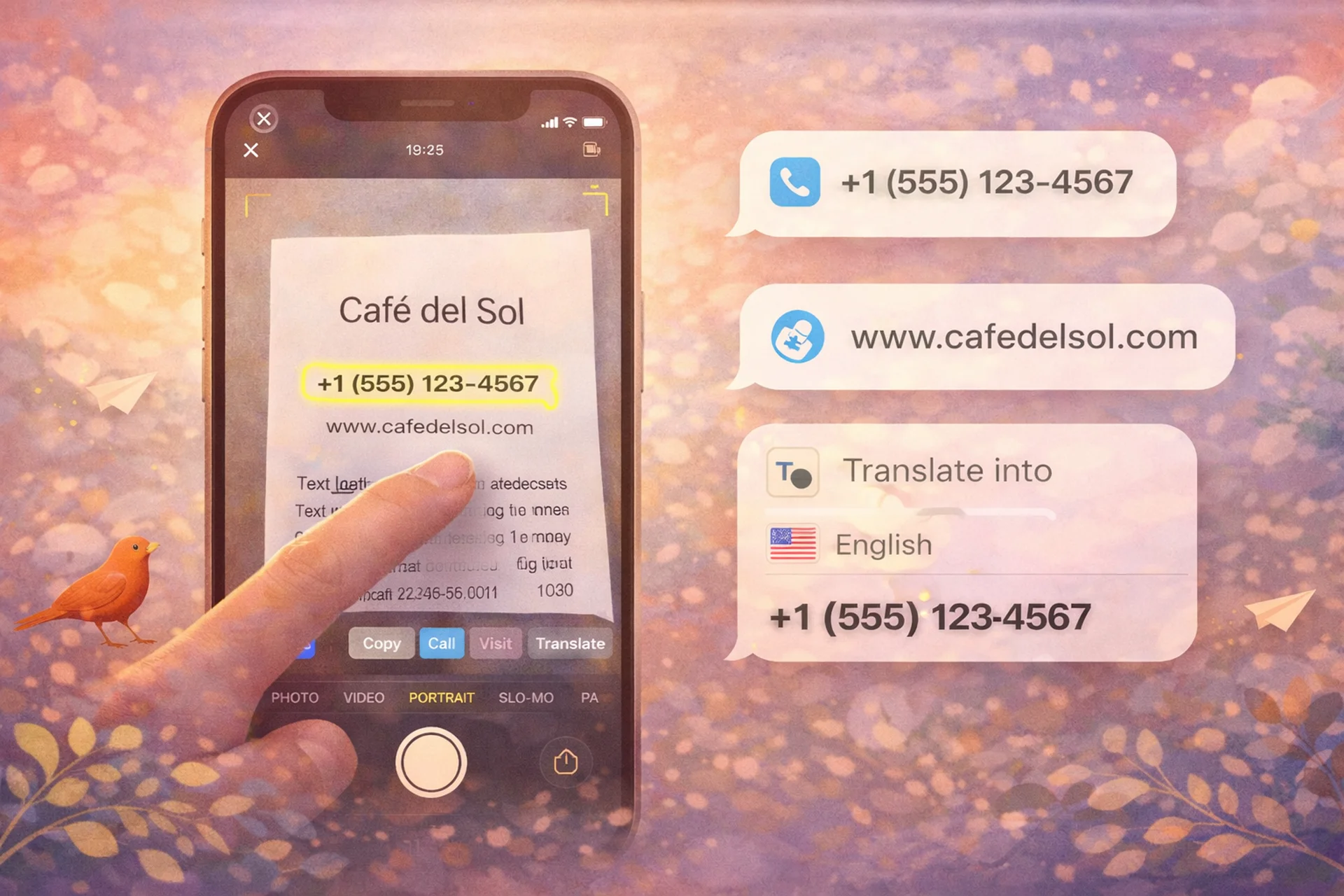
Imagine you take a photo of an important document and want to save the information digitally, or you come across a meaningful passage in a book you’re reading and want to keep it. With just one shortcut, the entire text from your photo appears right in your notes.
4. When built-in iPhone tools aren’t enough
Built-in iPhone tools are great for quick wins such as managing notifications, setting timers, or grabbing text from a photo with a single shortcut. That last one alone can save you time when you want to turn a snapshot of a document or a page from a book into usable digital notes.
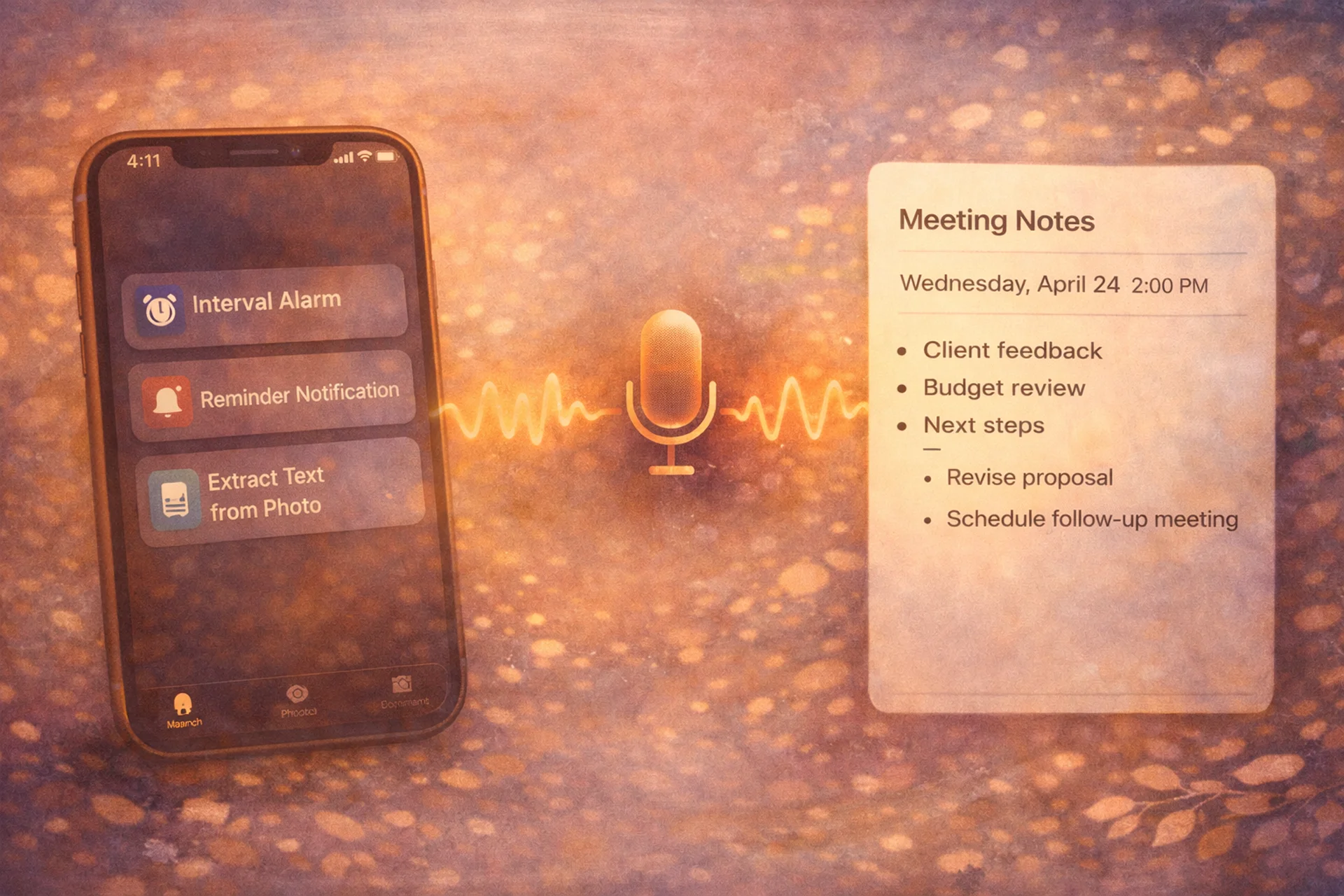
But for everything else, they have their limits. If your real workflow starts with speaking rather than tapping — whether that means capturing thoughts, structuring ideas, or turning voice into clean notes, emails, or summaries — built-in tools only take you so far.
That’s where Letterly comes in. It helps turn raw voice notes into structured text you can actually use, without the friction of endless editing. Think of it as the natural next step when a shortcut isn’t quite enough.
A few simple shortcuts can make your iPhone much more useful, whether you want to wake up on time, stop forgetting recurring tasks, or save text from photos in seconds. And when built-in tools are no longer enough, Letterly helps take things further by turning your voice into clean, structured text.
Got more questions? Email us at hi@letterly.app — we’re happy to help.