


iPhone Spelling Settings: Auto-Correction, Spell Check, Text Replacement, Dictation
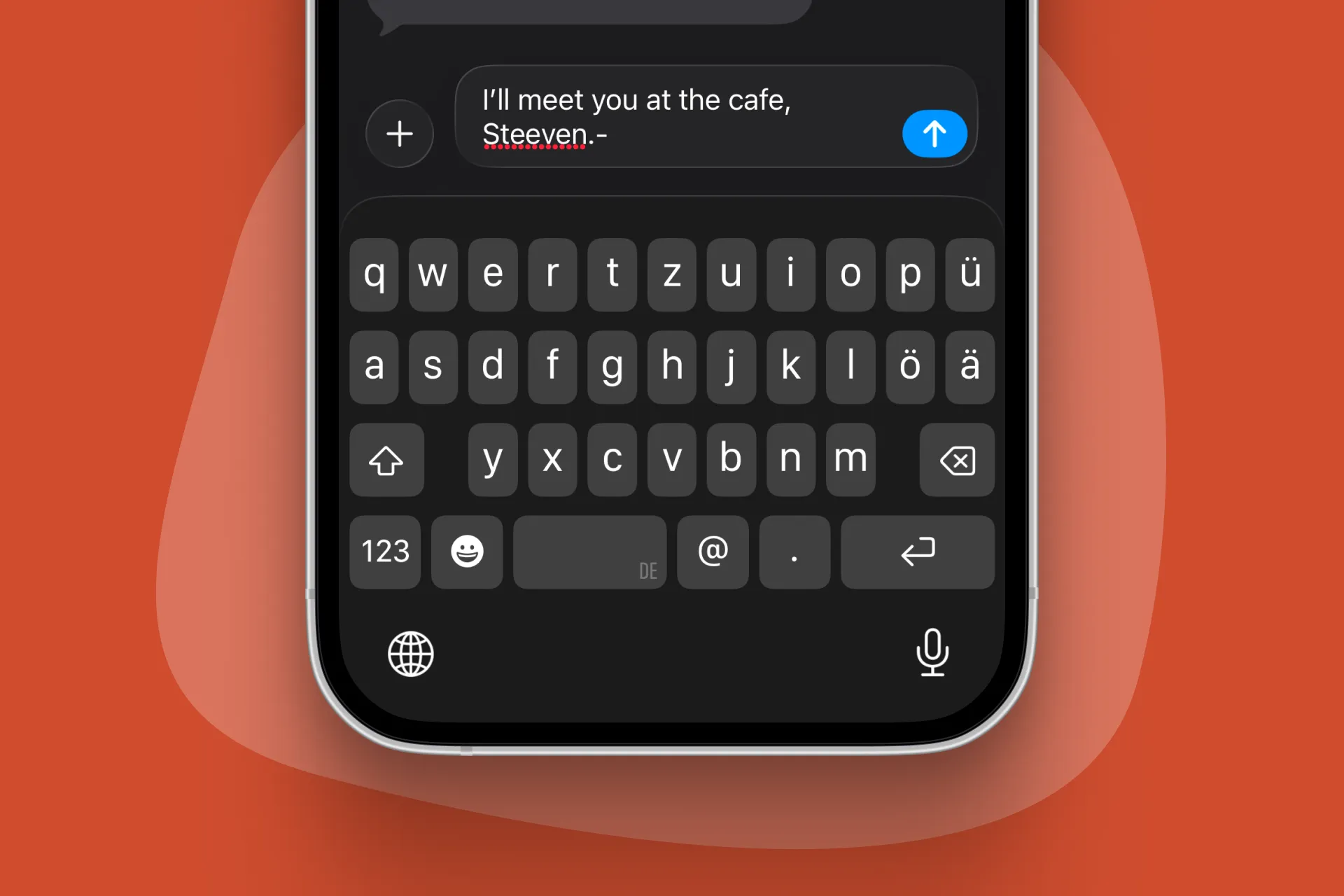
If your iPhone keeps “fixing” words you actually meant to write, you’re not alone. The good news: iOS gives you a few different ways to control spelling and corrections, depending on what you want.
Who’s Doing the Typing Magic?
First, let’s meet the tiny keyboard gremlins behind the “how did my phone do that?” magic.
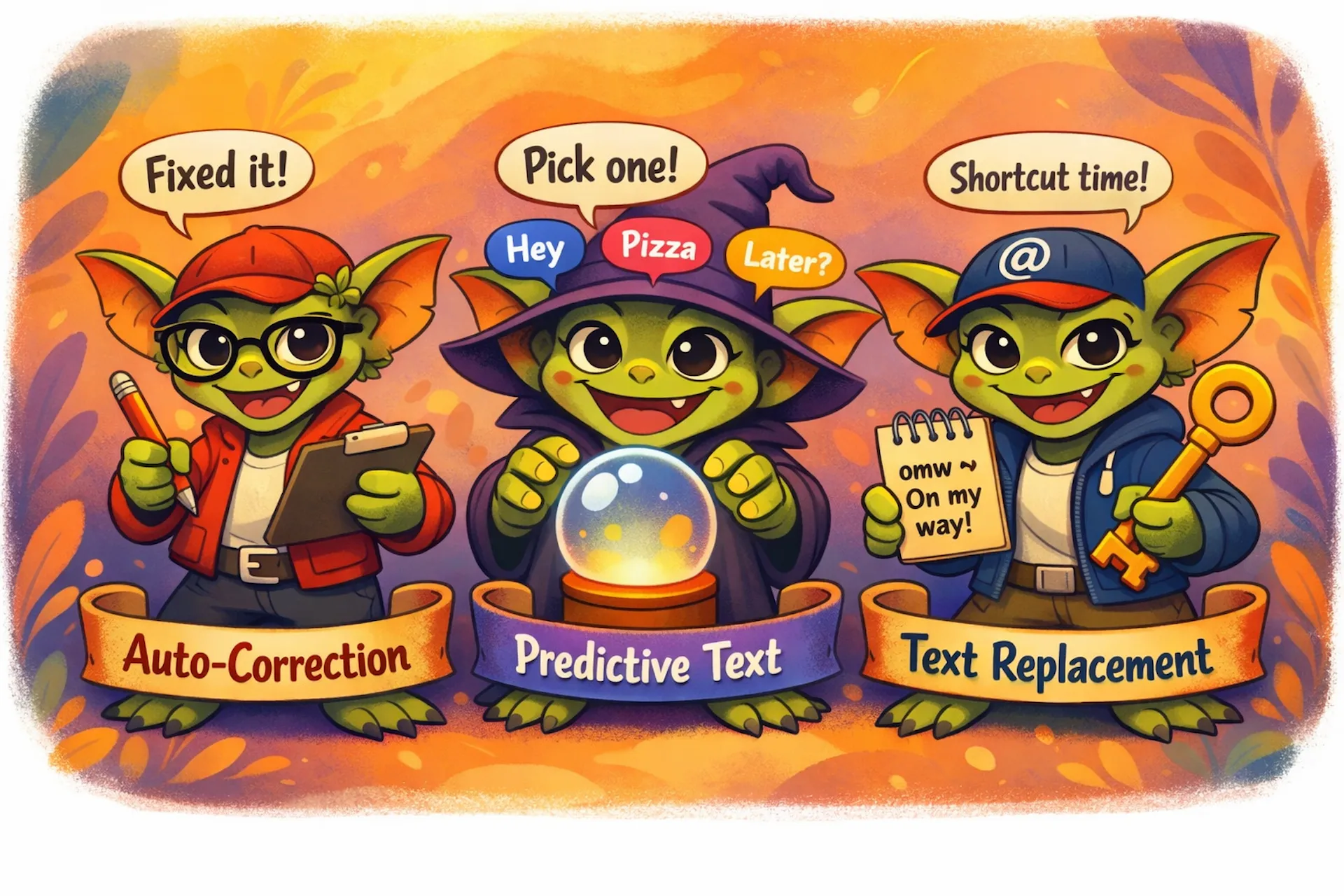
1️⃣ Auto-Correction is the overconfident editor. It looks at what you already typed and goes, “I got this,” then fixes (or “fixes”) it on the spot. Type teh, it becomes the. Sometimes it’s helpful. Sometimes it turns your message into a completely different vibe.
2️⃣ Predictive Text is the friendly mind-reader. It doesn’t change your words. Instead, it pops up suggestions for what you might want to type next (or how to finish a word). You stay in control: tap a suggestion to use it, ignore it to keep typing.
3️⃣ Text Replacement is your personal shortcut wizard. You pre-set it yourself, like omw → “On my way!” or @ → your email address. No guessing, no AI vibes, just your custom cheatsheet.
In short: Auto-Correction edits, Predictive Text suggests, and Text Replacement obeys your rules. Together, these switches make up your iphone spelling correction toolkit.
Option 1: Turn autocorrection off
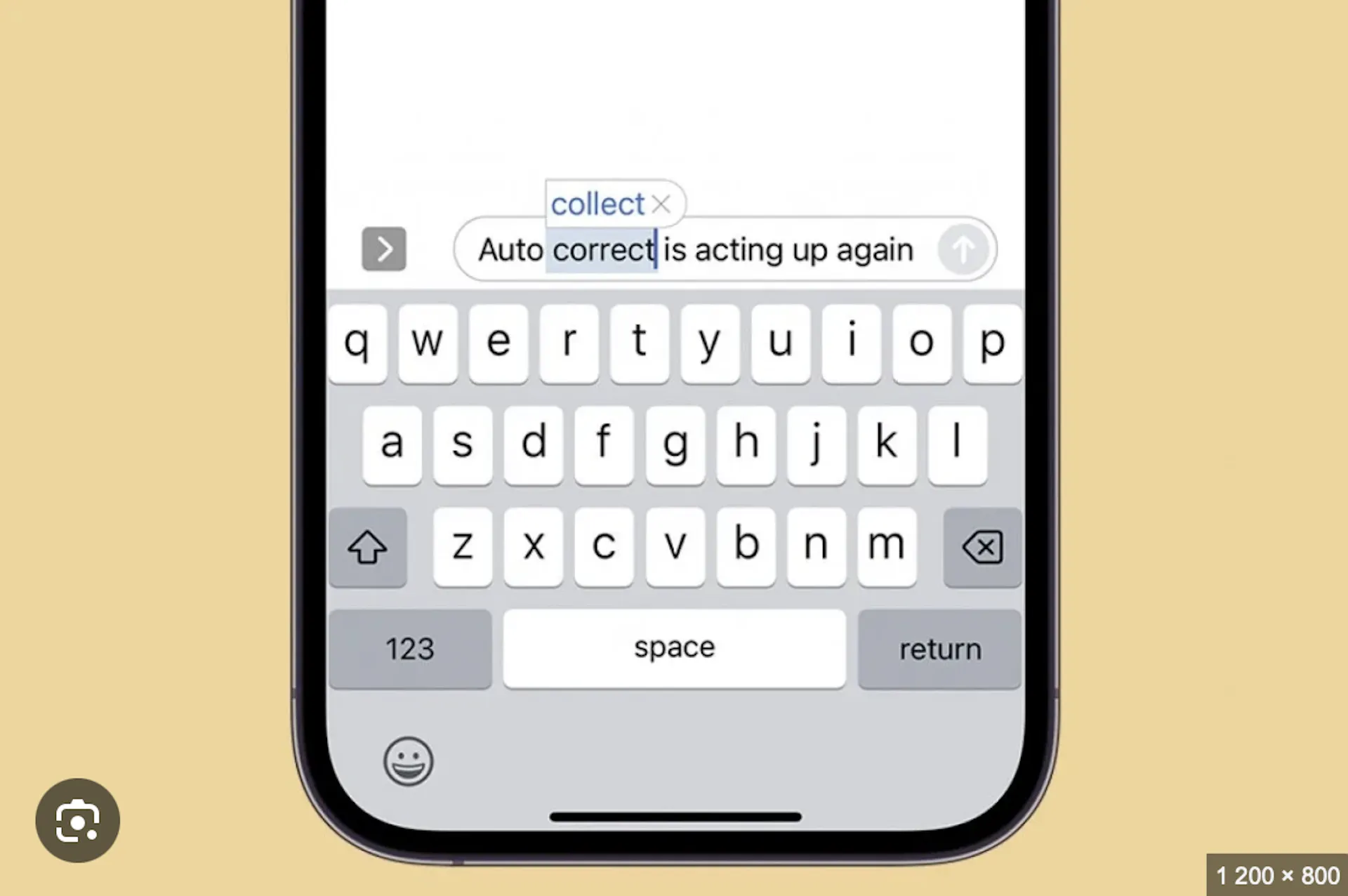
If you’re sure about your spelling and the problem is iPhone automatically changing words, disable Auto-Correction:
- Open Settings
- Tap General → Keyboard
- Toggle Auto-Correction off
Option 2: Adjust predictive text
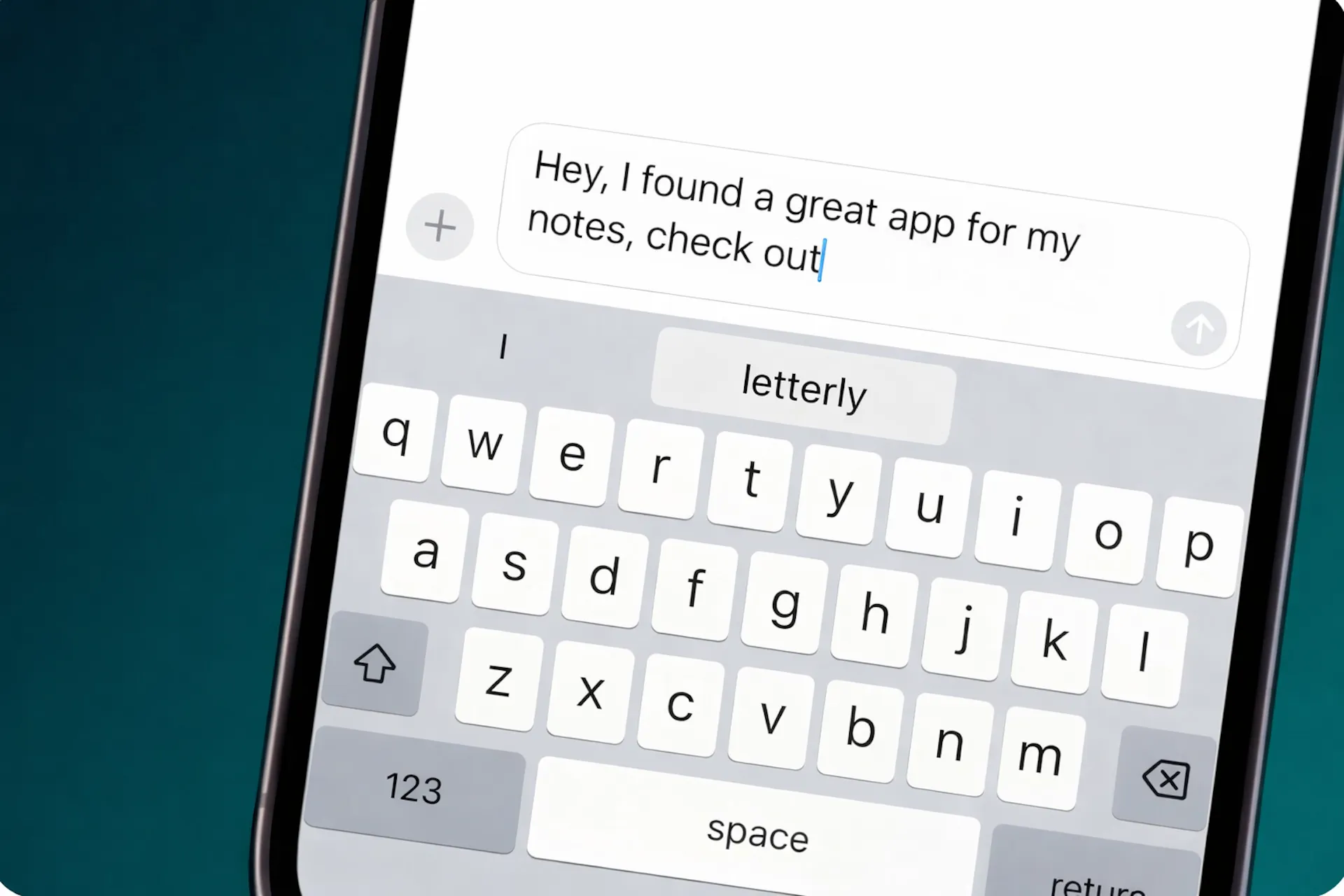
Predictive text can be helpful, but it can also push weird suggestions.
You can change it:
- Open Settings
- Tap General → Keyboard
- Toggle Predictive Text off
Option 3: Add your “problem word” so iPhone stops correcting it
If you keep typing or dictating a name, brand, slang, or another uncommon word, the cleanest fix is often Text Replacement.
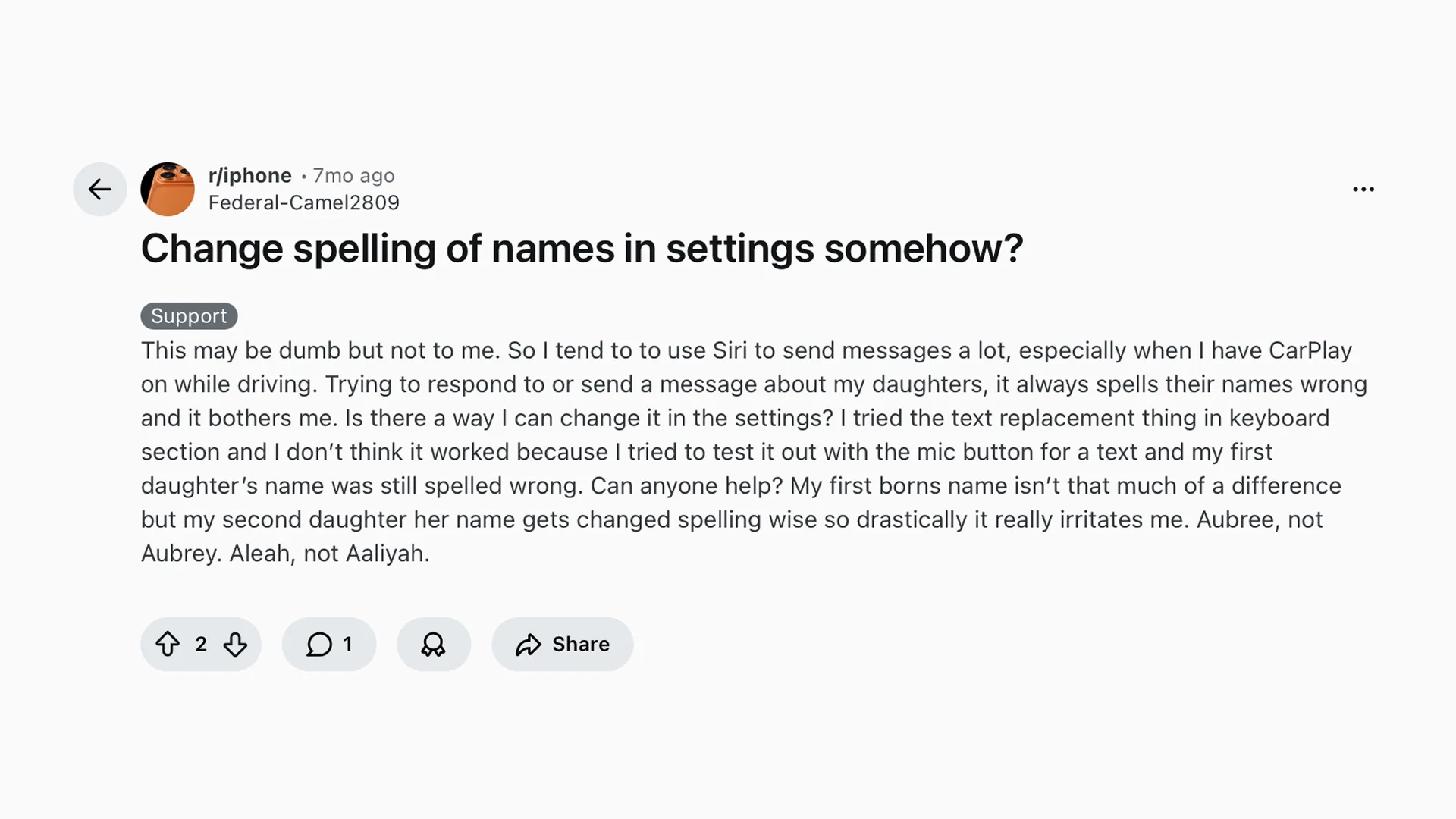
How to create a Text Replacement entry
- Go to Settings → General → Keyboard → Text Replacement
- Tap +
- Add:
- Phrase: the correct word (e.g., “Letterly”)
- Shortcut: what you usually type (e.g., “lettery”)
Now, when you type the shortcut, iPhone replaces it with the correct word.
Option 4: Spell a word out loud with iPhone Dictation
Sometimes you’re dictating and iPhone guesses the wrong word. You can literally spell it letter by letter. Here are iPhone dictation commands and spelling tips you can use to spell names and unusual words letter by letter.
Turn on Dictation
- Settings → General → Keyboard
- Toggle Enable Dictation on
- Tap the microphone key on the keyboard, then speak
Spell a word while dictating
Apple’s Dictation guide suggests phrases like:
- “Let’s invite Steven S-T-E-P-H-E-N”
- “Change tea to T-E-E”
Quick tips before you rage at your keyboard 🤩
- Autocorrect “learned” something wrong? Reset its brain. Go to Settings → General → Transfer or Reset iPhone → Reset → Reset Keyboard Dictionary. This clears learned words and keyboard customizations.
- Your keyboard language might be the real culprit. Autocorrect depends on the active keyboard. Check: Settings → General → Keyboard → Keyboards. While typing, switch keyboards with the globe/emoji key.
Small tip if you dictate a lot: cleaner text with Letterly
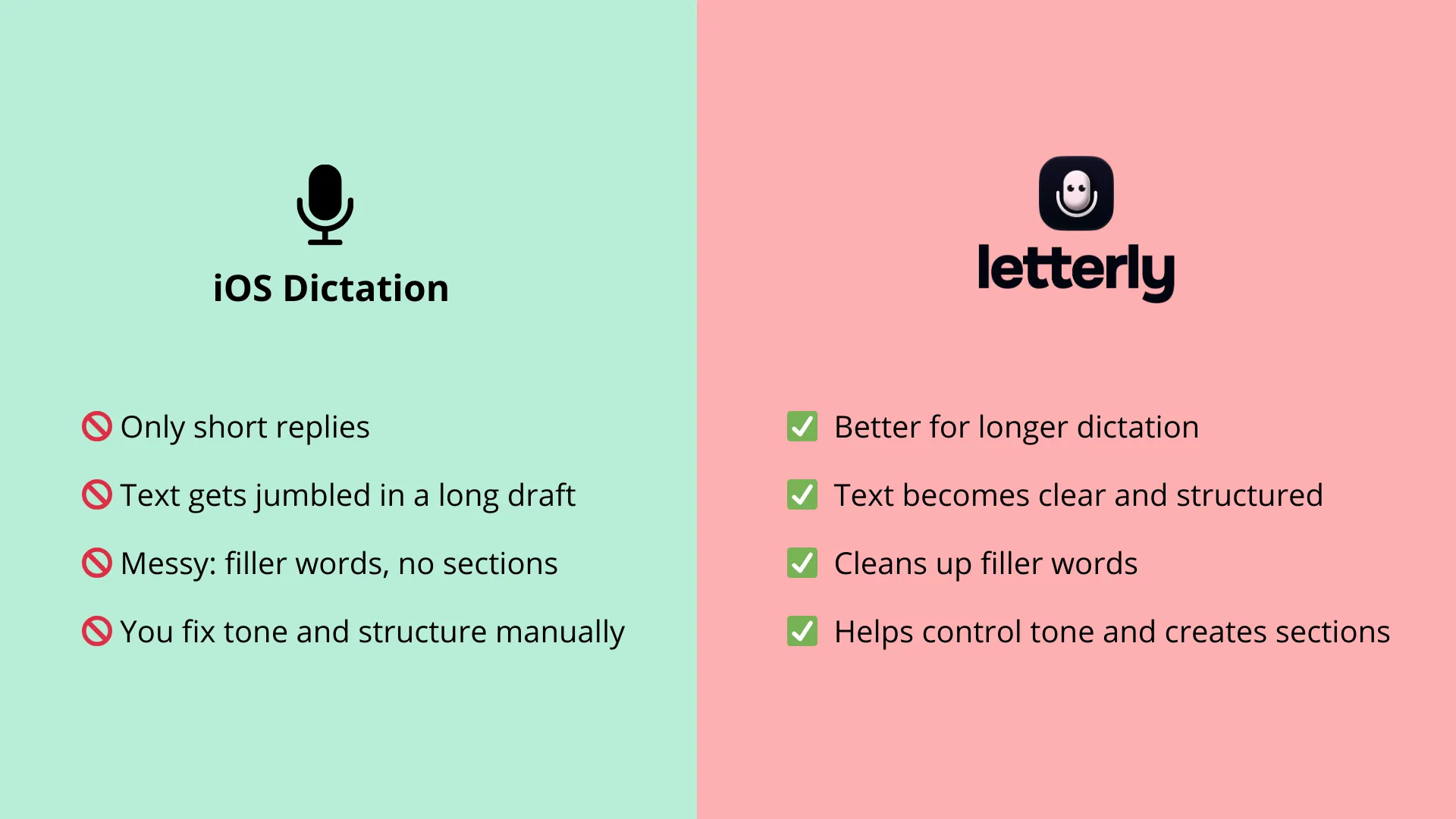
iPhone Dictation is great for quick lines, but if you often dictate longer notes, messages, or emails, it helps to have a tool that cleans up the result.
With Letterly, you can speak naturally, then get a readable version (punctuation, structure) and even generate multiple rewritten versions in different styles (for example: a casual message vs a professional email). Use it when you want your dictated text to be immediately “send-ready.”
Once you’ve tuned Auto-Correction and Predictive Text, your iPhone stops rewriting your words behind your back. And if a specific name keeps getting “fixed,” Text Replacement is the fastest way to lock it in.
If you dictate longer messages, Letterly can help you turn rough voice input into clean, readable text, with optional rewrites for different styles. 😊
Got questions? Email us at hi@letterly.app – we’re happy to help.