


How to Use Siri and Dictation on iPhone and Mac

If you’ve searched for “siri for dictation,” you’re probably trying to do one simple thing: talk, and have your device type for you.
On Apple devices, there are two related features that people often mix up: Siri and Dictation. They both involve your voice, but they solve different problems.
This guide explains Siri and dictation, when to use each one, how to turn them on, and what to do when the microphone icon is missing or voice typing stops working.
Siri vs Dictation: what’s the difference?
Let’s make this clear upfront.
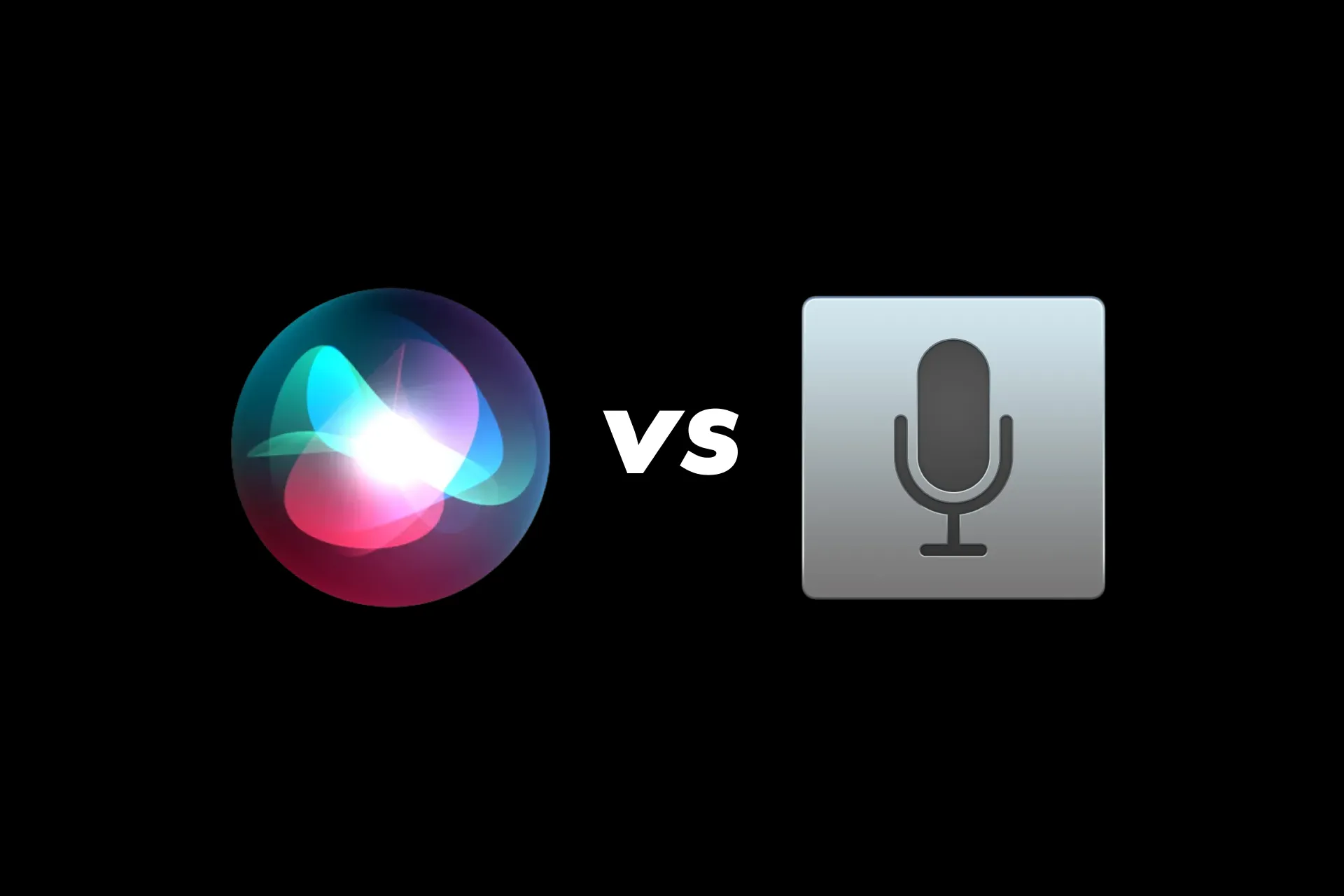
Siri is for actions
Siri is Apple’s assistant. You speak a command, Siri does something, for example:
- Send a message
- Create a reminder
- Start a note
- Set an alarm
- Call someone
Siri is great when you want to do something quickly.
Dictation is for typing
Dictation is voice typing. It turns your speech into text inside a text field:
- Messages
- Email drafts
- Notes
- Forms in Safari
- Any place you normally type
Dictation is better when you want to write something, especially longer text.
If your goal is actual writing, you usually want Dictation, not Siri.
How to enable Dictation on iPhone (voice typing)
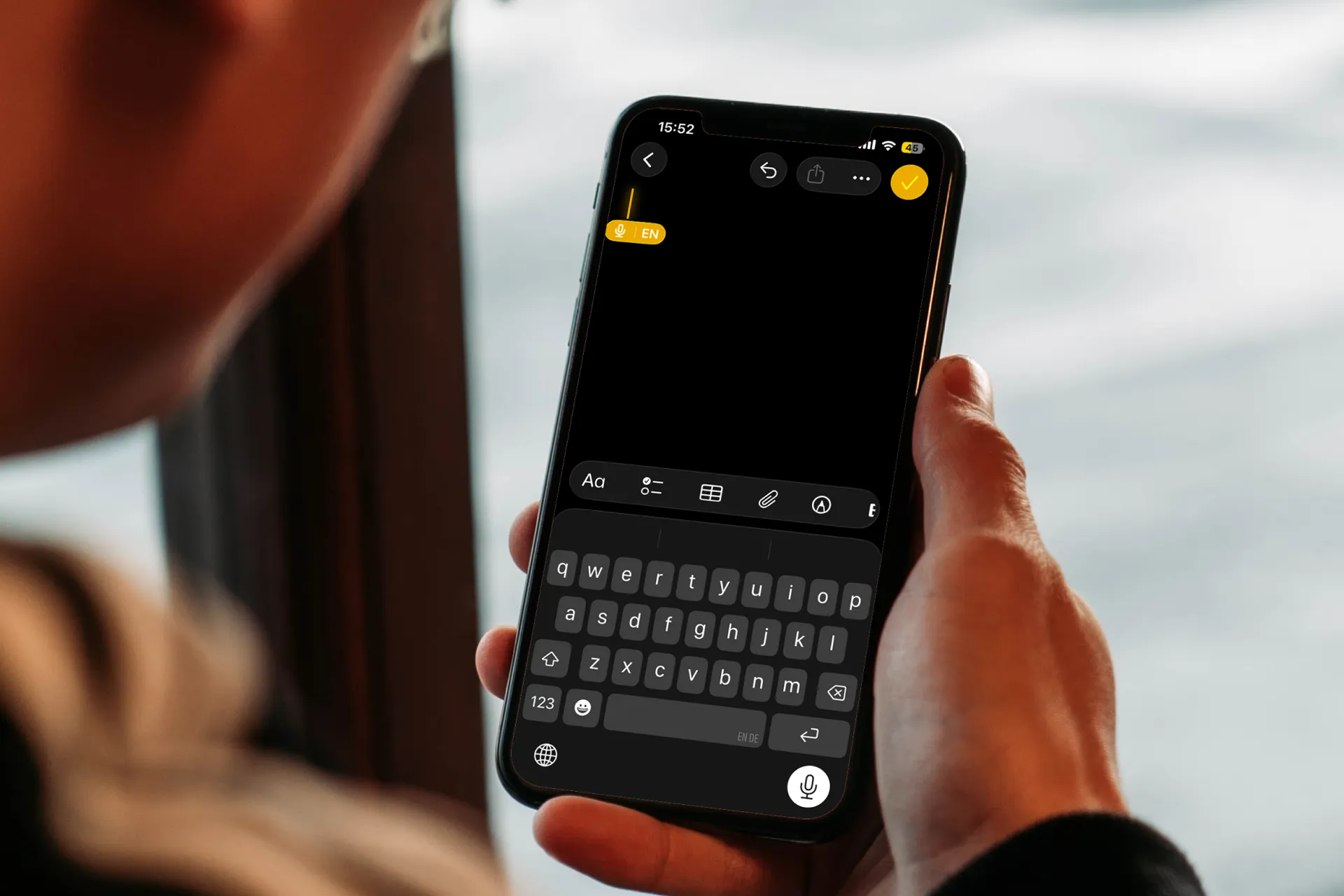
1) Turn on Dictation in settings
On iPhone, Dictation can be toggled on or off.
- Open Settings
- Go to General
- Tap Keyboard
- Turn on Enable Dictation
If you see a prompt about processing or permissions, accept it to continue.
2) Use Dictation in any app
- Open any app where you can type (Messages, Mail, Notes, Safari)
- Tap into a text field so the keyboard appears
- Tap the microphone icon on the keyboard
- Speak normally
- Tap Done (or stop dictation) when finished
3) Say punctuation (or add it after)
Depending on your device settings and language, punctuation may be automatic or manual. If you want more control, you can say punctuation out loud, like:
- “comma”
- “period”
- “question mark”
- “new line”
If that feels awkward, dictate without punctuation and add it after.
How to use Siri for dictation (voice-to-text via commands)
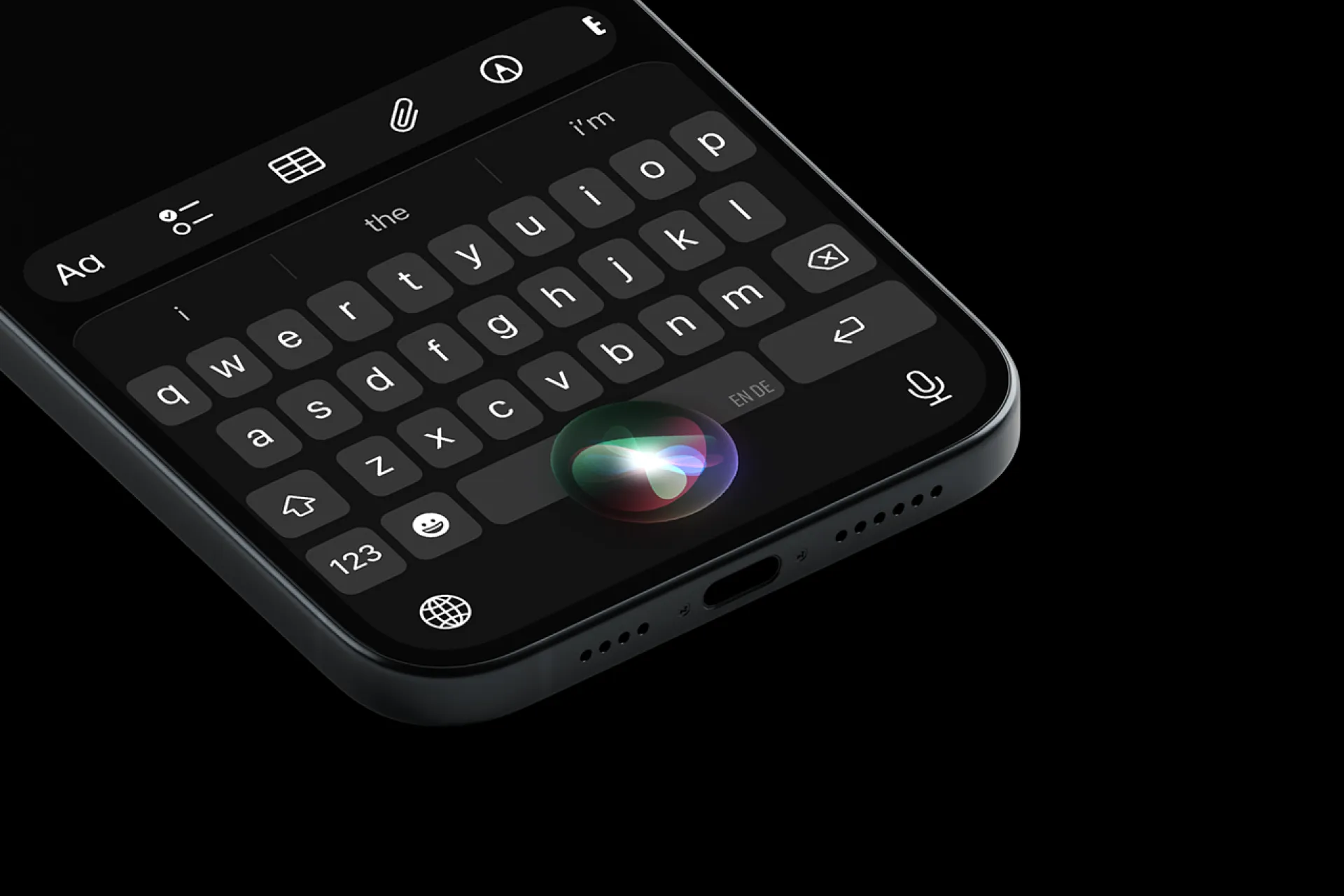
Some people prefer Siri because it’s hands-free and fast for quick tasks. This is the real-world meaning of “siri for dictation.”
Turn on Siri
To use Siri reliably, make sure it’s enabled:
- Open Settings
- Search for Siri
- Enable the options you want, such as “Talk to Siri” or “Hey Siri” and take the short setup
Use Siri to create text quickly
Siri can create text as part of an action. Examples:
- “Send a message to Alex: I’ll be there in 10 minutes.”
- “Create a note: grocery list, eggs, tomatoes, coffee.”
- “Add a reminder: pay the invoice tomorrow at 10.”
This approach is perfect when the message is short and you want it sent or saved immediately.
Where Siri becomes less convenient is longer writing. If you need paragraphs, formatting, or a polished result, Dictation is usually a better workflow.
How to enable Dictation on Mac
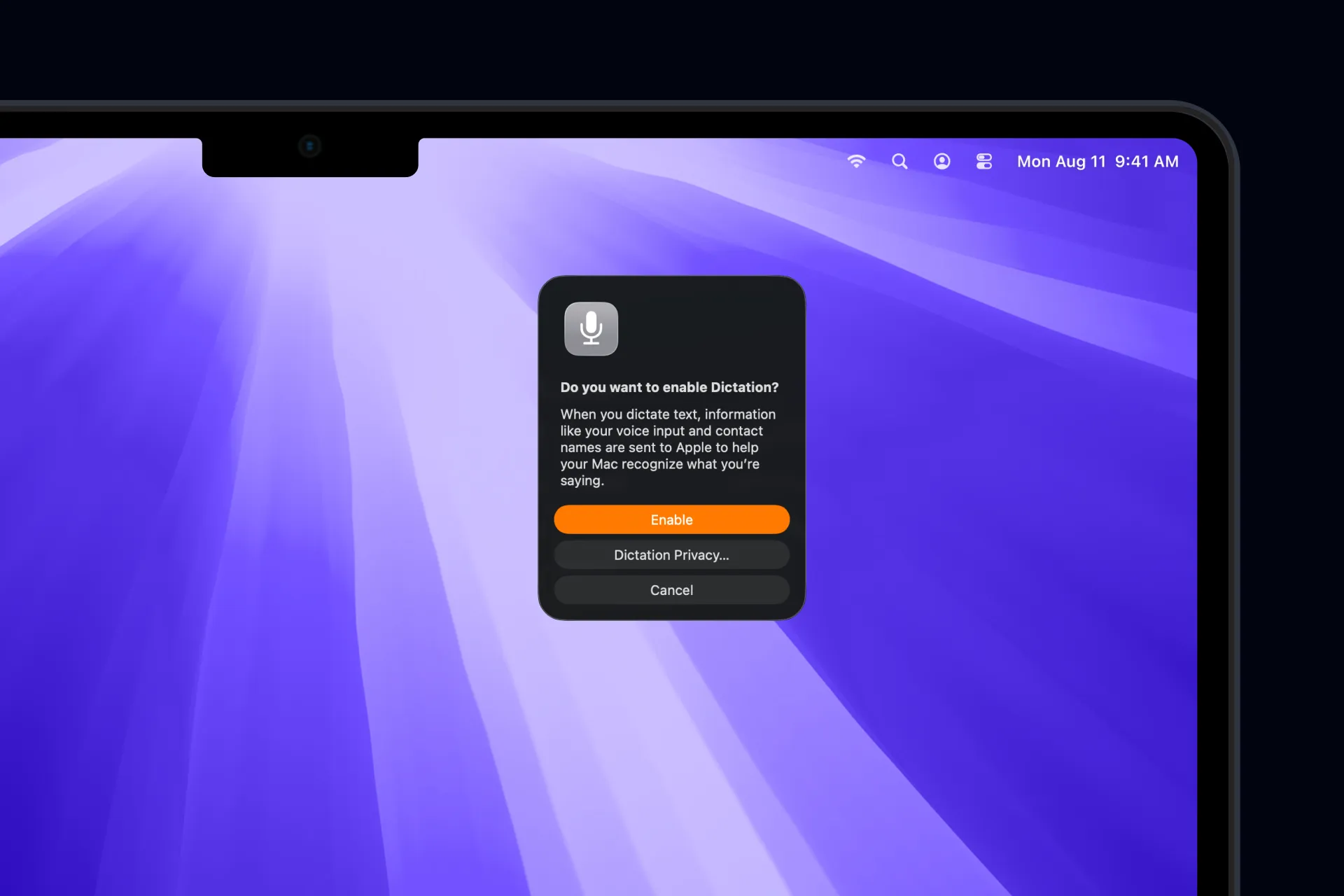
Mac has Dictation too, and it’s often the best place to use voice typing because you can work in bigger text fields, emails, docs, and web apps.
1) Turn on Dictation
- Click the Apple menu
- Open System Settings (or System Preferences on older macOS versions)
- Go to Keyboard
- Turn Dictation on
- Choose:
- Language
- Whether you want auto punctuation (if available)
- The shortcut to start dictation (like pressing the Fn key twice)
2) Start dictation
macOS lets you start dictation with a shortcut (this may differ by setup). Once enabled, you can:
- Use the dictation shortcut configured in settings
- Use dictation controls in supported apps
If dictation doesn’t start, double-check your microphone input and permissions.
Tips for better results with Siri and Dictation
If you want cleaner text with less editing, these habits help a lot:
- Speak in short sentences, pause between thoughts
- Reduce background noise and face the microphone
- Say names clearly, especially contact names
- For numbers, say them slowly and confirm the output
- Do a quick review pass after dictation, even if it looks good
When Siri and Dictation aren’t enough: turning voice into clean, usable text
Dictation is great at turning speech into text, but it doesn’t always produce something you can paste into an email, a report, or a structured note without extra work.
That’s the gap Letterly is designed to cover.
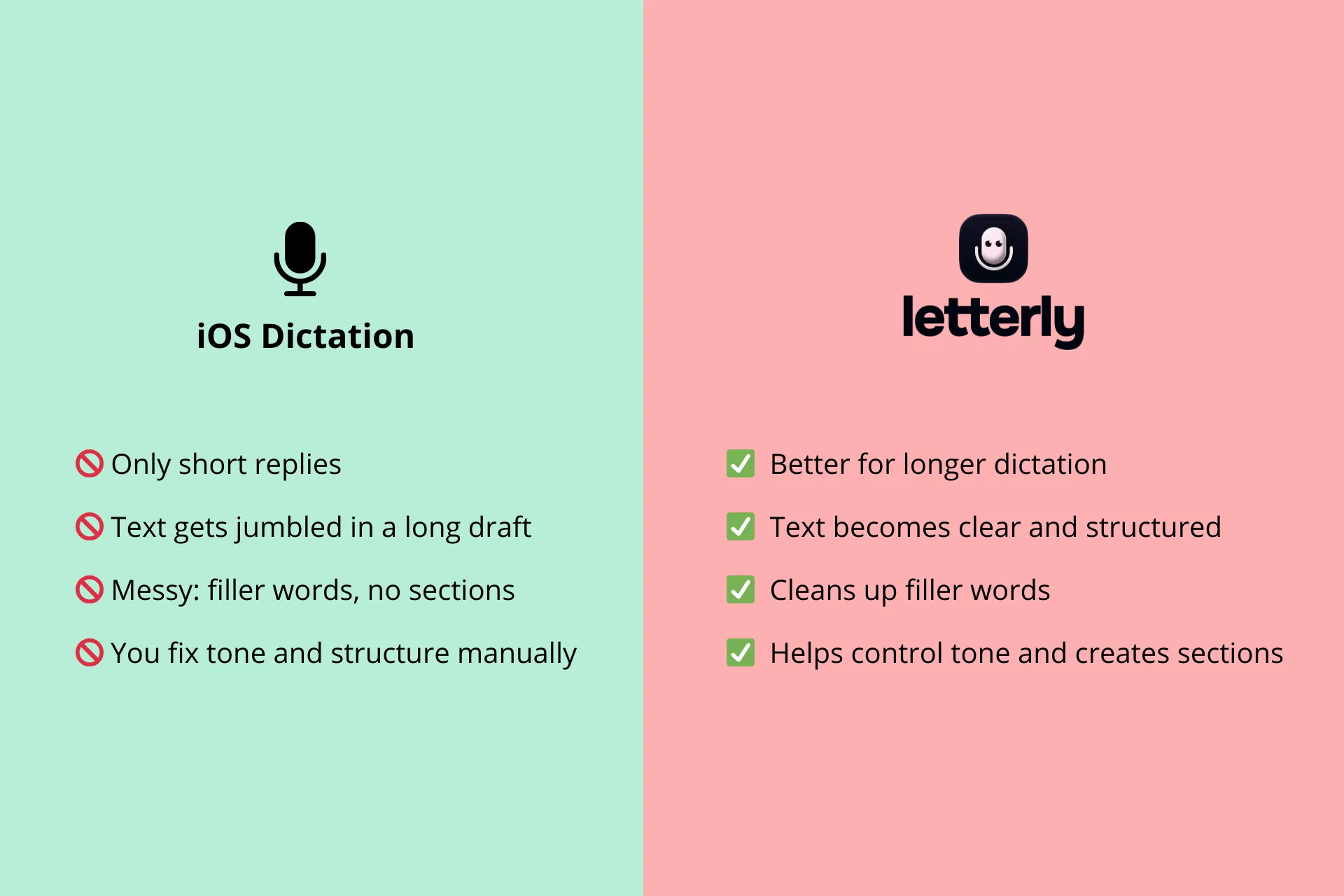
Dictate anywhere, then get a better final result
With Letterly, you can dictate into any text field on Mac, and when you stop dictating, Letterly applies a rewrite automatically.
By default, that rewrite can:
- clean up filler words
- add punctuation
- make the text readable
And if you want a specific format, you can choose a rewrite style like:
- Meeting takeaways
- Email format
- Clean notes
- Any pinned favorite rewrite option you use often
This is especially useful when you want your voice to become output you can send, share, or publish with minimal editing.
Once you’ve got Siri and Dictation set up, Letterly is the easiest way to turn longer voice notes into clear messages, emails, and structured notes.
Got questions? Email us at hi@letterly.app – we’re happy to help.