


Ilfat
on
January 29, 2026
How to Use the Rewrite Options Gallery
3 min to read
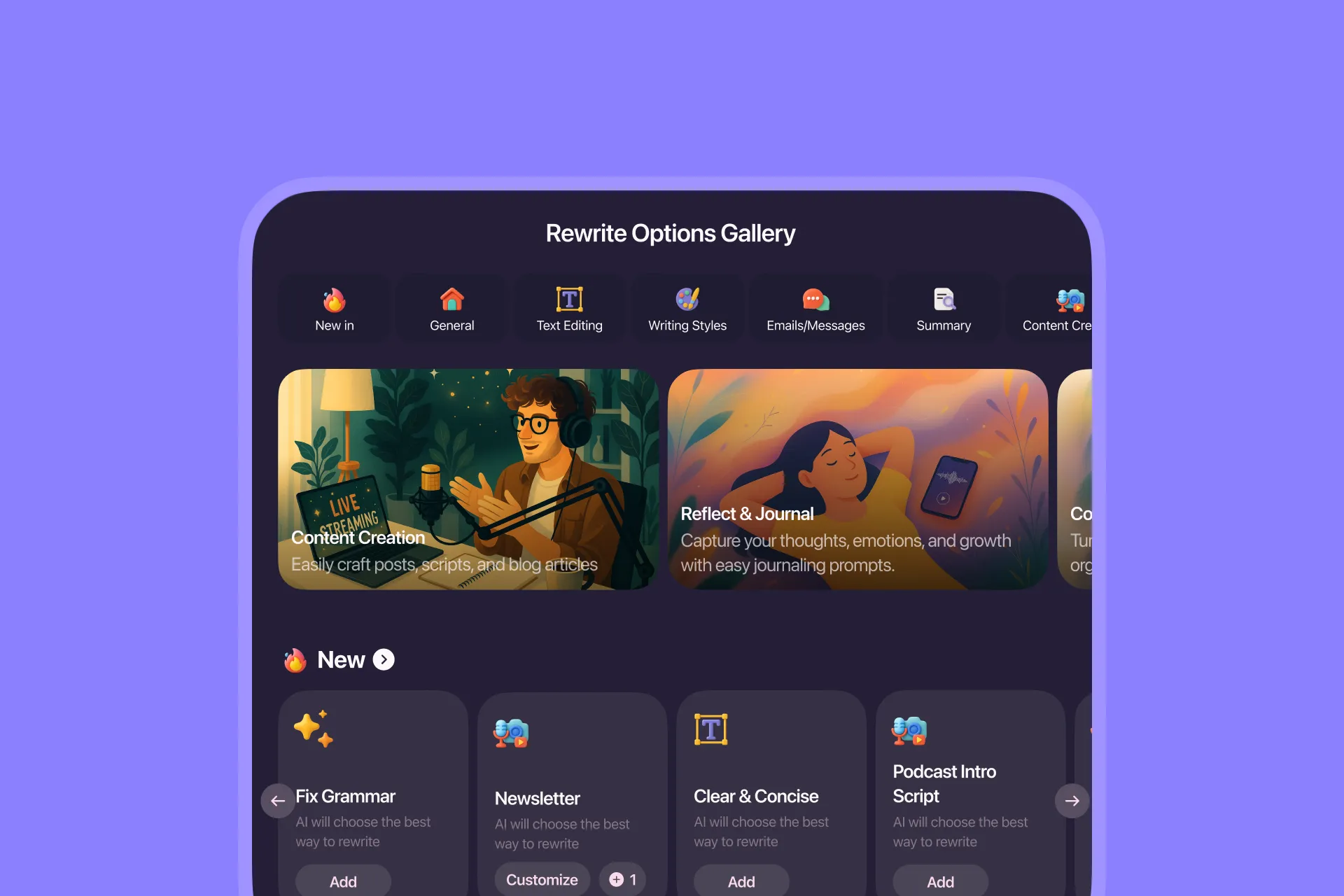
We’ve added lots of new rewrite options and created a home for them called Rewrite Options Gallery. It’s a library you can browse to quickly find rewrites that match your style.
How to open the rewrite options gallery
- Open any note in Letterly.
- Tap Rewrite to open the rewrite options panel.
- Tap + New.
- Tap Choose from gallery.
- Choose the rewrite options which matches your needs.
How to customize rewrite options
You can customize rewrite options from the gallery using quick settings or advanced settings if you want to add your own instructions.
- Open the rewrite options gallery.
- Tap Add on the option you want to customize.
- Tap Customize.
- Choose from the quick settings.
- Or tap Advanced settings and add your instructions in the prompt field.
How to create a rewrite option from scratch
Want a brand-new rewrite option? You can create one from scratch. 🤩
- Open the Rewrite panel and tap Create from scratch.
- Enter a name for your new option.
- In the Prompt field, write a short description of how you want your text rewritten.
That’s it. Your custom rewrite option is ready to use. 🥳
Now you can build a rewrite setup that fits your voice and keeps your rewrite panel clean.
Got questions? Email us at hi@letterly.app.