


Ilfat
on
December 10, 2025
How to Set Up Letterly Widget
9 min to read
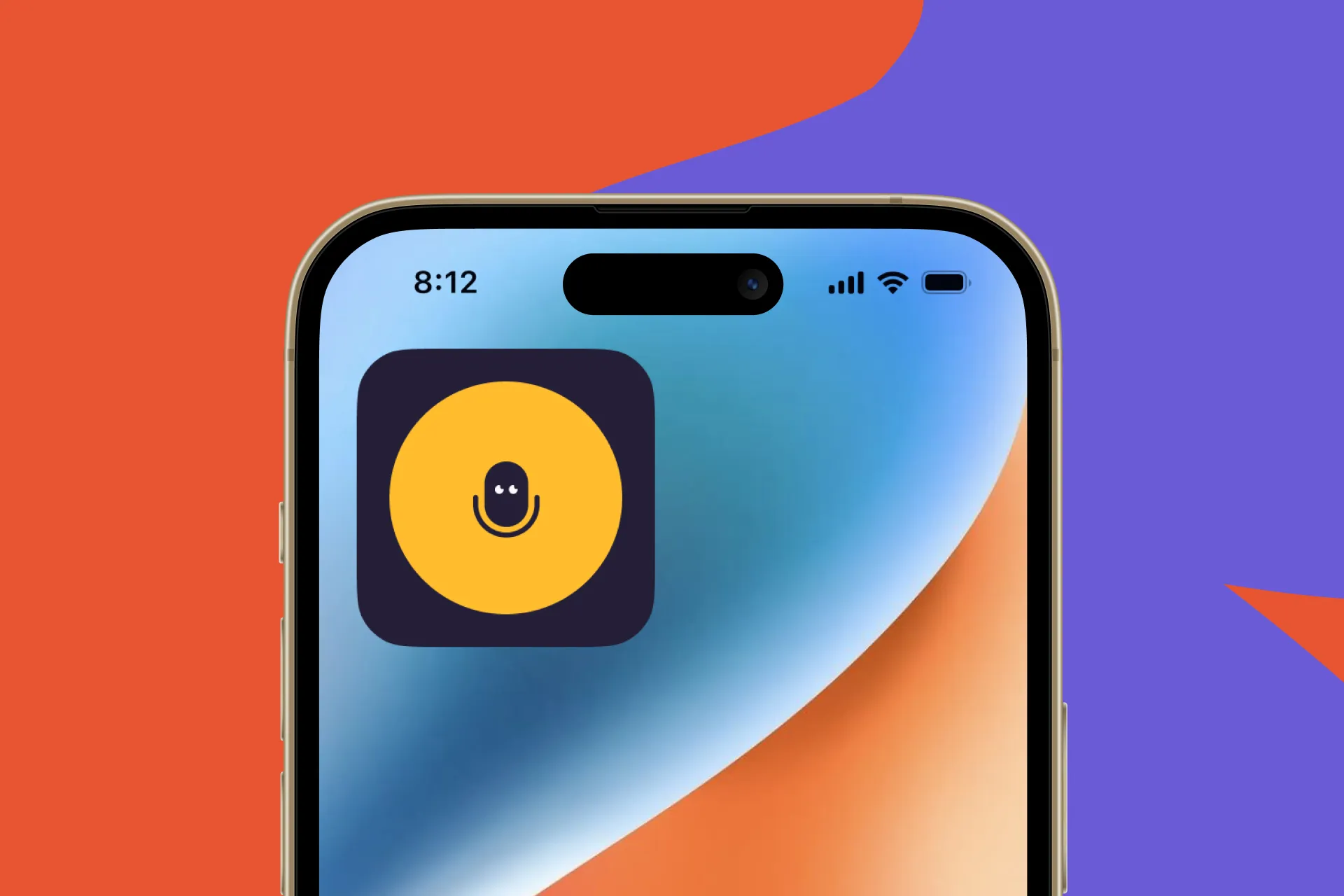
Letterly widget is the quickest way to jump into recording a new note without hunting for the app. One tap, and you are already in capture mode.
What is Letterly widget?
Letterly widget is a small shortcut you place on your phone’s screen to:
- Start a new recording with one tap
Where it works:
- iPhone: Home Screen and Lock Screen
- Android: Home Screen
Check requirements before you start 👇
To use Letterly widget, you’ll need:
- Letterly app installed on your device
- A reasonably up-to-date version of iOS or Android that supports widgets
Adding Letterly widget on iPhone
You can place the widget on both the Home Screen and the Lock Screen.
1. Add the widget to your Home Screen
- Touch and hold an empty area on your Home Screen until the icons start to jiggle.
- Tap Edit in the top-left corner, then tap Add Widget.
- Search for Letterly in the widget gallery.
- Tap Add Widget, then drag it where you want.
- Tap Done to save your layout.
Now you have a one-tap entry point to start recording in Letterly.
2. Add the widget to your Lock Screen
- Go to your Lock Screen and touch and hold until the Customize button appears.
- Tap “Customize” and choose your Lock Screen.
- Scroll or search for “Letterly” in the list.
- Tap Letterly widget to add it.
- Tap “Done” to save your Lock Screen.
Once added, you can start a recording with one tap right from the Lock Screen (after Face ID / Touch ID unlock).
Adding Letterly widget on Android
On Android, the Letterly widget lives on your Home Screen.
- Touch and hold an empty space on your Home Screen.
- Tap Widgets in the menu that appears.
- Scroll the list or use search to find Letterly.
- Touch and hold Letterly widget, then drag it onto your Home Screen.
- Drop it where you want it to live.
You can move it later the same way: touch and hold, then drag.
Starting a recording from the widget
Once the widget is in place, using it is simple.
On iPhone (Home Screen or Lock Screen)
- Tap Letterly widget.
- Letterly opens directly to a new recording, so you can start speaking right away.
- When you are done, tap Stop in the app as usual.
- Letterly will process your note, and you will see the transcript and rewrites inside the main app.
On Android (Home Screen)
- Tap Letterly widget on your Home Screen.
- Letterly opens to a new recording screen.
- Speak your note, then tap Stop.
- Your note is saved and processed in the app, just like any other recording.
Got questions? Email us at hi@letterly.app – we’re happy to help.