


Ilfat
on
December 22, 2025
How to Record More in The Same Note
4 min to read

You can now keep recording into the same note.
Check requirements before you start 👇
1. Confirm the basics
Before you continue recording in an existing note, make sure you have:
- Latest Letterly version: Update the app from the App Store if needed.
- Microphone access: iPhone Settings → Privacy & Security → Microphone → Letterly (toggle ON).
- Internet connection: Needed to process and append the transcription.
2. Pick the right version before you start
If your note has both an original transcription and a rewrite, open the version you want to keep editing first. Letterly appends the new transcription to the version you’re currently working on.
How to Record more in the same note
- Open the note you want to add to.
- Tap the three dots to open the note settings menu.
- Tap Record more at the top.
- Tap Stop when you’re done.
- You can Pause anytime if you need a moment to think.
- If you want to start over, tap Reset.

Letterly will append the new transcription to the end of your current note.
How to add text in a specific place
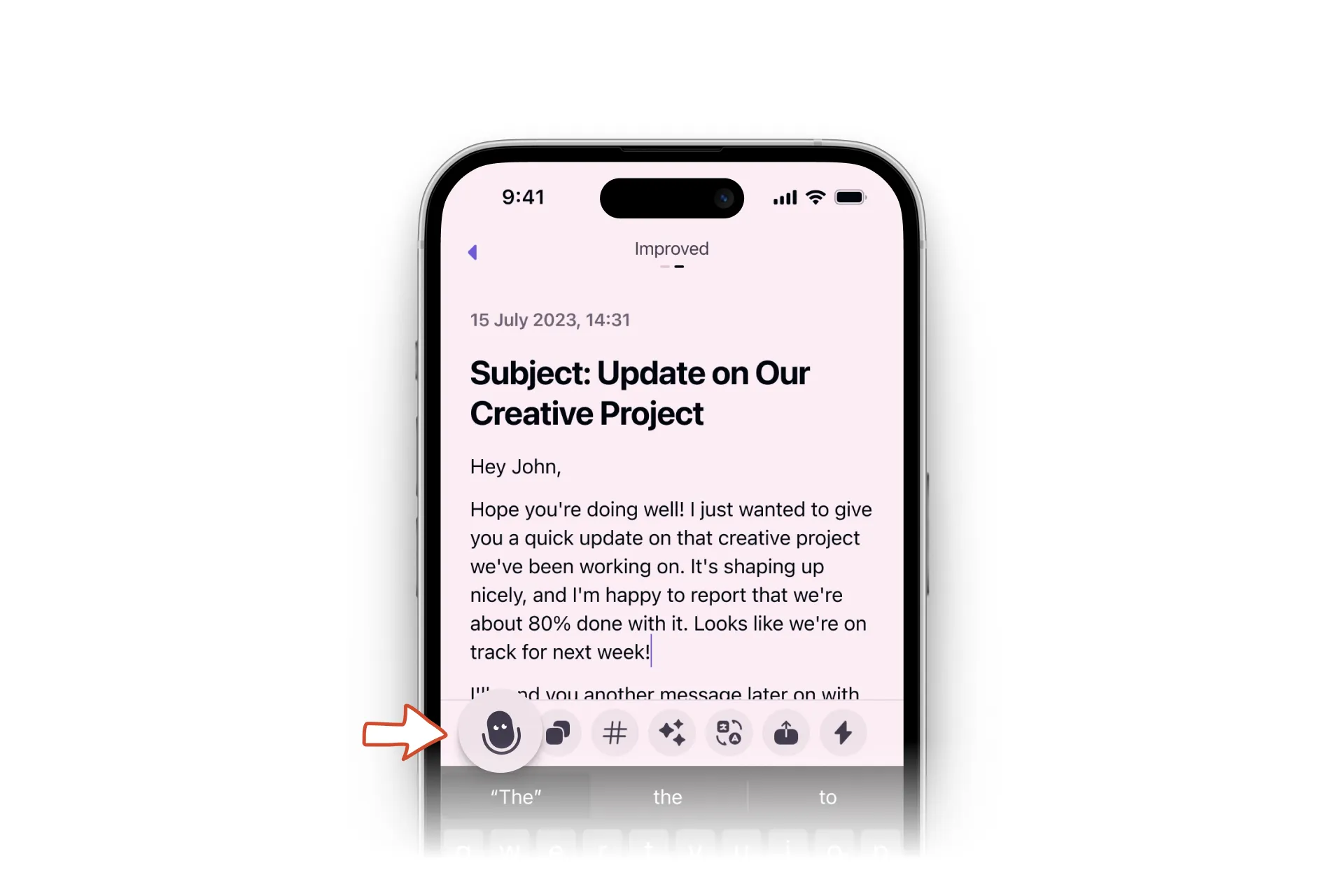
If you want to insert text somewhere in the note (not at the end), tap where you want it to go, then tap the first button on the left in the toolbar.
Got questions? Email us at hi@letterly.app.