


How to Dictate Text Messages, Notes, and Emails on iPhone
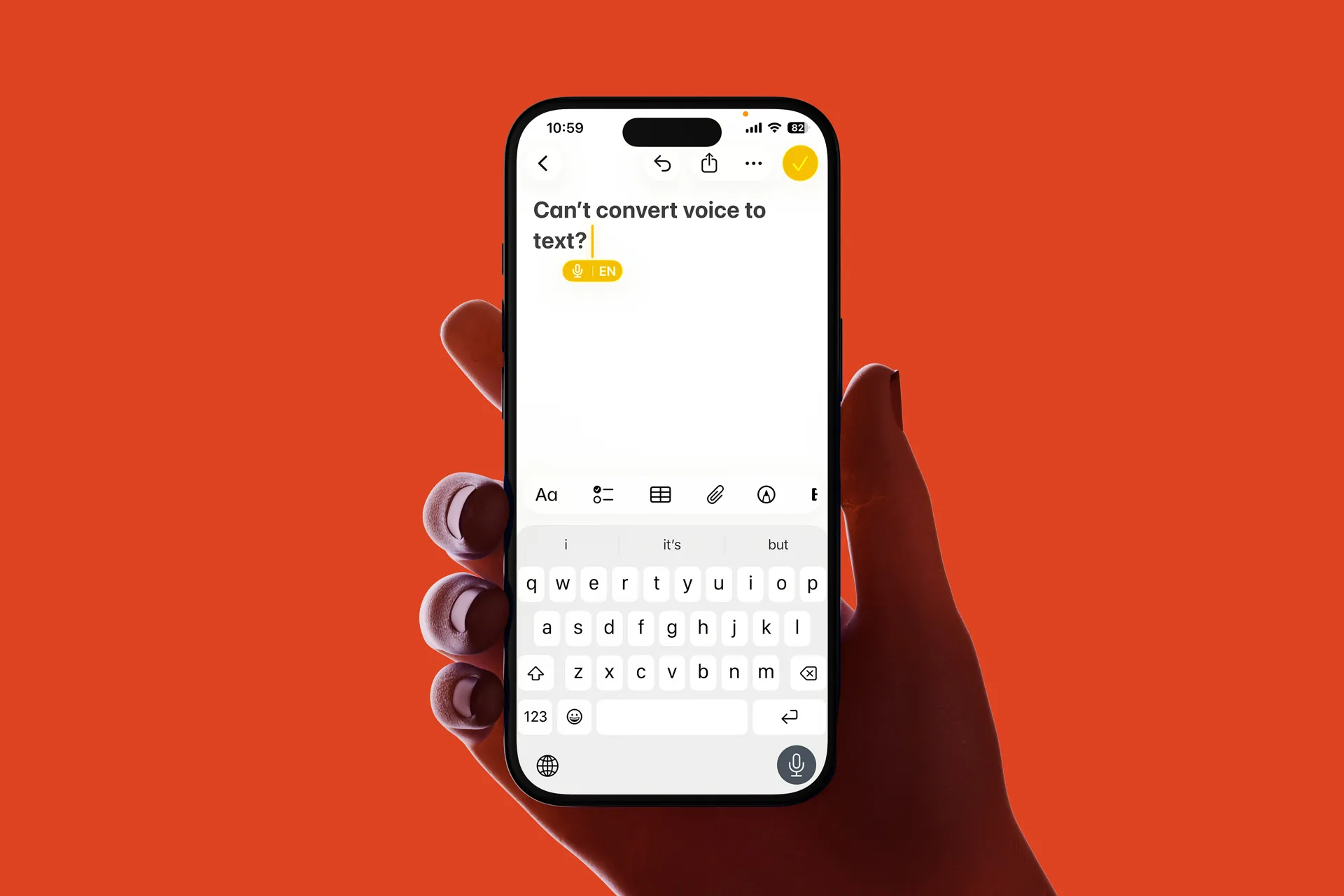
Typing on your iPhone is fine for quick replies. But when you need to send a longer message, capture an idea while walking, or write an email without staring at the keyboard, dictation is the fastest shortcut.
In this guide, you’ll learn how to turn on dictation, use it, add punctuation while speaking, fix common issues, and finish with a workflow that helps you turn rough voice drafts into clean, polished text using Letterly.
How to turn on Dictation on iPhone
- Open Settings
- Go to General
- Tap Keyboard
- Turn on Enable Dictation
A few tips before you start dictating 💡
Dictation works best when you treat it like speaking to a person, not like typing.
✔️ Speak in short chunks (one sentence at a time).
✔️ Pause instead of saying “um” and “uh”.
✔️ Say punctuation out loud if you want cleaner text on the first pass.
✔️ Always do a quick review before you hit send.
That’s it. Now you’re ready to use dictation on your iPhone. 🎉
How to use built-in iPhone dictation
You can use iPhone dictation anywhere you see the keyboard, like Messages, Notes, Mail, or search fields.
- Open any app where you can type
- Tap a text field to show the keyboard
- Tap the microphone button on the keyboard
- Speak your text
- Tap Done to finish
Punctuation and structure you can say while dictating
Try speaking like this:
“Hey, I’ll be there in ten minutes, comma, parking might be tricky, period”
Helpful commands for longer text:
-
“new line”
-
“new paragraph”
Quick cleanup (30 seconds)
After dictation, do a fast edit pass:
- Split long sentences
- Add 1–2 paragraph breaks
- Fix names, numbers, and dates
- Remove repeated words
This quick pass is what makes dictated text feel clear and readable.
Letterly: a dictation app for iPhone for longer dictation
Built-in dictation is designed for quick input. When you dictate longer text, it often creates more work than it saves:
- long text turns into one big block
- punctuation is inconsistent
- filler words and repeated phrases sneak in
- structure is missing (no clear paragraphs, bullets, sections)
- you spend more time editing than dictating
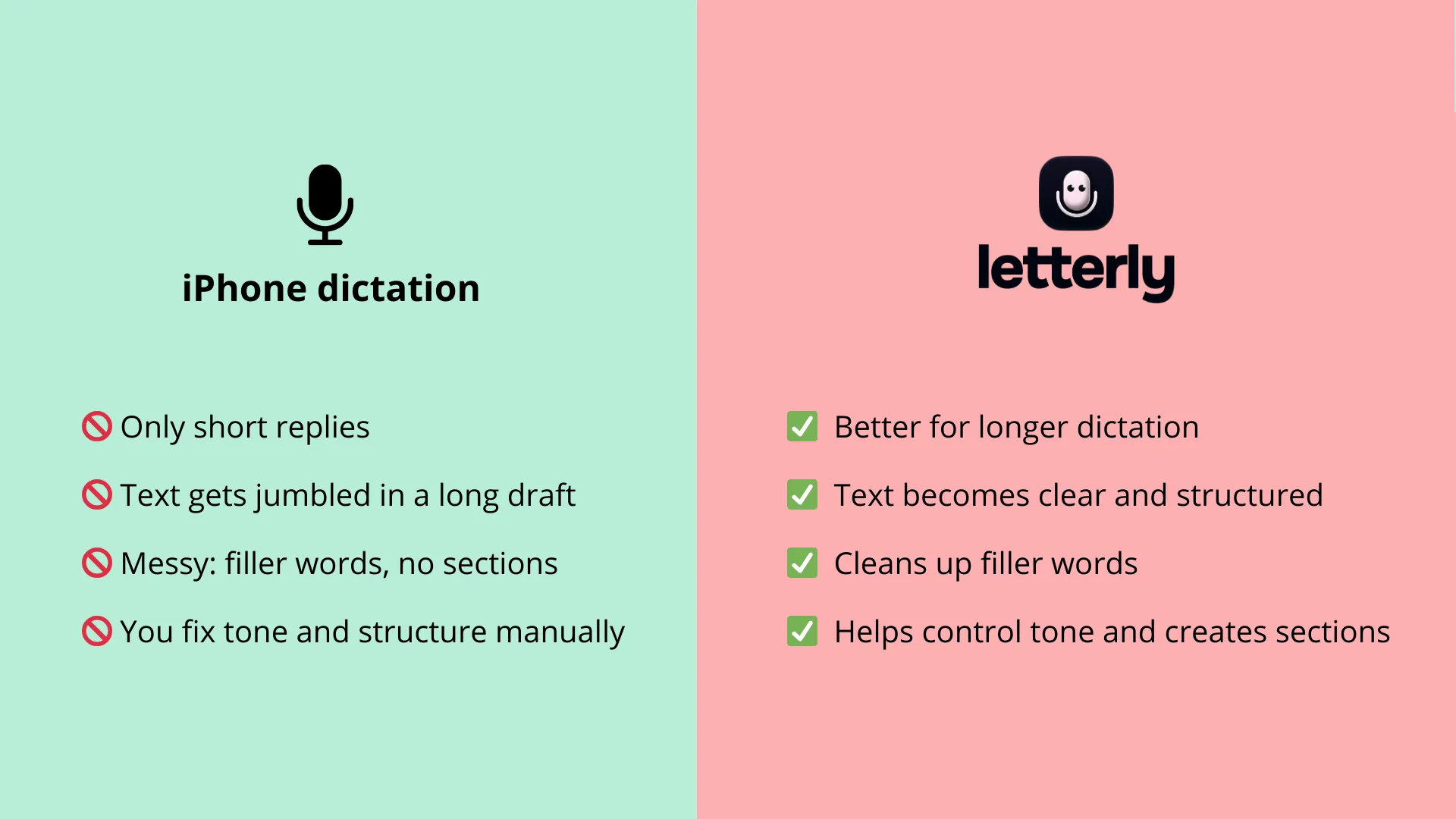
Letterly is made for longer voice notes and for turning spoken drafts into something you can actually send or save without a long cleanup.
A better workflow for longer dictation with Letterly
- Record naturally (talk like you normally would, no need to think about punctuation).
- Get a clean transcript (Letterly turns speech into text).
- Rewrite into the format you need (email, structured notes, short message, summary).
- Quick final skim (names, dates, details), then copy or send.
This workflow is faster because you’re not fighting the keyboard dictation limitations. You capture your idea once, then convert it into the right format.
Quick takeaway
Use the built-in iPhone dictation when you want a quick short message.
When you want to dictate longer text and end up with something polished, structured, and send-ready, use Letterly and follow the workflow above.
Hope Letterly becomes your go-to for longer dictation on iPhone – so your notes, messages, and emails come out clean and ready to use. 🥳
Got questions? Email us at hi@letterly.app – we’re happy to help.