


How to Convert Audio to Text on Your Laptop
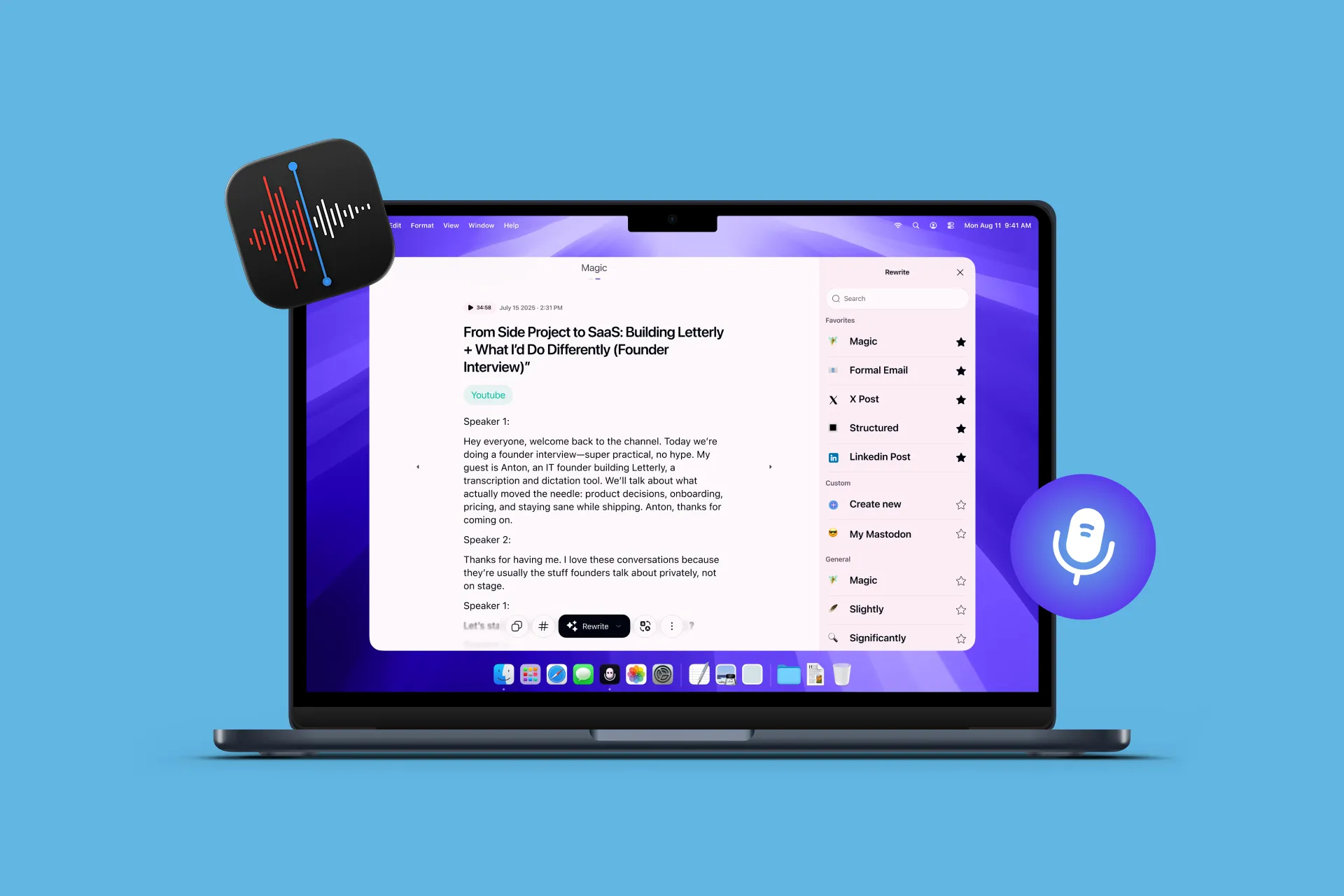
If you often transcribe work meetings, interviews, or personal voice memos, doing it on a laptop is usually the easiest way to get from raw audio to something you can actually use. A bigger screen and a real keyboard make it faster to organize, edit, and share your notes, and with a simple, repeatable workflow you can turn audio into clean text and then into structured, usable notes.
If you’re searching for the best voice to text app for laptop, the key is not only accuracy. It’s how quickly you can turn a recording into something you can actually reuse: notes, summaries, action items, or a follow-up email.
Here’s the simplest path: audio → text → usable notes, and we’ll walk through it using Letterly.
Step 1: Upload your recording
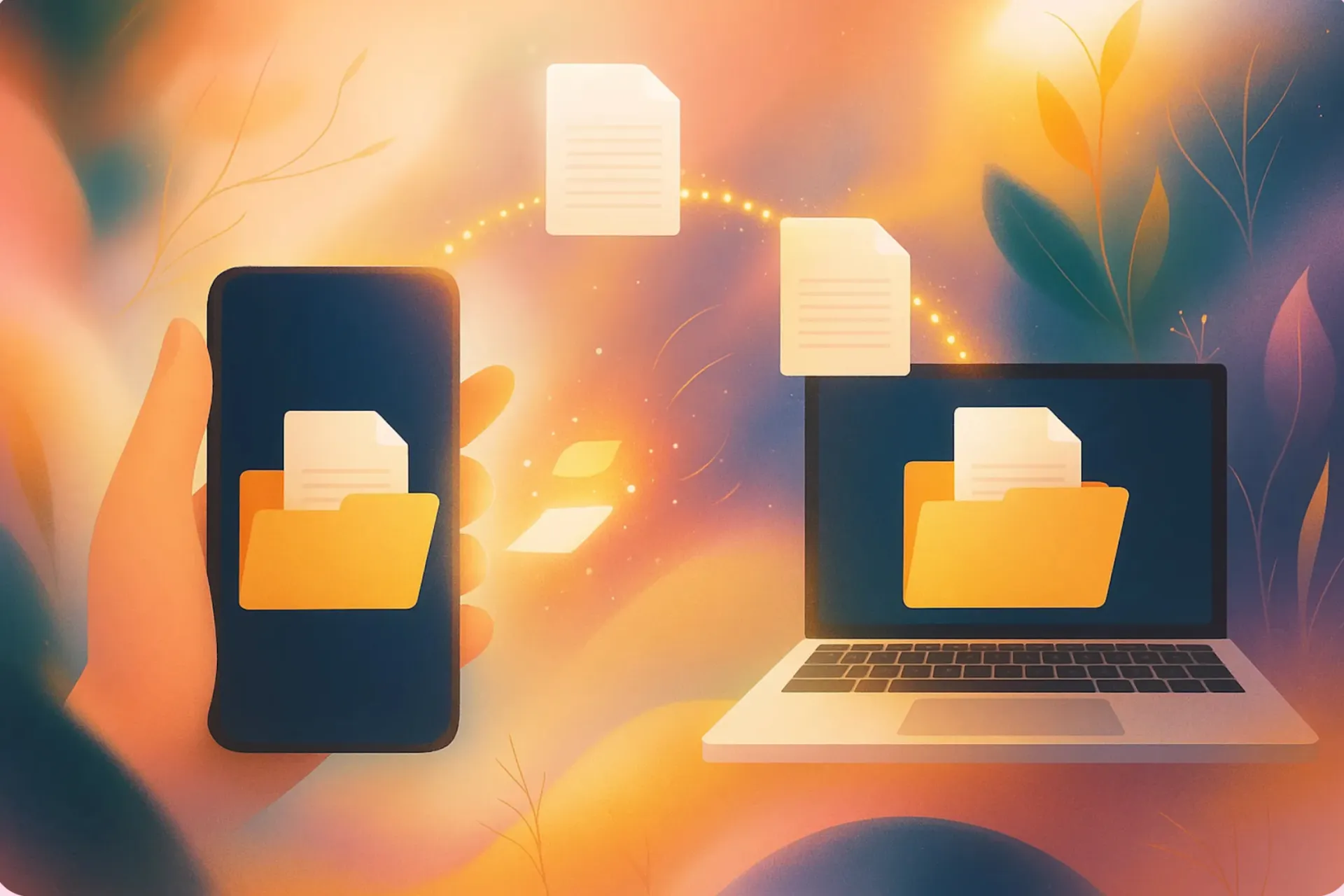
First, get your audio file onto your laptop. This could be a recording downloaded from Zoom or Microsoft Teams, an exported voice memo from your phone, or an email attachment.
With Letterly, you can process these files regardless of your operating system:
- The Mac App — Perfect for a fast, native experience that stays pinned to your Dock for instant access.
- The Web Version — Ideal for any other laptop or if you simply prefer working directly in your browser without installing software.
Step 2: Let Letterly generate the transcript
Once you upload the audio, Letterly turns it into text automatically, so you can kick back for a bit.
Before you move on, there’s one feature worth using for meetings: Speaker separation.
Meetings are different from voice memos because meaning depends on who said what. Without speaker labels, a transcript can turn into one long block where decisions, owners, and next steps get blurry.
When Letterly asks “Organize text by speaker?”, choose By speaker.
With speakers separated, everything afterward becomes easier: summaries are clearer, action items are more accurate, and you can skim the conversation without replaying the audio.
Step 3: Turn the transcript into the format you actually need
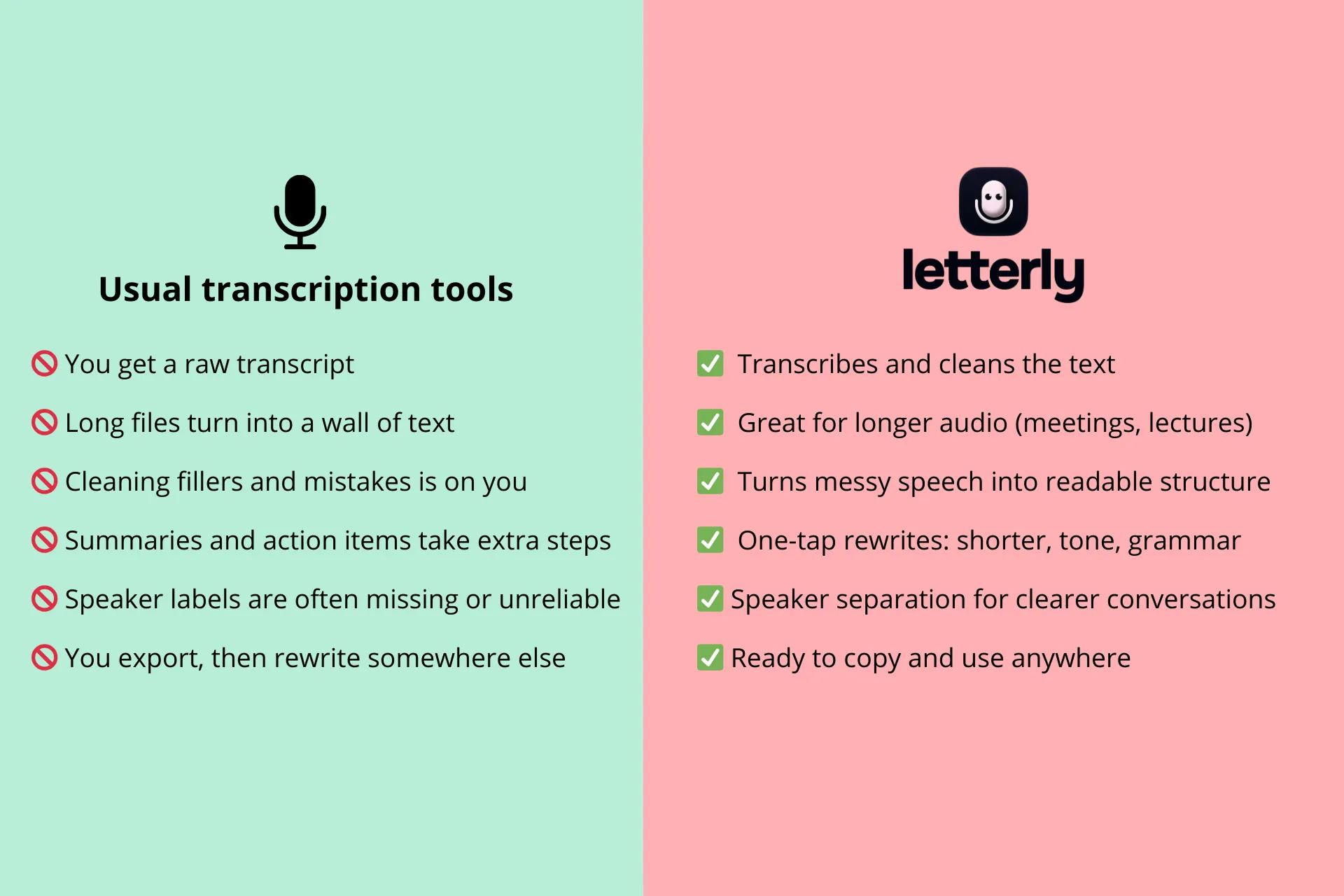
This is where Letterly’s workflows shine, because you don’t just get the raw transcript of your audio file, you get the polished version, 99% accurate, without filler words. So pick a rewrite option that feels right for you.
- make sentences readable
- structure the content
- create ai summary from audio
- extract action items
- turn text into any style you want
- prepare a follow-up message
A lot of tools stop after transcription. But most people don’t want a wall of text. They want something that feels finished and ready-to-use.
Choose the output you need with rewrite options
A transcript is raw material. What you do with it depends on your purpose.
This is where Letterly’s rewrite options are designed to help: you can take the same transcript and generate different “final versions” depending on what you want to produce.
Here are a few practical outputs people commonly need on a laptop, with the best rewrite options to get them.
Clean transcript
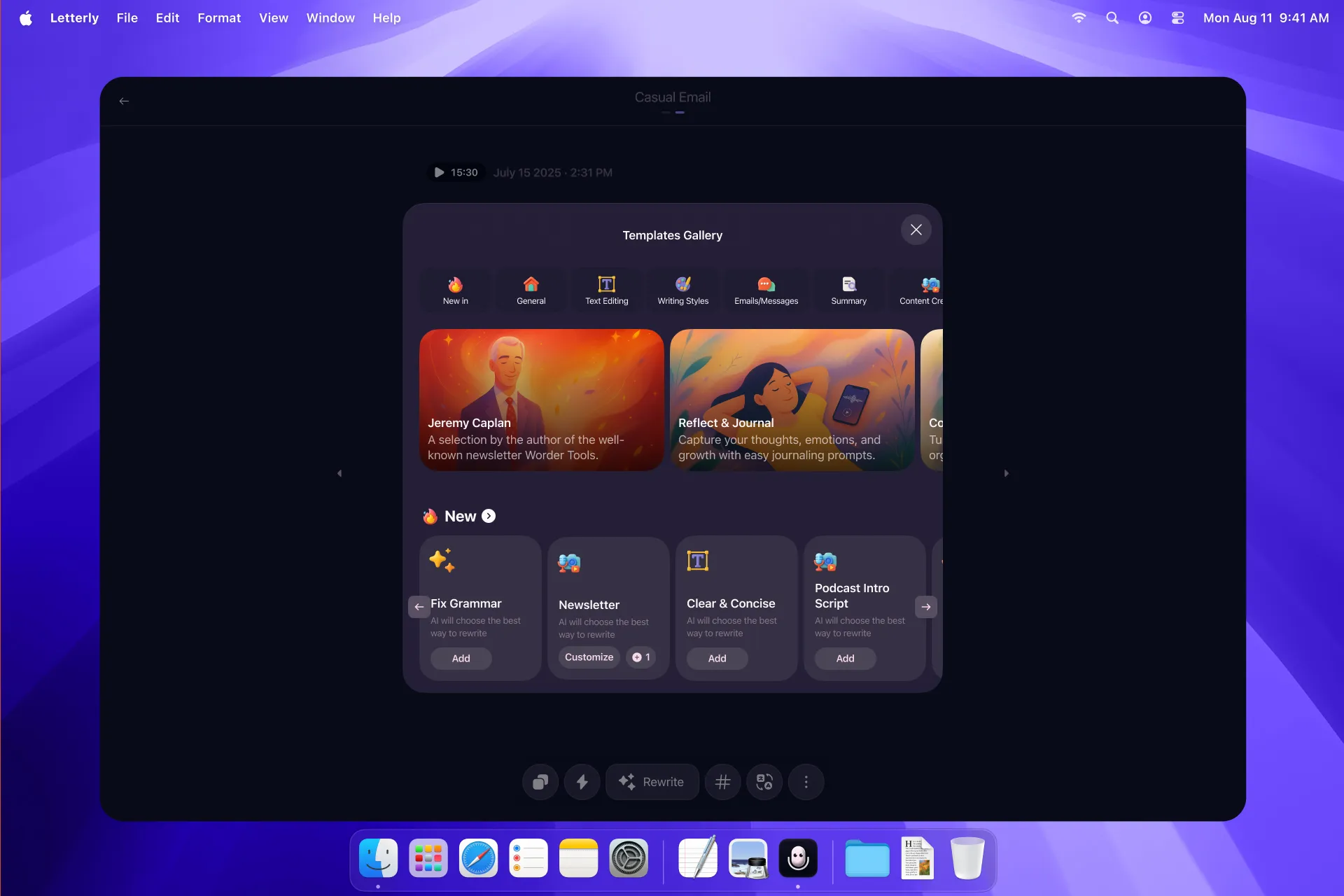
Best when you want the original content, just easier to read.
- Fix Grammar — Correct grammar, spelling, and punctuation. Remove filler words and obvious repetitions. Keep the original meaning and tone. Don’t add new information. Output only the rewritten text.
- Format & Tone — Apply your preferred style and formatting rules (names, terminology, capitalization, punctuation, structure). Keep the meaning intact and keep the tone consistent. Don’t add new information. Output only the rewritten text.
- Shorter — Make the text tighter while preserving meaning. Remove redundancy, fillers, and unnecessary details. Keep the same tone and key points. Output only the rewritten text.
- Structured — Restructure the text to be easy to scan. Use clear headings and bullet points where helpful. Keep all important details and preserve meaning. Don’t add new information. Output only the rewritten text.
This is great for interviews, lectures, and voice memos you want to revise.
Structured meeting notes
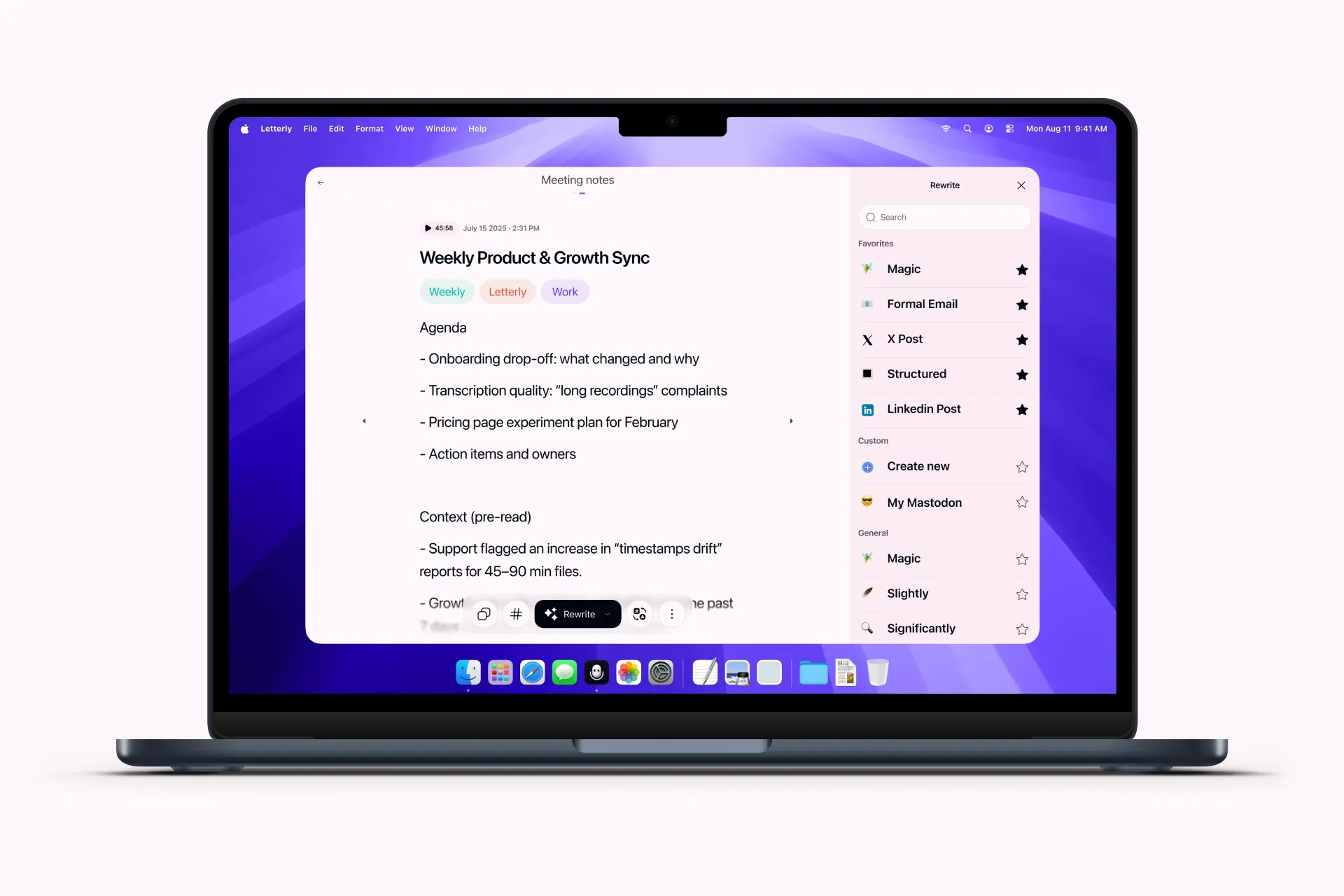
Best when you need something you can share with a team.
- Meeting Takeaways — Extract key points, decisions, and next steps. Present as bullets with a clear Action items section (include an owner if mentioned). Don’t add new information. Output only the takeaways.
Summary (short or detailed)
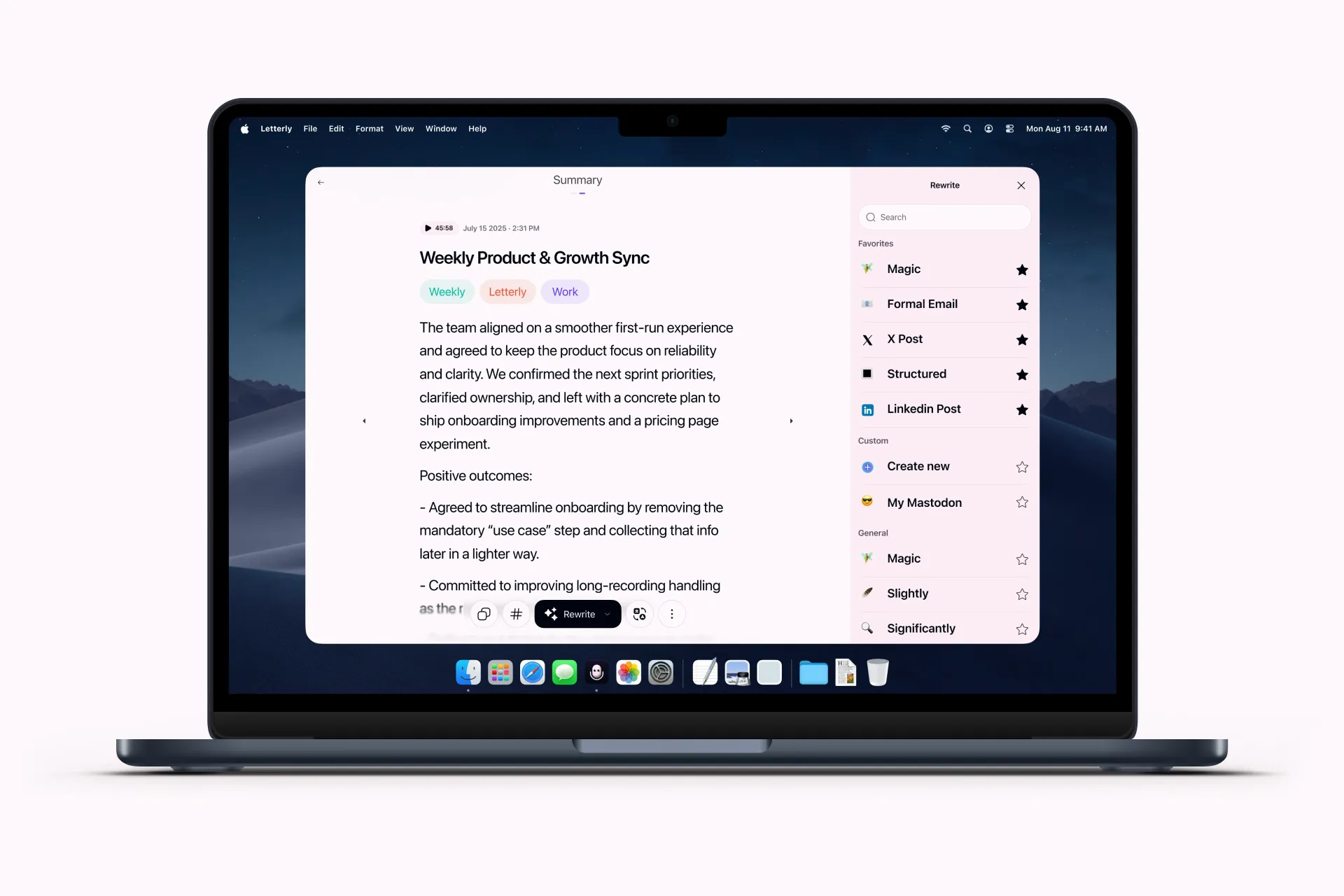
Best when you need the gist fast.
- Short Summary — Highlight only the most important points in a few sentences or tight bullets. Don’t add new information. Output only the summary.
- Detailed Summary — Cover key points thoroughly. Keep it structured with short paragraphs and, where helpful, bullet points. Include context, decisions, and important details. Don’t add new information. Output only the summary.
Follow-up message or email
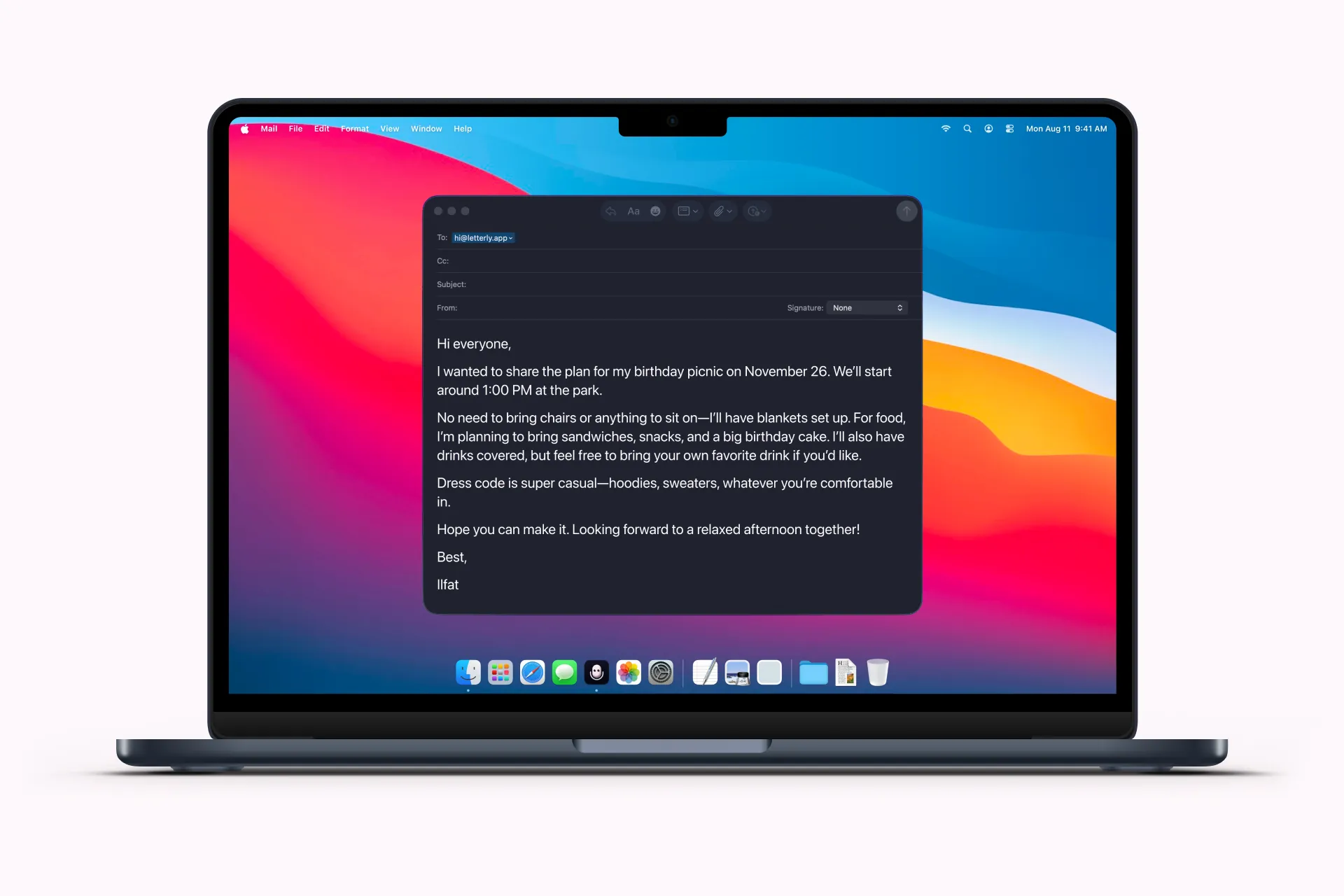
Best when the next step is communication.
- Casual Email — Turn this text into a friendly, casual email. Keep it clear and concise, add a greeting and a simple sign-off. Don’t invent facts. Output only the email.
- Formal Email — Turn this text into a professional email with a clear structure. Use a polite greeting, short paragraphs, and an appropriate closing. Keep the tone formal but natural. Don’t invent facts. Output only the email.
The nice thing about doing this on a laptop is the flow: generate a version, skim it, tweak one line if needed, copy or export, and move on. No heavy editing. No starting from scratch.
With the right audio-to-text tools on your laptop, you can handle the heavy lifting of transcription and summarization without spending your entire afternoon re-listening to recordings.
Got questions? Email us at hi@letterly.app – we’re happy to help.