How to Chat with Your Notes Using Claude


Let’s be honest, by now almost everyone leans on AI for something every day: drafting emails, untangling a work problem, brainstorming ideas, just talking things through. It’s everywhere, and it’s genuinely useful.
But here’s what AI still can’t fake: your weirdness. The one-of-a-kind phrasing, the creative leap nobody else would make, the voice that sounds like you and no one else. Diversity, creativity, a distinct style, that’s still squarely human territory, and it’s our real edge.
Which is exactly why the people who use AI the most are the ones most eager to teach it their style — not to make it sound robotic-perfect, but to make it sound like them. The real question isn’t whether that’s possible. It’s how you actually do it.
How to make AI sound like you
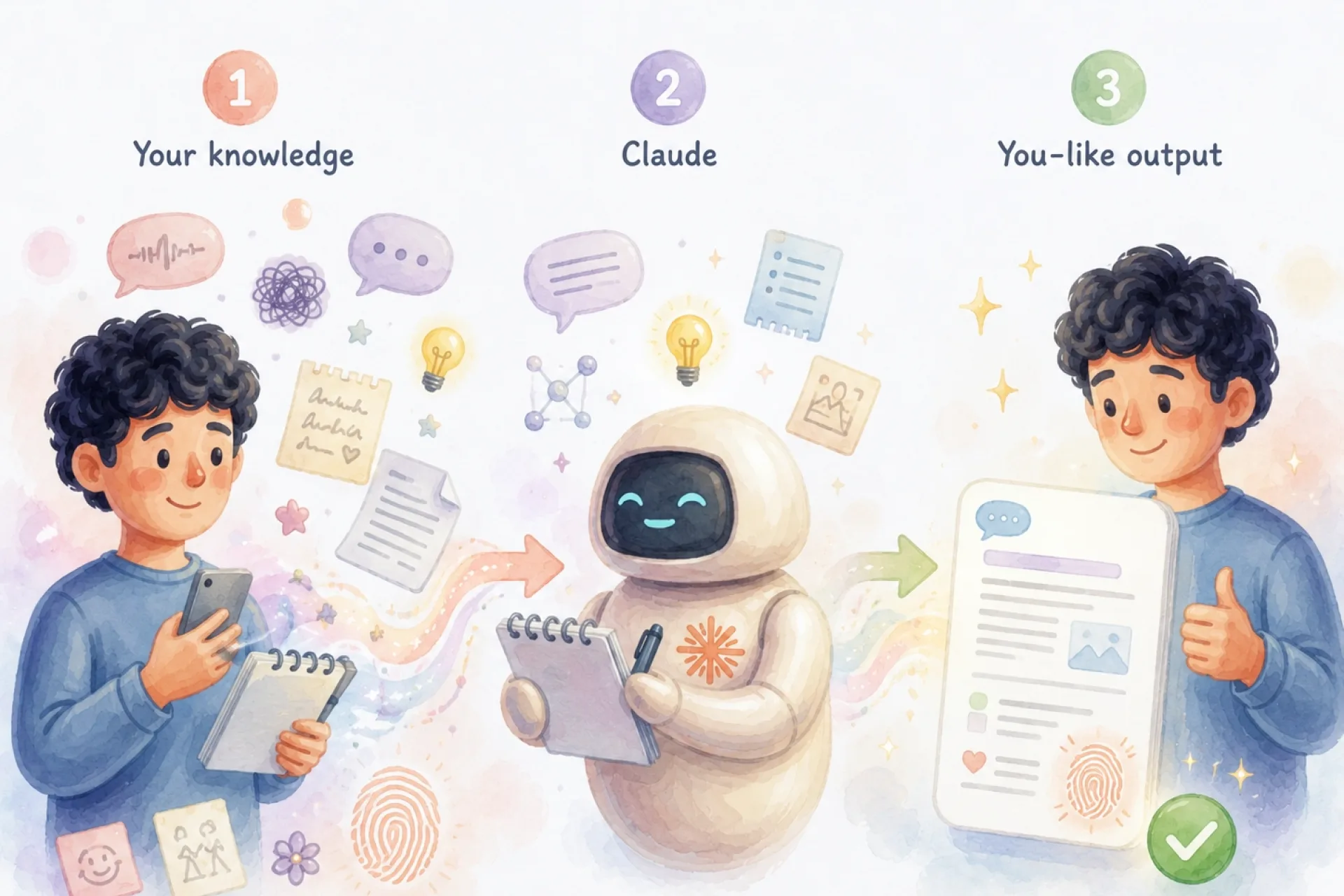
The trick to making AI sound like you isn’t clever prompting. It’s feeding it the right raw material. Your unedited voice notes, the ones full of “um”s, half-finished thoughts, and your actual phrasing, are basically a fingerprint of how you talk. Point AI at that instead of some generic writing sample, and it stops sounding like a corporate template and starts sounding like you on a good day. Tell it exactly what to keep, such as your directness, your specific jokes, and the way you always open emails with “quick one,” as well as what to smooth out. The more real examples you feed it, the less it has to guess. And the less it guesses, the less it sounds like every other AI-written thing on the internet.
What is MCP connectors
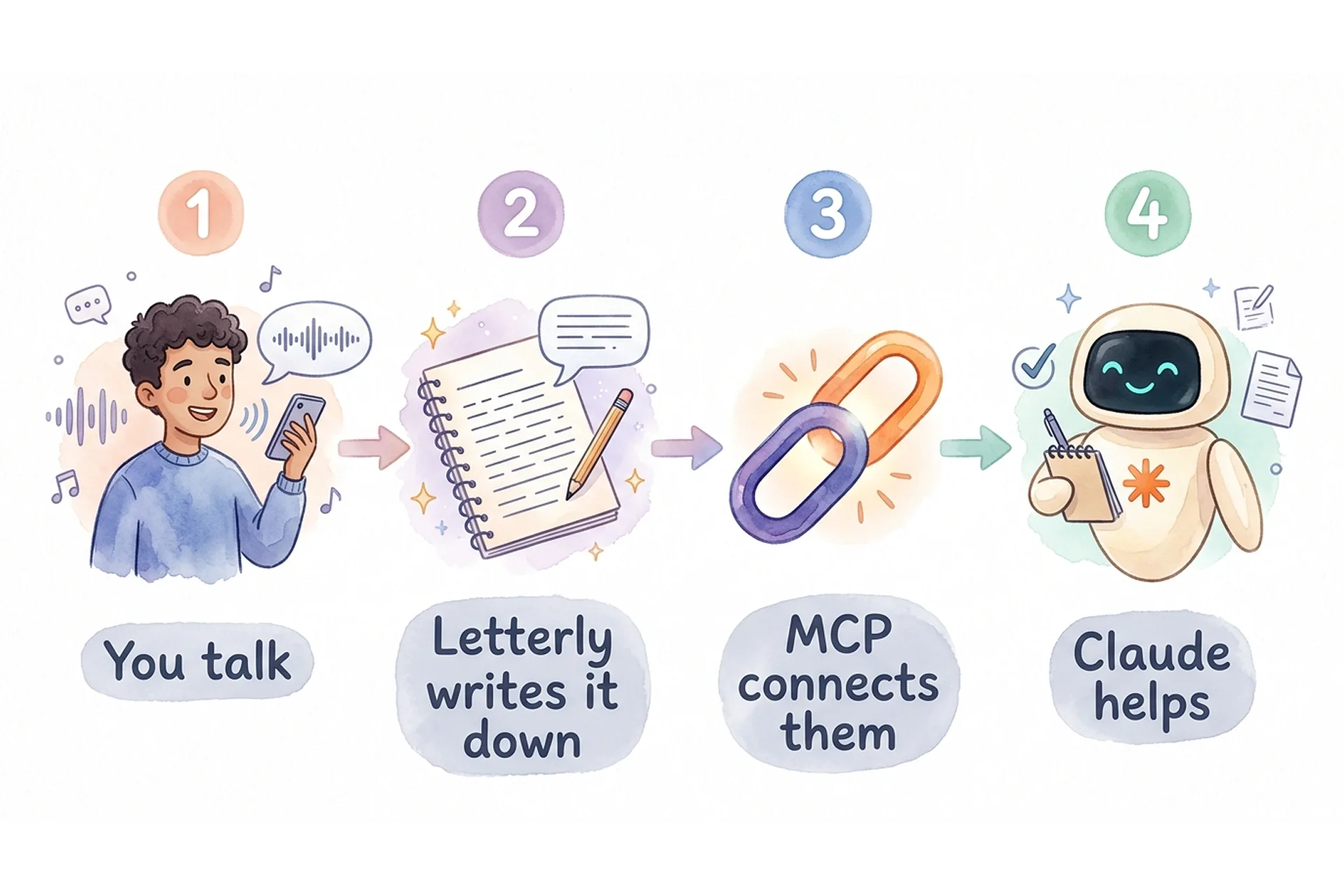
So how does Claude actually get to your voice notes without you copying and pasting anything? That’s where MCP connectors come in. MCP, or Model Context Protocol, is basically a universal plug. It lets Claude connect directly to apps you already use, including Letterly, so it can read, search, and work with your real data instead of relying only on what you type into the chat box.
Think of it less like an integration and more like giving Claude a key to one specific room in your digital life. It can only access the apps you connect, and only after you give permission.
Once connected, Claude can access your Letterly voice notes directly. Ask Claude to:
- find a note from last week
- turn a voice note into a polished email
- translate a note into another language
- create a new note from your conversation
Your notes become part of the conversation. Claude can read them and work with them just like any other text you send.
Setup in 2 minutes
- Open claude.ai in your browser.
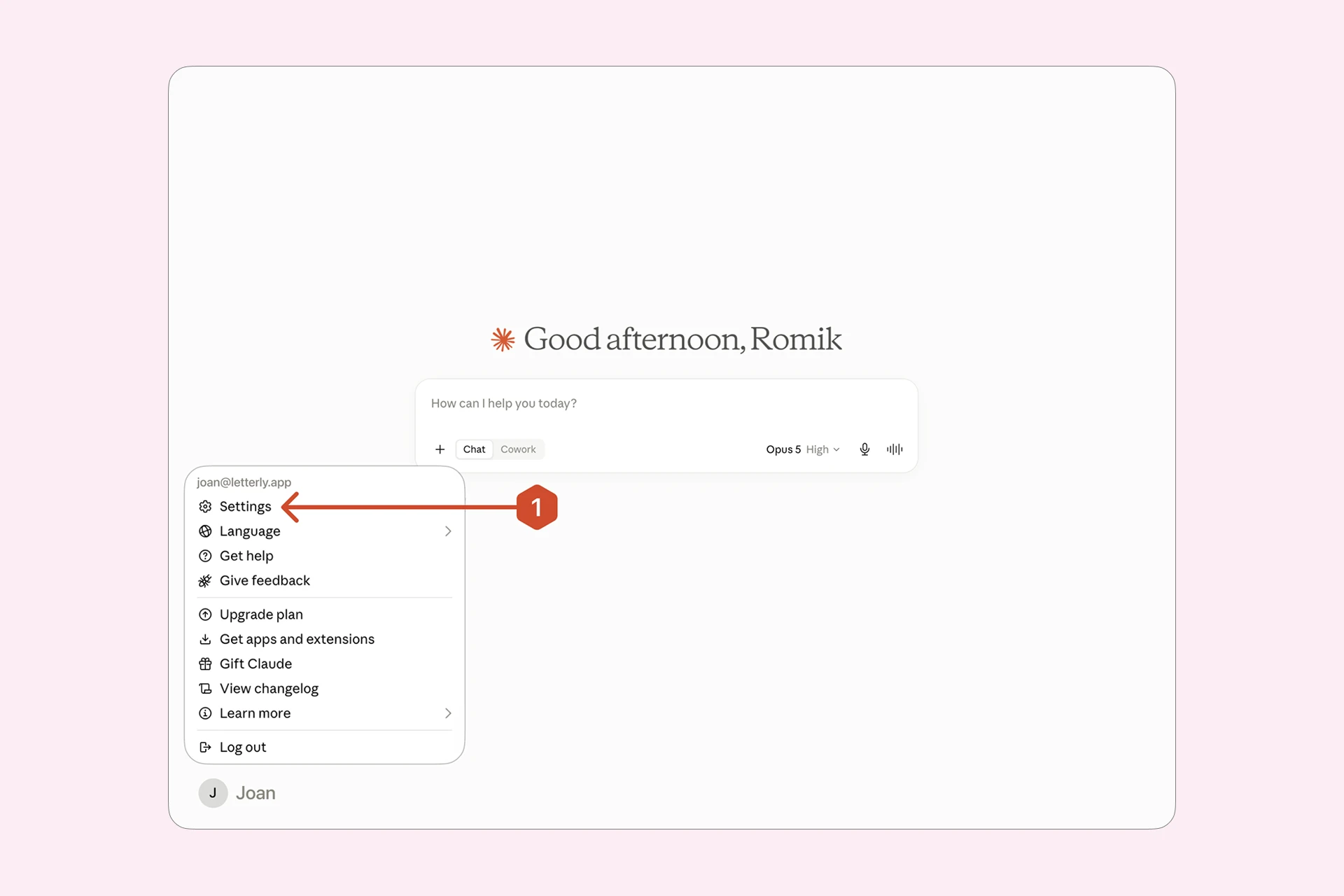
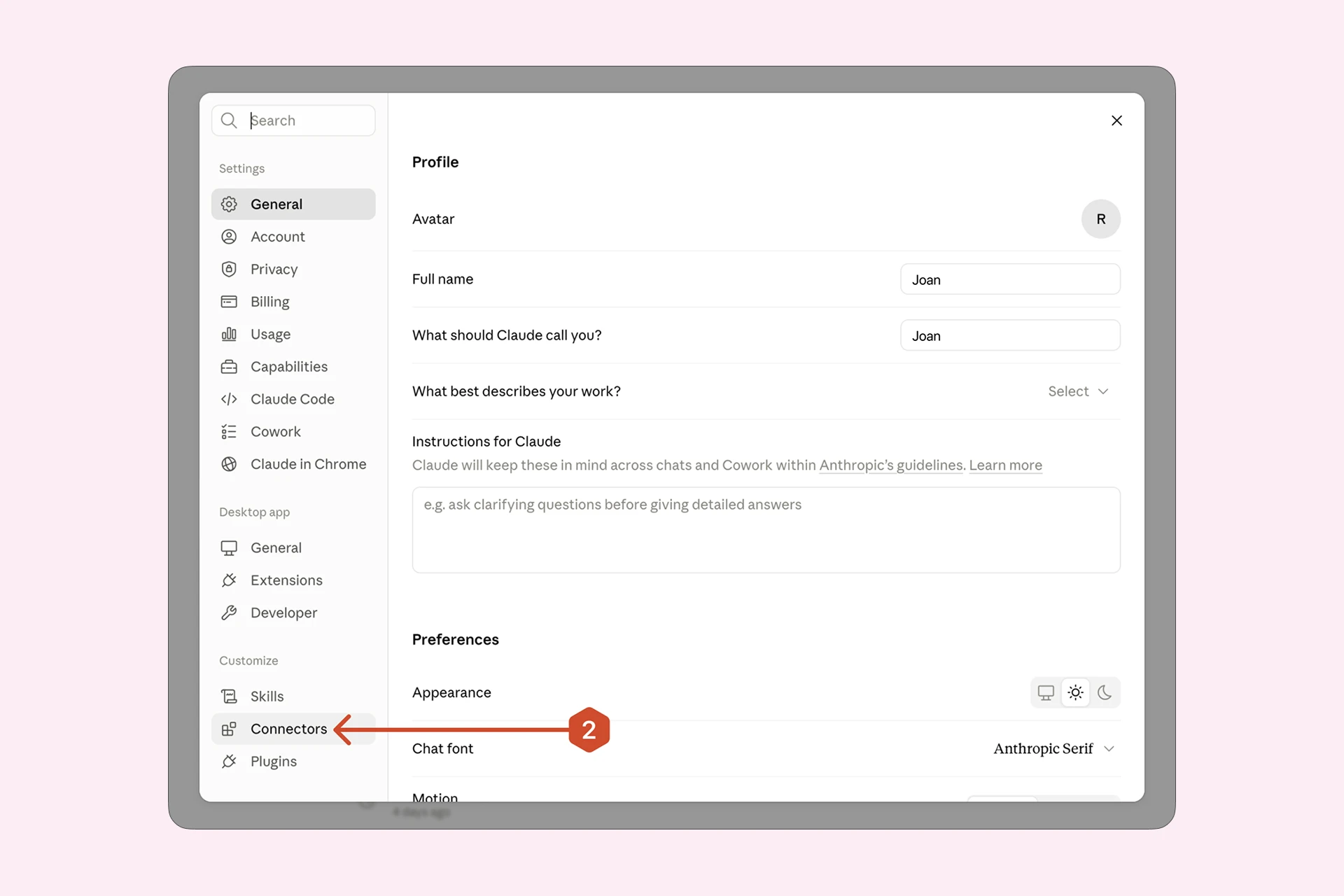
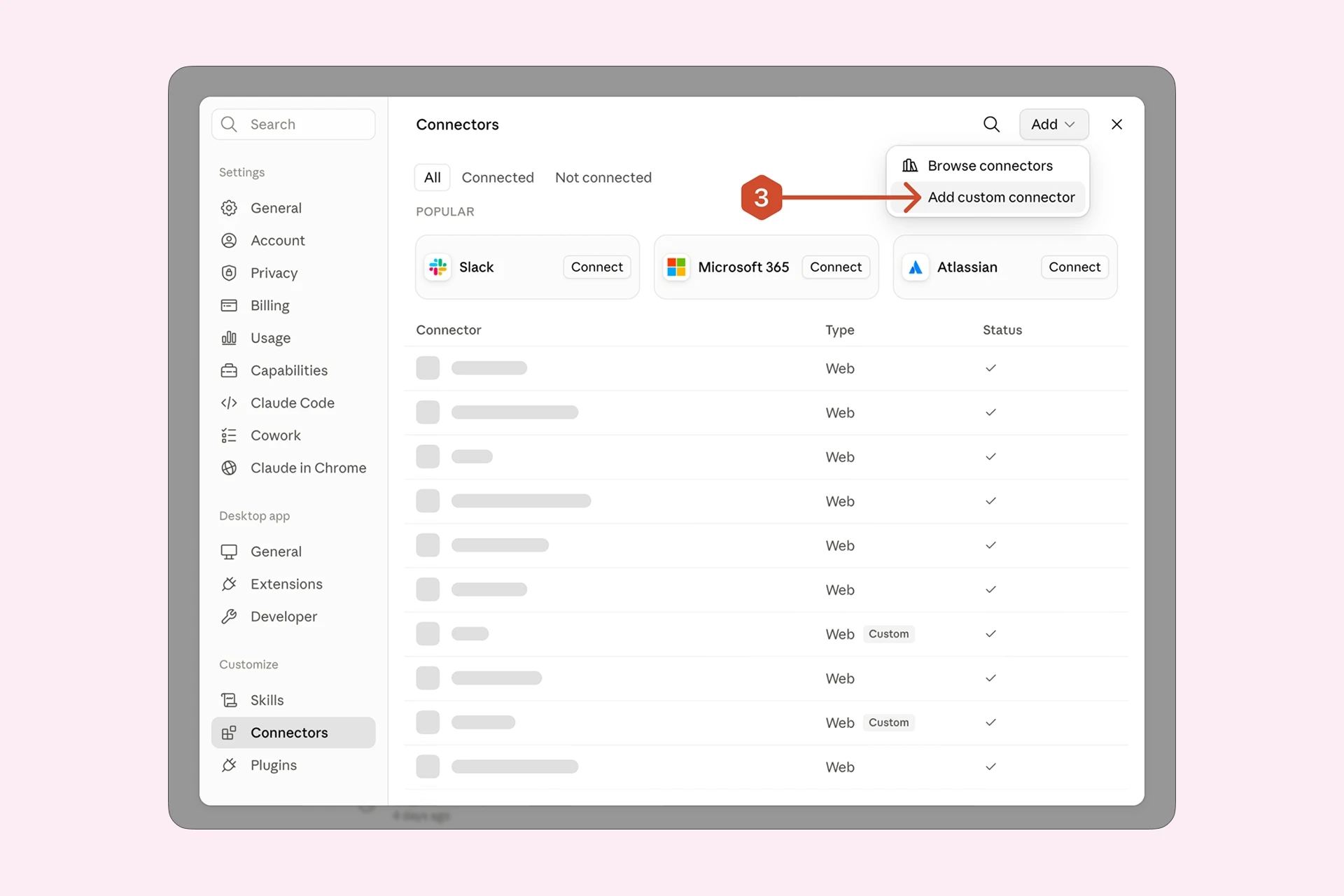
- Click your profile icon → Settings → Connectors.
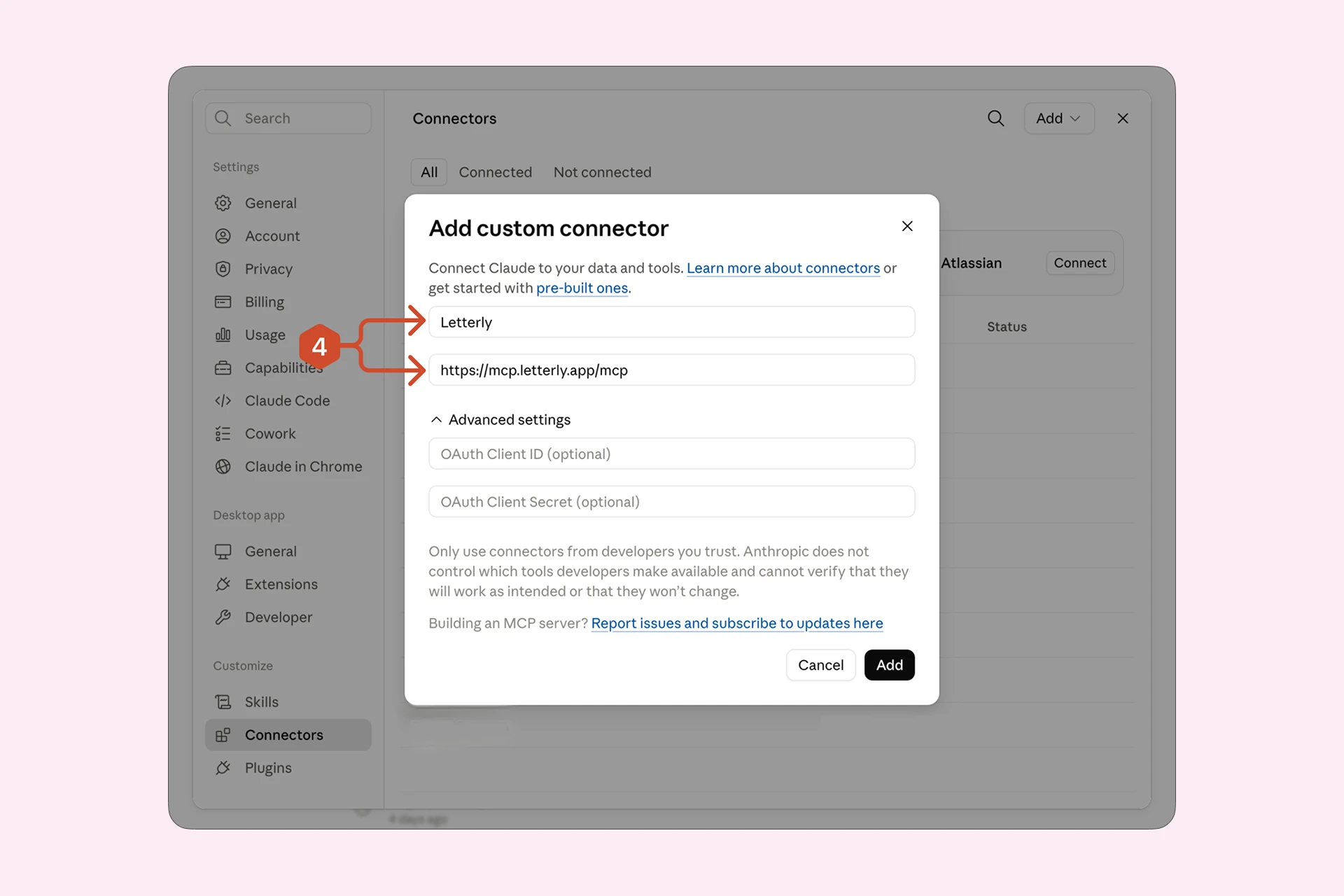
- Click Add custom connector.
- Paste the MCP endpoint:
https://mcp.letterly.app/mcp - Click Save and sign in to your Letterly account when prompted.
- Done! Start a new conversation and ask Claude about your notes.
Follow each step in the carousel:
What to try: real examples
Here’s where to start, just type one of these in your own words.
Search and browse
“Show me my notes from this week”
“Find all notes where I mentioned the product launch”
Create new notes
“Save a new note: follow up with the design team about the new dashboard layout”
Combine with Claude’s thinking
“Look at all my notes from the past month about the marketing strategy. Summarize the key themes and suggest what I should focus on next.”
P.S. I use the Letterly + Claude connection myself all the time. Here’s a quick example of how useful it can be. 👇
Whenever I talk to our customers, I use Letterly to capture their feedback, ideas, and small details that could help us improve the app. Recently, I simply asked Claude to summarise everything I’d recorded about Letterly feedback. A minute later, it had found all the relevant notes and turned them into a clear summary. No searching, copying, or sorting through notes manually.
Tips ✅
- Be specific with dates. Claude can filter notes by time. Try phrases like “this week,” “last Monday,” or “March 2026.”
- Reference notes by topic, not exact wording. Claude uses semantic search, so you do not need to remember the exact words. Just describe the idea.
- Chain actions. Ask Claude to find a note, rewrite it, and save the result as a new note, all in one message.
- Use your rewrite options. If you have created custom rewrite templates in Letterly, Claude can use them too. Just say, “Rewrite this using my ‘Blog Post’ option.”
Requirements
- A Letterly account.
- Custom connectors are available on Claude Pro, Max, Team, and Enterprise plans on web and Desktop apps. On Team or Enterprise, you may need a workspace admin to approve custom connectors.
Connect Letterly to Claude and turn your own notes into smarter, more personal AI conversations. 🤩
Got questions? Email us at hi@letterly.app — we’re happy to help.