


Dictation in 2025: What It Is, How It Helps, and Where to Start
We spend a huge part of our lives typing.
Work emails, messages to family and friends, personal notes, journals, grocery lists, essays, quick thoughts – it never really stops. And honestly, it can feel a bit overwhelming, right?
That’s where dictation comes in. In this article, we’ll walk through what dictation actually is, why you might need it, how it works, and how you can use it across different devices. Instead of pecking at your phone keyboard, your device could simply listen.
In one sentence, dictation is this: you speak, your device turns dictation speech into text. It’s no longer a niche accessibility feature, but a mainstream productivity tool that can make everyday writing easier and faster.
Let’s dive into the topic. 👇
What dictation is in 2025
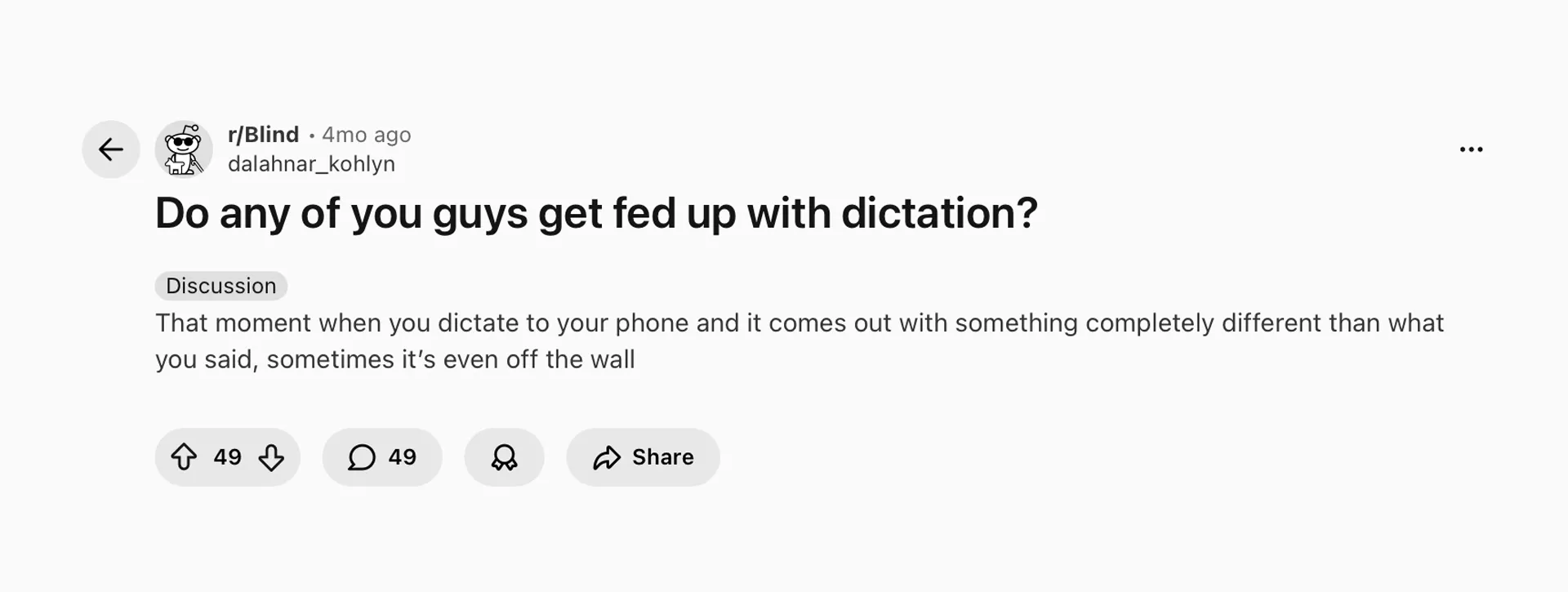
If you’ve ever dictated a message and watched your phone turn it into complete nonsense, you’re definitely not alone. People are regularly venting about this online and asking whether dictation is even worth the effort.
Let’s clear up the words first.
When you see dictation, speech-to-text, or voice typing, they all point to the same core idea: you talk, your device writes. The difference today is in how this is done. Classic voice typing was mostly about turning sounds into words on the screen. Modern AI dictation goes further – it doesn’t just hear individual words, it tries to understand context, sentence structure, and even where punctuation should go. That’s why the experience now feels much closer to real writing, not just raw speech dumped into a textbox.
How it works (high level)
On a technical level, the flow is simple:
You speak → your device captures the audio → an AI model processes it → text appears in your app.
Behind the scenes, this can happen in two main ways:
- Cloud-based recognition: your audio is sent to a server, processed there, and the text is sent back. This is usually more powerful and accurate, but depends on your internet connection and raises more privacy questions.
- On-device recognition: everything happens locally on your phone or laptop. This can be faster, more private, and sometimes works offline, though it may have a few more limitations depending on the device.
Most modern systems mix these approaches or let you choose.
What has improved in recent years

If you tried dictation years ago and hated it, it’s worth knowing what changed:
- Much better accuracy for everyday language, not just “perfect” textbook speech.
- Smarter punctuation and sentence boundaries – the system is better at deciding where a sentence ends, when to capitalise, and when to insert commas or periods.
- Longer, more natural speech: modern dictation can handle full monologues, stories, or explanations, not just short commands like “call mom” or “set a timer.”
- Deeper integration: dictation is now built into operating systems, note-taking apps, browsers, and productivity tools, so you can use your voice almost anywhere you usually type.
Why dictation helps: benefits beyond “typing faster”
Before we talk about tools and settings, it helps to understand why dictation is worth adding to your routine in the first place. Yes, it can make you “type” faster – but the real benefits go further: it changes how your body feels when you work, how easy it is to start writing, and how many ideas you actually manage to capture during the day.
| Aspect | Typing without dictation | Typing with dictation |
|---|---|---|
| Speed & productivity | Limited by your typing speed, especially slow on mobile; long emails and reports take time and effort. | You speak faster than you type; ideal for long emails, reports, and brainstorming sessions. |
| Health & ergonomics | Constant strain on wrists, shoulders, and neck; worse if you spend hours at the keyboard or have RSI. | Part of the work is offloaded to your voice, reducing repetitive strain and giving your body breaks. |
| Cognitive load & creativity | Staring at a blank screen can feel heavy and intimidating; harder to start messy drafts. | “Writing out loud” feels more natural; great for brain dumps, mind maps, and early rough drafts. |
| Real-life usage scenarios | Harder to type while walking, commuting, or waiting in line; many ideas get lost. | Easy to capture ideas on the go, record quick notes after meetings or calls, and avoid losing thoughts. |
Types of dictation tools in 2025
Not all dictation works the same way. In 2025 you’ll usually find it in three forms: the built-in mic on your device, dictation inside apps you already use, and dedicated AI dictation / voice-note apps. All three turn your speech into text, but they feel very different in practice. Built-in tools are great when you just want something quick and free. Dictation inside Google Docs or note apps is convenient when you’re already working in that space. And dedicated AI dictation apps are closer to a full workflow: they help you organise notes, use templates, and reshape raw dictation into polished writing.
| Aspect | Built-in dictation | Dictation in familiar apps | Dedicated dictation & voice-note apps |
|---|---|---|---|
| Always available on your device | ✅ | ❌ | ✅ |
| Free to use | ✅ | ✅ | ❌ |
| Works in most apps | ✅ | ❌ | depends |
| Lives where you already write (Docs, notes) | ❌ | depends | ❌ |
| Good for long-form documents | ❌ | depends | ✅ |
| Templates (email, blog post, summary, etc.) | ❌ | ❌ | ✅ |
| Organising many notes / transcripts | ❌ | ❌ | ✅ |
| Extra editing / summarising / rewriting | ❌ | ❌ | ✅ |
| Customisation and workflow features | ❌ | ❌ | ✅ |
| Best for quick, casual use | ✅ | ✅ | ✅ |
| Best for heavy, daily dictation | ❌ | depends | ✅ |
Getting started: a simple step-by-step plan
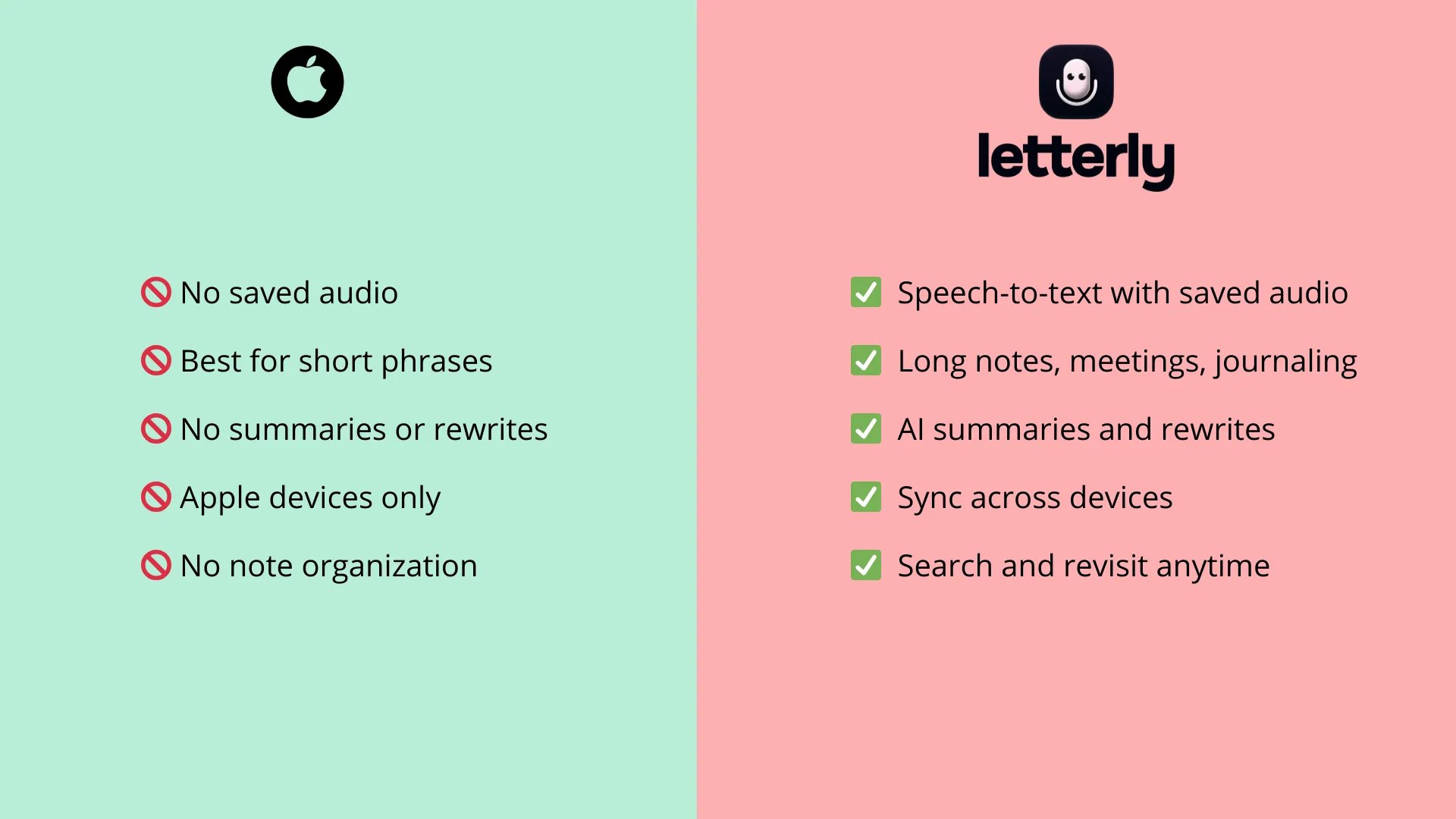
If you’ve only used Mac’s built-in dictation, Letterly will feel familiar, but it’s made for capturing and keeping longer thoughts, not just typing a quick sentence. Here’s the difference at a glance so you know what changes when you switch.
1. Open Letterly and start your first recording
The easiest way to learn dictation in Letterly is to just… use it.
Working with Letterly is super intuitive, so it won’t be difficult for you:
- Open Notes, Pages, Mail, or your favorite text editor.
- Click where you want to start typing.
- Use your dictation shortcut.
- Wait for the little microphone icon to show up.
- Start speaking.
You’ll immediately see the raw transcript, which you can then clean up or rewrite with one tap.
2. Use basic “dictation habits” + Letterly rewrites
You can use Letterly Dictation on Mac right now, but you also can discover some cool features across other devices as well… Letterly Dictation will give you solid, polished transcript, but you can go beyond that and improve it more for example by using rewrite options:
- Apply a rewrite like “Casual Email”, “Formal Email”, or “Format & Tone”
- Let Letterly clean structure, wording, and flow for you
So you can focus more on getting the ideas out, and less on micro-managing commas.
Common myths about dictation
Myth: “If it isn’t perfect raw, it’s useless”
- Why even typed text needs editing.
- Dictation’s job is speed and flow, not perfection.
Mistake: trying once in a noisy place and giving up
- Importance of environment and microphone.
- How a quiet spot or a better mic changes everything.
Myth: “Dictation is only for people who can’t type”
- How professionals, writers, and creators use AI dictation to boost productivity.
Mistake: speaking in chaotic, unstructured monologues
- Why dictation amplifies disorganised thinking.
- Simple fixes: mental outline, smaller chunks, mini-pauses.
I hope Letterly becomes your go-to companion for dictation on your Mac — and for everything you write day to day. 🥳
Got questions? Email us at hi@letterly.app – we’re happy to help.